



 Minecraft Bedrock
Whether you want to run the newest Bedrock release or stay on a specific version for compatibility, you can change your Bedrock server version in just a few minutes. This guide shows you how to pick the right version number, apply it, and fix the most common problems players run into afterward. You can find every release and its changelog here.
Step 1: Choose Your Version
The "Bedrock Version" setting accepts two kinds of values:
latest: the newest stable Bedrock server release available at the moment you reinstall your server in Step 3. This is the best choice for most servers.- A specific version number: useful if you want to stay on the version your world already uses, or if an add-on you rely on has not been updated yet.
Version numbers changed in 2026. Minecraft now numbers its releases by year, so recent Bedrock updates are called things like 26.50 or 26.52 in the game and in the changelogs. The server version you type into the panel is the full four-part number, and it still starts with 1. For example, Bedrock 26.52 uses server version 1.26.52.3. Each release page on the Minecraft Wiki (for example Bedrock Edition 26.52) lists the matching server version.
Step 2: Set the Version in Your Panel
- Log into your MintServers game panel.
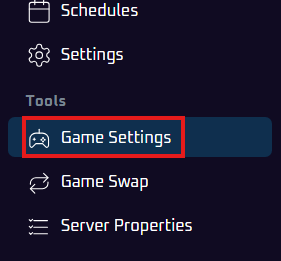
- On the left-side menu, click on "Game Settings".
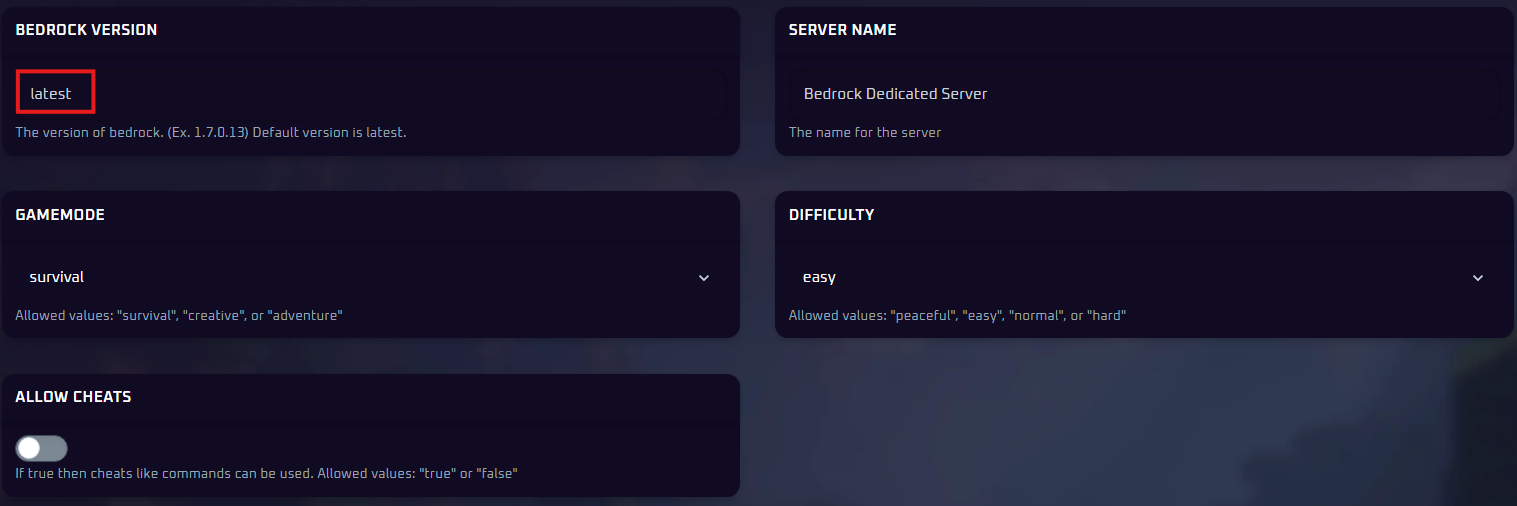
- Find the "Bedrock Version" setting.
- Type
latest, or type the full server version number you want to use (for example,1.26.52.3).
Step 3: Reinstall the Server
Changing the setting does not download anything by itself. The reinstall is what downloads the version you chose. It replaces the server software without deleting your world data, but make sure you have a backup first. If you use latest, run the reinstall again whenever you want to move to a newer release.
- Go to the "Console" tab and stop your server.
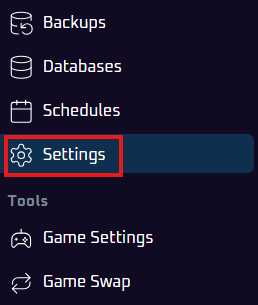
- On the left-side menu, click on "Settings".
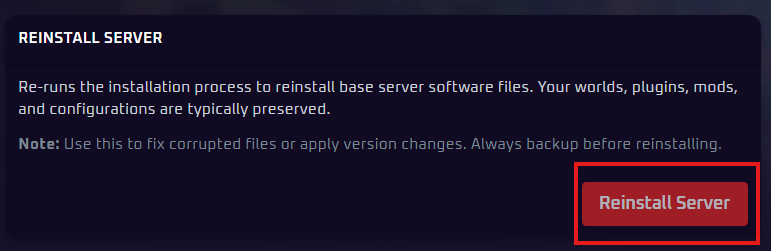
- Locate and click the "Reinstall Server" button.
- Confirm the action if prompted. This will download and install the base server files for the version you selected in Step 2.
Step 4: Start Your Server and Check the Version
Once the reinstall process is complete:
- Go back to the "Console" tab.
- Start your server.
- Watch the console while the server starts up. The startup lines show the server version, so you can confirm it matches the one you chose.
Players also need to be on a matching game version to join. Minecraft normally updates itself on players' devices, but your server only changes when you change it. If the two do not match, players will see an "Outdated Server" or "Outdated Client" message (see Troubleshooting below).
Fix: Players Can't Join After Updating to 26.50 or Newer
Bedrock 26.50 changed how dedicated servers accept connections. Mojang made a new connection method called NetherNet the default, replacing the older RakNet method. On some networks and devices the new method can stop players from joining. Switching your server back to RakNet fixes this in most cases.
- Go to the "Console" tab and stop your server.
- Open the "Files" tab and click on the
server.propertiesfile. - Find the line that starts with
transport=and change it so it readstransport=raknet. If there is notransportline in the file, add it on a new line. - Save the file, then go back to the "Console" tab and start your server.
Mojang is removing RakNet completely in Minecraft 26.60, so this setting will stop being available once your server updates to that version. If players cannot join after that update, open a support ticket and our team will help you get connected.
🛠️ Troubleshooting Version Issues
"Outdated Server" when joining:The player's game is newer than your server. Set the Bedrock Version tolatestand run the reinstall again (Steps 2 and 3)."Outdated Client" when joining:The player's game is older than your server. Ask them to update Minecraft, or set your server to the version they are running.Versions match but players still can't join:If your server is on 26.50 or newer, follow the NetherNet fix above. Also see our guide on how to join a Minecraft Bedrock server.The reinstall fails or the server won't start:Double-check the version number for typos and make sure you typed the full four-part number. If you are unsure, set the version back tolatestand reinstall again.World won't load or looks wrong after going to an older version:Worlds cannot be safely downgraded. Stop your server and restore the backup you made before the update.
Your Bedrock server is now running the version you selected. If anything does not look right or you get stuck on any of these steps, no worries! Just open a support ticket and our team will gladly jump in and get it sorted out together.