


 Minecraft Bedrock
Move your Bedrock server to the newest release, or lock it to a specific version. It only takes a few minutes!
⚠️ Important Warning:
Make a backup first! Updating keeps your world, but going back to an older version can corrupt it. To go back, restore a backup made before the update.
Make a backup first! Updating keeps your world, but going back to an older version can corrupt it. To go back, restore a backup made before the update.
🔢
1. Pick
Choose your version
✏️
2. Set
Type it in Startup Variables
🔄
3. Reinstall
Reinstall your server
▶️
4. Start
Start and check the version
Step 1: Choose Your Version
latest
The newest stable release. Best for most servers.
1.26.52.3
A specific version. Use it to stay on your world's version, or if an add-on is not updated yet.
📝 Reading Version Numbers:
Since 2026, Minecraft names updates by year, like 26.52. In the panel, type the full four-part server version, which still starts with
1.
Example: Bedrock 26.52 is
1.26.52.3 in the panel.Find the matching number on each release's Minecraft Wiki page, or browse the official changelogs.
💡 Pro Tip:
Using add-ons? Packs often need a few days to catch up after a big update. Check they support the new version first. See how to add Bedrock behavior packs.
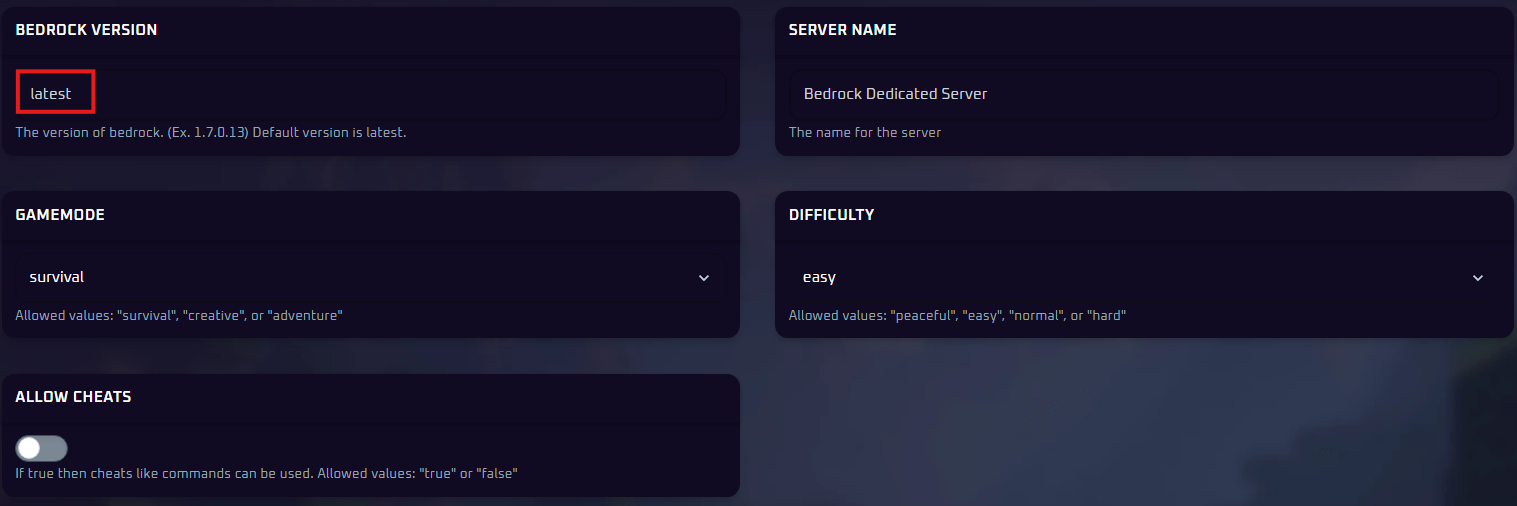
Step 2: Set the Version in Your Panel
- In the left sidebar, open
Bedrock Settingsand clickStartup Variables.
- Find
Bedrock Versionand typelatestor a full version number like1.26.52.3.
Step 3: Reinstall Your Server
Changing the setting does not download anything. Reinstalling does, and your world is kept.
- On the
Consolepage, clickStop. - In the left menu, click
Settings.
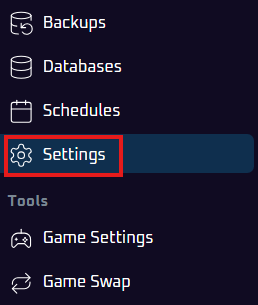
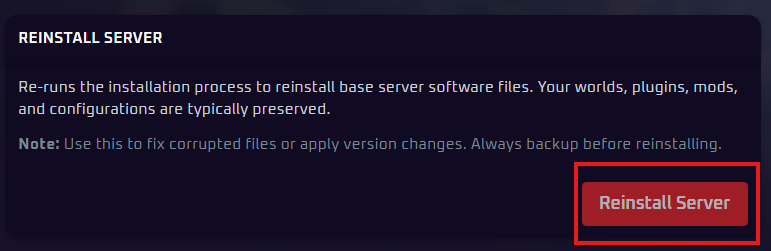
- Click
Reinstall Serverand confirm.
💡 Pro Tip:
Using
latest? Just reinstall again whenever a new version comes out.
Step 4: Start Your Server
Go to the Console tab and click Start. The startup lines show your server version, so you can check it matches.
Players need the same game version as your server to join. Their game updates itself, but your server only changes when you change it.
Fix: Players Cannot Join on 26.50 or Newer
Bedrock 26.50 switched servers to a new connection method called NetherNet, which blocks some players. Switching back to the older RakNet method fixes it in most cases.
- On the
Consolepage, clickStop. - In the left sidebar, open
Bedrock Settingsand clickServer Properties. - Find
Transport(type "transport" intoSearch Settingsto jump to it) and change it fromnethernettoraknet.
Transport
raknet
- Click
Start.
📝 This Is a Temporary Fix:
Mojang removes RakNet in 26.60, so this setting stops working on that version. If players cannot join after that, open a support ticket and we will help you get connected.
🛠️ Troubleshooting Tips
- "Outdated Server"? The player's game is newer. Set
Bedrock Versiontolatestand reinstall (Steps 2 and 3). - "Outdated Client"? The player's game is older. Ask them to update Minecraft, or set your server to their version.
- Versions match but players still cannot join? On 26.50 or newer, use the NetherNet fix above. Also see how to join a Bedrock server.
- Reinstall failed or the server will not start? Check the version number for typos and use all four parts. Not sure? Set it back to
latestand reinstall. - World broken after going to an older version? Worlds cannot be safely downgraded. Stop your server and restore your backup.
Still stuck? No worries! Just open a support ticket and our team will gladly jump in and help.