



 Enshrouded
Enshrouded recently introduced a fantastic new way to manage who can do what on your server. Instead of sharing a single password with everyone, you can now divide players into specific groups: Admin, Friend, and Guest.
This group system is a game-changer! It means you can let visitors explore your world as Guests without ever worrying about them griefing your base or taking items out of your chests. Let us get your roles configured so your realm stays perfectly safe.
Method 1: Setting Passwords via Game Settings (The Easy Way)
If you just want to quickly set up passwords for the different tiers without worrying about the underlying code, you can do this directly from our panel interface!
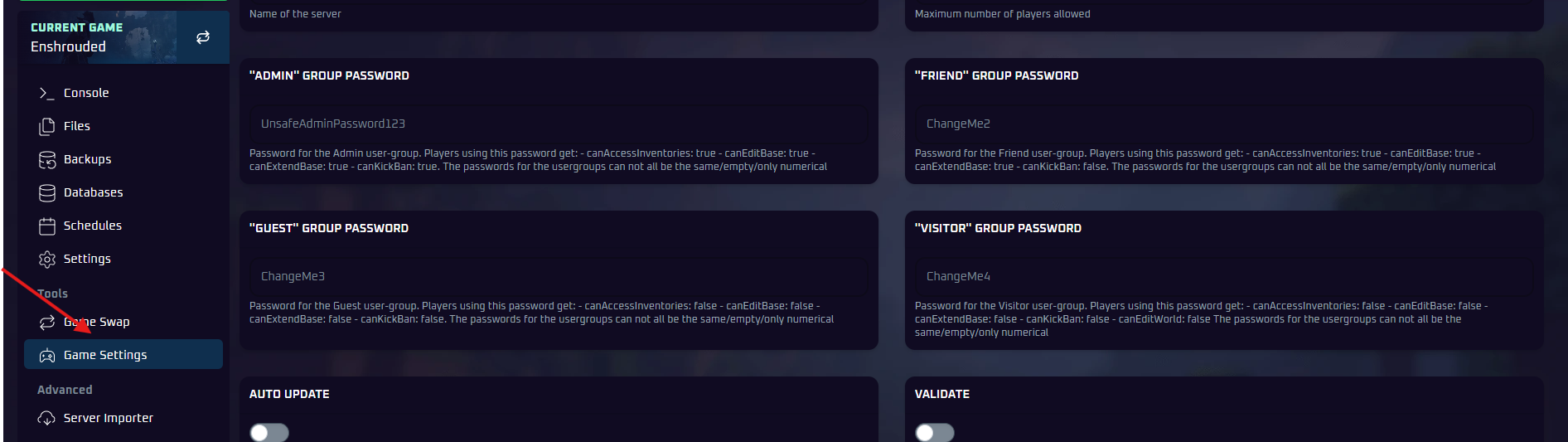
- Log into your MintServers panel and click the Stop button to safely shut down your server.
- On the left-hand sidebar, navigate to the Game Settings tab.
- Scroll down until you locate the separate password fields for the Admin Password, Friend Password, and Guest Password.
- Type in a unique password for the roles you want to use. If you want your server to be completely public for visitors, you can leave the Guest Password blank!
- The panel automatically saves these changes as soon as you click outside the text box.
- Return to the Console tab and click Start.
Method 2: Advanced Permissions and Reserved Slots
If you want to fine-tune exactly what each group can do, or if you want to guarantee that your admins always have a spot to join even if the server is full, we need to dive into the configuration file.
- With your server stopped, click on the Files tab on the left-hand sidebar.
- Locate and click on the
enshrouded_server.jsonfile to open the text editor. - Look for the section labeled
"userGroups". Inside, you will see the configuration blocks for Admin, Friend, and Guest.
- Change the true or false values to customize the permissions for each group.
- Adjust the
"reservedSlots"numbers. Reserved slots hold a space on your server exclusively for players who enter that specific password. (For example, if your server holds 16 players, and you set 2 reserved slots for Friends, regular Guests will only be able to fill up 14 of those slots.) - Click the Save Content button at the top right, then start your server!
ℹ️ Understanding the Permission Flags
Not sure what to enable or disable? Here is exactly what each permission flag controls in-game:
canKickBan: Allows the player to remove or permanently ban other players from the server. This should generally only be set to true for the Admin group.canEditBase: Allows the player to build, destroy, and alter the terrain inside the boundary of any Flame Altar. If set to false, the player can explore but cannot damage or build in your established camps.canAccessInventories: Allows the player to open storage chests and take or deposit items. Setting this to false for Guests is the best way to prevent your hard-earned loot from being stolen!
If you have configured your file but the permissions do not seem to be applying correctly in-game, double-check your JSON file to ensure there are no missing commas or quotation marks. If you are ever stuck or want a hand getting your group settings perfectly dialed in, no worries! Just open a support ticket and we will gladly jump in and instruct you on how to get it updated.