



 Enshrouded
Running your own Enshrouded server gives you complete control over your world! Whether you want a relaxed base-building experience, a hardcore survival challenge, or just want to change your server's name and player slots, it can all be tweaked.
While some of your basic options are available directly in our panel's Game Settings menu, the real customization happens inside the server's configuration file. Let us dive into the details so you can fine-tune your realm!
Always make sure your server is completely stopped on your MintServers panel before making any edits. If you edit the file while the server is running, the game will overwrite your changes when it shuts down!
Step 1: Check Your Game Settings Tab
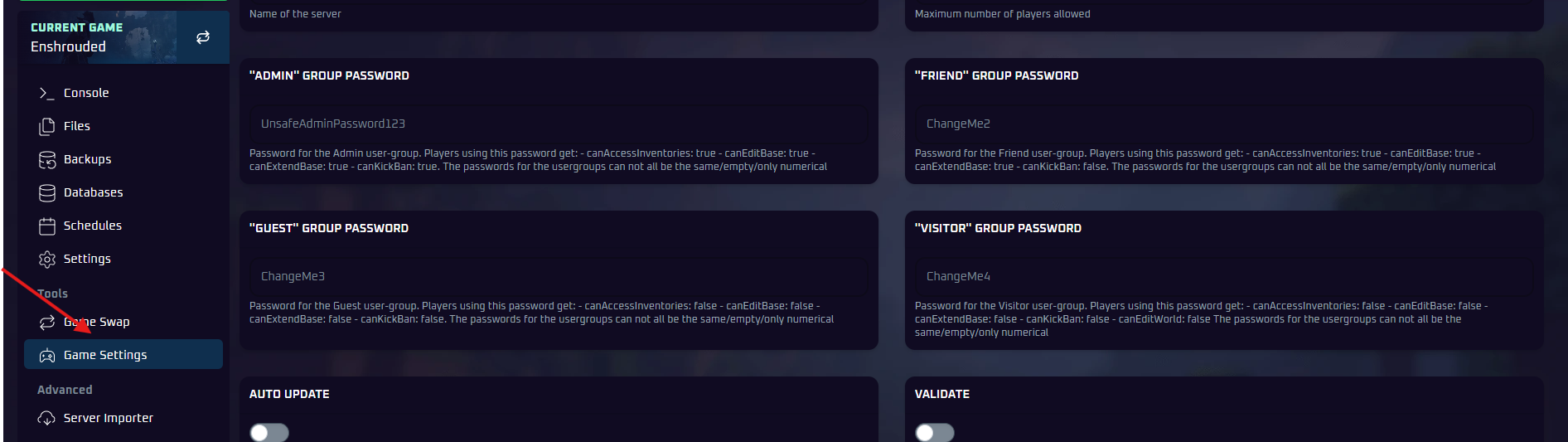
Before digging into the code, check the Game Settings tab on the left-hand sidebar of your MintServers panel. You can quickly change basic configurations like your Admin/Friend/Guest passwords, and adjust your Server Name directly from this menu without touching a single file!
Step 2: Accessing the Configuration File
If you want to change the game's difficulty, adjust the day/night game speed, or tweak specific mechanics like player slots, we need to open the main configuration file.
- Click the Stop button to shut down your server safely.
- Navigate to the Files tab on the left-hand sidebar.
- Navigate to the following folder path to locate your configuration file:
📁 server (main server directory)
Note: If you do not see this file, it means your server hasn't booted up yet. Simply Start the server for two minutes, Stop it, and the file will generate automatically!

Step 3: Understanding Difficulty Presets
Enshrouded uses a powerful preset system. Near the top of your JSON file, look for the line that says "gameSettingsPreset": "Default". You can change "Default" to any of the following options to instantly change dozens of mechanics:
- Default: The standard vanilla experience. Balanced enemies, normal resource rates, and no hunger penalties.
- Relaxed: Fewer enemies and more loot! Perfect for players who just want to explore and build massive bases without stress.
- Hard: More enemies with increased aggression. Great for veteran groups looking for tougher combat.
- Survival: Enables starvation debuffs, harsher death penalties, and tougher enemies. The ultimate hardcore mode!
- Custom: This is the most important one! If you want to tweak individual settings manually (like game speed or weapon durability), you must change the preset to "Custom". If you leave it on Default, the game will completely ignore your individual tweaks!
Step 4: Custom Settings Explained
If you set your preset to "Custom", you can change the individual values found under the "gameSettings" section of the file. Here are some of the most popular options you can safely tweak:
"name": The display name of your server on the public browser."slotCount": The maximum number of players allowed on the server at once (maximum of 16)."dayTimeDuration"/"nightTimeDuration": The game speed and length of the day/night cycle. (Note: These are calculated in nanoseconds!)"playerHealthFactor"/"playerStaminaFactor": Multiplies player stats. Setting it to2gives you 200% health or stamina!"enableDurability": Change tofalseto prevent your weapons and tools from ever breaking."enableStarvingDebuff": Change totrueif you want players to slowly lose health when they forget to eat."enemyDamageFactor": Lower this below1to make enemies hit softer, or raise it to make them hit harder!
Step 5: Save and Boot Up
- Double-check your code to make sure you did not accidentally delete any quotation marks or commas.
- Click the Save Content button at the top right of the file editor.
- Navigate to the Console tab and click Start.
Your server will now boot up with your custom rules applied!
🛠️ Troubleshooting Configuration
Settings wiped back to default: A single missing comma or bracket will cause the server to completely wipe the file back to default! Double-check your JSON file for formatting syntax errors.
No worries if your server is still being stubborn and refusing to save your edits! Just open a support ticket and I (Jben) or our team will gladly jump in and instruct you on how to resolve the configuration together.