


 Minecraft Bedrock
Move your Bedrock Realms world to your own server, with all your builds and items. Download it from Realms, export it, then drop it into your panel!
ℹ️ Before You Start
This is for Bedrock Realms only (Java Realms worlds will not work). You must be the Realm owner to download the world.
This is for Bedrock Realms only (Java Realms worlds will not work). You must be the Realm owner to download the world.
1. Download
Download from Realms
2. Export
Export as .mcworld
3. Drop
Drag into Bedrock Addons
4. Default
Set as default world
▶
5. Start
Start your server
Step 1: Download Your World From Realms
01
In Minecraft, click
Play, then the pencil icon (Edit) next to your Realm.02
Pick the world you want and click
Edit World.03
Scroll down and click
Download World.04
When it finishes, a copy shows up in your
Worlds tab.Step 2: Export It as a .mcworld File
01
In the
Worlds tab, click the pencil icon next to the world you downloaded.02
Scroll down and click
Export World.03
Save the
.mcworld file somewhere easy to find, like your Desktop.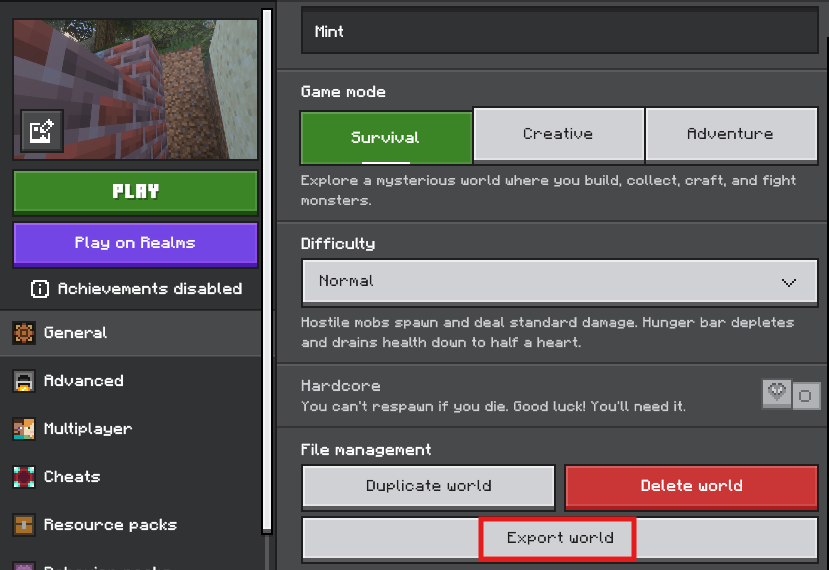
💡 Tip
No
No
Export World button? It may be missing on mobile or console. Try again on a Windows PC signed in to the same Microsoft account.
Step 3: Drop It Into Bedrock Addons
01
On the
Console page, click Stop.02
In the left sidebar, under
Tools, click Bedrock Addons.03
Drag your
.mcworld file onto the Install your own addons box, or click Browse Files and pick it.04
Wait for
Installed 1 item. Remember the world name shown under it.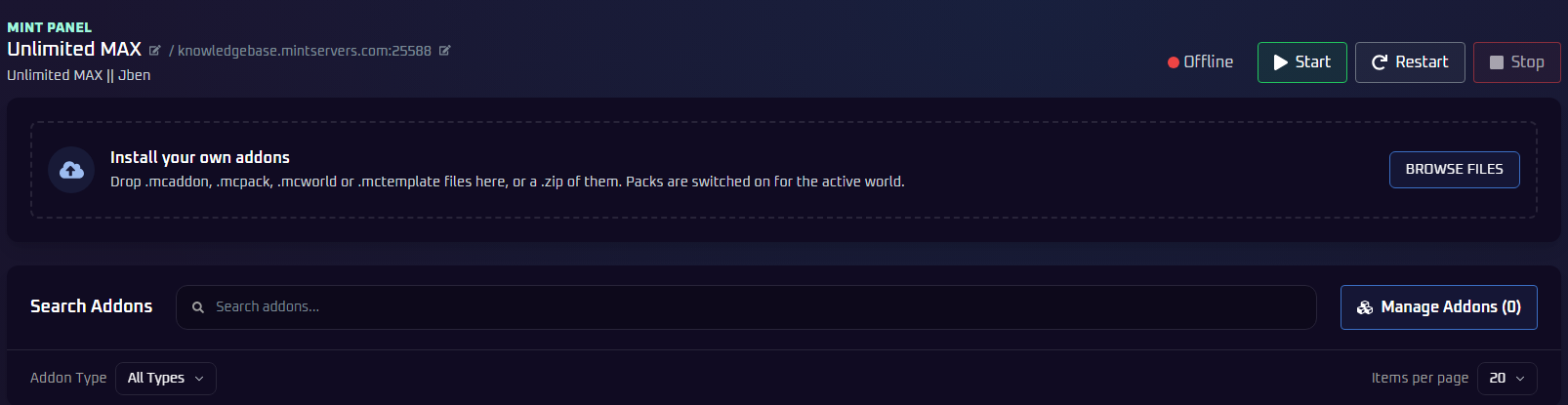
💡 Tip
Already have a world with that name? No worries! The new one is renamed automatically, like
Already have a world with that name? No worries! The new one is renamed automatically, like
Mint (2), instead of replacing the old one.
ℹ️ Very Large World?
If the upload struggles, use the manual method in the Bedrock world upload guide in Related Guides below, with SFTP for the transfer.
If the upload struggles, use the manual method in the Bedrock world upload guide in Related Guides below, with SFTP for the transfer.
Step 4: Set It as Your Default World
⚠️ Do Not Skip This Step
Your server will not play your world until it is set as default.
Your server will not play your world until it is set as default.
01
Click
Manage Addons at the top right.02
Open the
Worlds tab.03
Click the star (
Set as default) next to your Realms world. A green Default badge appears.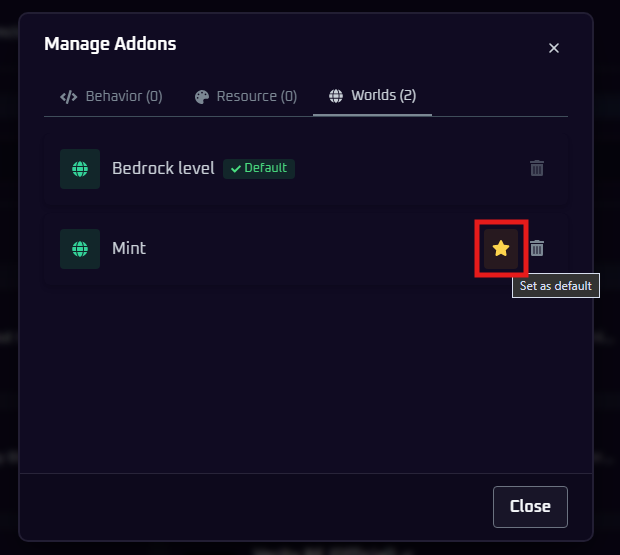
💡 Tip
Your other worlds stay in the list. Click their star to switch back anytime. The trash icon deletes a world, so be careful!
Your other worlds stay in the list. Click their star to switch back anytime. The trash icon deletes a world, so be careful!
Step 5: Start Your Server
Click Start. Join your server and you will spawn right back into your Realms world. Have fun!
Related Guides
How to Upload a Minecraft Bedrock World
Manual upload method for very large worlds that struggle with drag and drop.
Manual upload method for very large worlds that struggle with drag and drop.
🛠️ Troubleshooting Tips
No Download World button? Only the Realm owner can download it. Sign in with the owner's Microsoft account and scroll all the way down.
No Export World button? It is in the settings of the world you downloaded, not the Realm. Still missing? Try a Windows PC.
File not accepted? Make sure it ends in
.mcworld.Server loads a different or empty world? Set your Realms world as default (Step 4), then start your server.
Java Realms world? Java and Bedrock worlds are not compatible, so it cannot be used on a Bedrock server.
Still stuck?
Our team is happy to help. Open a ticket through the live chat button in the bottom-right corner of our website, or join our Discord and open a ticket there.
Join our Discord