


 Minecraft Bedrock
Move your Bedrock Realms world to your own server, with all your builds and items. Download it from Realms, export it, then drop it into your panel!
📝 Before You Start:
This is for Bedrock Realms only (Java Realms worlds will not work). You must be the Realm owner to download the world.
☁️
1. Download
Download from Realms
📤
2. Export
Export as .mcworld
📦
3. Drop
Drag into Bedrock Addons
⭐
4. Default
Set as default world
▶️
5. Start
Start your server
Step 1: Download Your World From Realms
- In Minecraft, click
Play, then the pencil icon (Edit) next to your Realm. - Pick the world you want and click
Edit World. - Scroll down and click
Download World. - When it finishes, a copy shows up in your
Worldstab.
Step 2: Export It as a .mcworld File
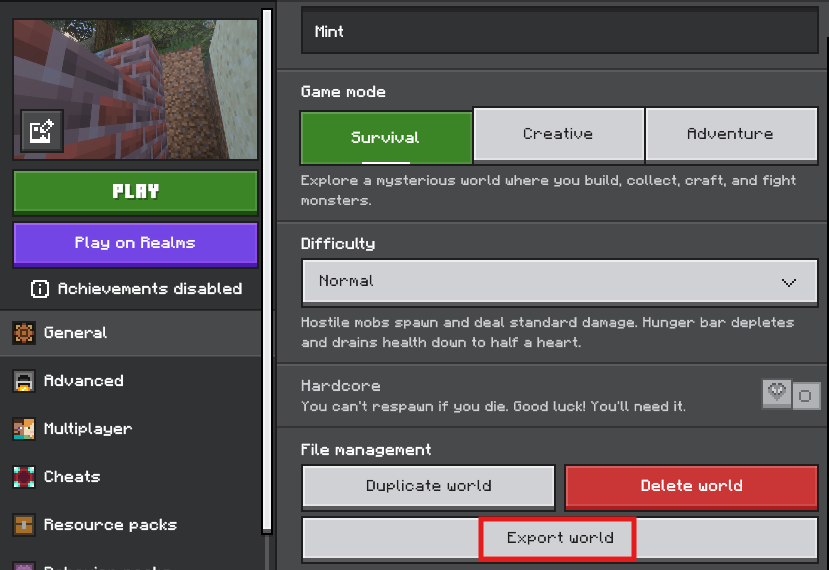
- In the
Worldstab, click the pencil icon next to the world you downloaded. - Scroll down and click
Export World. - Save the
.mcworldfile somewhere easy to find, like your Desktop.
💡 Pro Tip:
No
Export World button? It may be missing on mobile or console. Try again on a Windows PC signed in to the same Microsoft account.
Step 3: Drop It Into Bedrock Addons
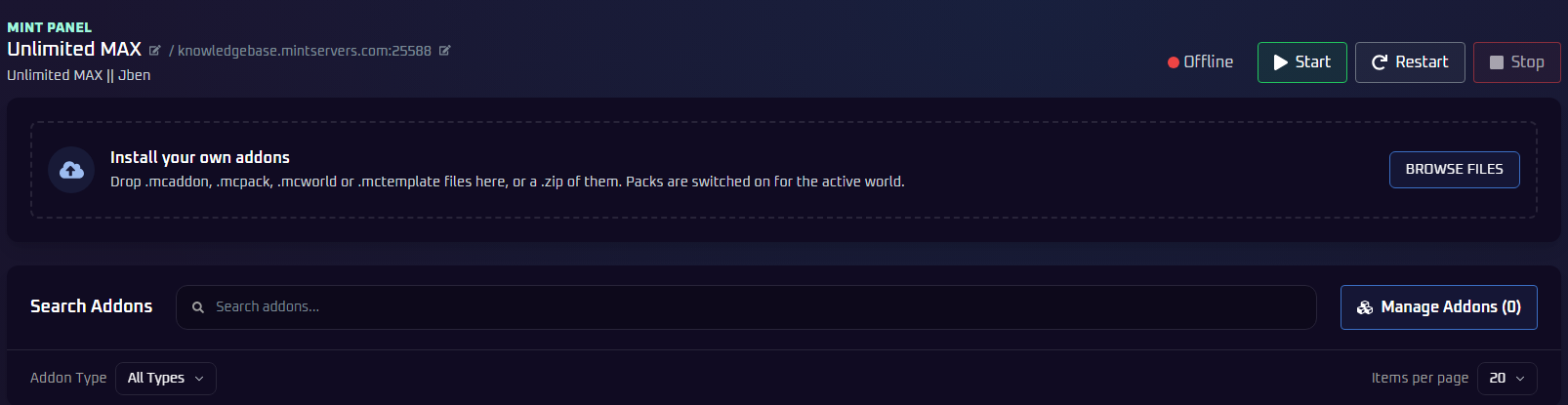
- On the
Consolepage, clickStop. - In the left sidebar, under
Tools, clickBedrock Addons. - Drag your
.mcworldfile onto theInstall your own addonsbox, or clickBrowse Filesand pick it. - Wait for
Installed 1 item. Remember the world name shown under it.
💡 Pro Tip:
Already have a world with that name? No worries! The new one is renamed automatically, like
Mint (2), instead of replacing the old one.
📝 Very Large World?
If the upload struggles, use the manual method in our guide to uploading a Bedrock world, with SFTP for the transfer.
Step 4: Set It as Your Default World
⚠️ Do Not Skip This Step:
Your server will not play your world until it is set as default.
Your server will not play your world until it is set as default.
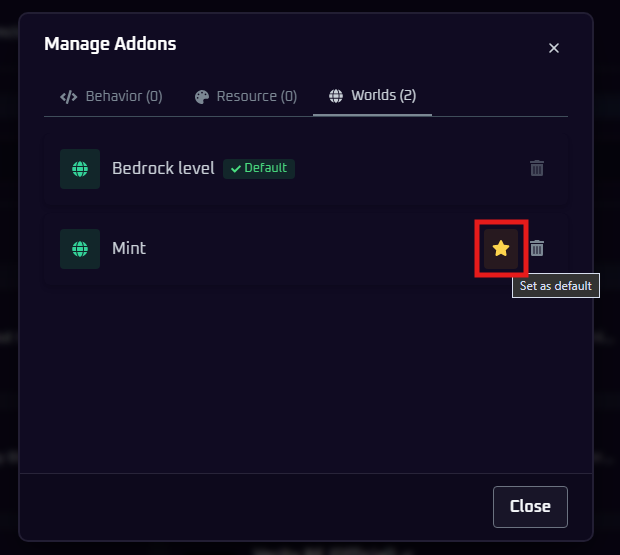
- Click
Manage Addonsat the top right. - Open the
Worldstab. - Click the star (
Set as default) next to your Realms world. A greenDefaultbadge appears.
💡 Pro Tip:
Your other worlds stay in the list. Click their star to switch back anytime. The trash icon deletes a world, so be careful!
Step 5: Start Your Server
Click Start. Join your server and you will spawn right back into your Realms world. Have fun!
🛠️ Troubleshooting Tips
- No Download World button? Only the Realm owner can download it. Sign in with the owner's Microsoft account and scroll all the way down.
- No Export World button? It is in the settings of the world you downloaded, not the Realm. Still missing? Try a Windows PC.
- File not accepted? Make sure it ends in
.mcworld. - Server loads a different or empty world? Set your Realms world as default (Step 4), then start your server.
- Java Realms world? Java and Bedrock worlds are not compatible, so it cannot be used on a Bedrock server.
Still stuck? No worries! Just open a support ticket and our team will gladly jump in and help.