



 Unturned
Unturned is a popular zombie survival sandbox game that is perfect for multiplayer adventures with friends. Whether you are hosting your own Unturned server for survival gameplay or connecting to an existing one, joining your server is incredibly simple using the built-in Server Code feature.
This guide will walk you through accessing your hosted server code and connecting to start your zombie survival adventure. Let us get your squad connected!
Step 1: Access Your Server Code
Before launching the game, you will need to grab your unique Server Code from your server console.
- Navigate to the MintServers Dashboard at
https://mintservers.com/dashboardand log into your account. - Click on your Unturned server from the server list and select Open Game Panel.
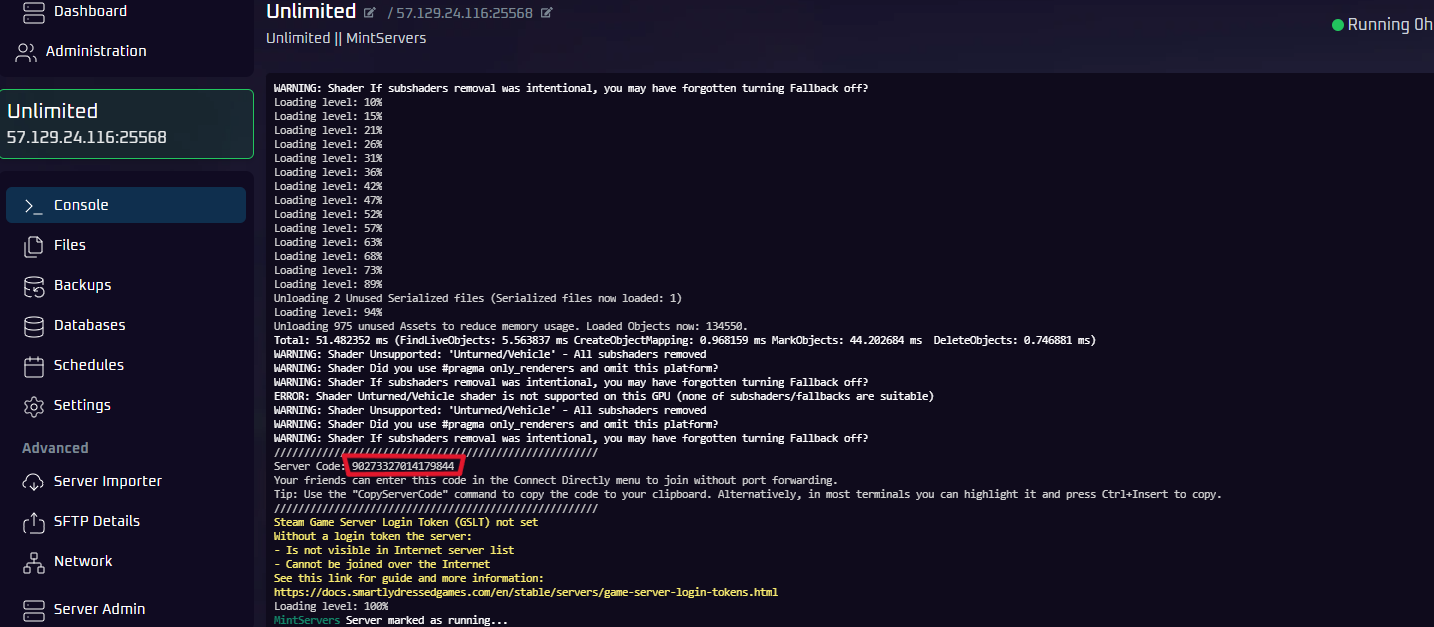
- Navigate to the Console tab. After your Unturned server fully starts up, you will see gray text outputting a Server Code.
- Highlight and copy just the numerical Server Code (For example:
90273327014179844).

Step 2: Launch Unturned and Select Play
- Open the Unturned game on your computer.
- From the Unturned main menu, click the Play button.
- Next, select the Multiplayer option.


Step 3: Select Connect Directly
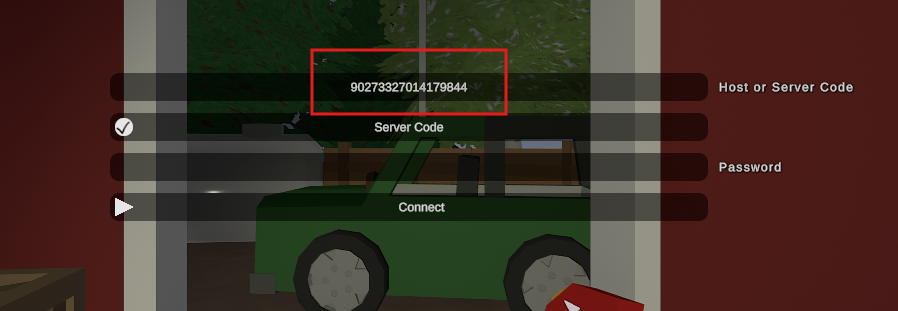
From the multiplayer menu, select Connect Directly to access the server code connection interface.

Step 4: Enter Server Code and Connect
- At the very top of the connection screen, paste the Server Code you copied from Step 1 into the field that says Host Or Server Code.
- Click Connect at the bottom to join your Unturned server and begin your survival experience!
🛠️ Troubleshooting Connection Issues
- Server Offline: Ensure your server is actually running and shows as "Online" in the MintServers game panel before trying to connect.
- Typo in Code: Double-check that you copied the correct Server Code and didn't accidentally include any spaces or letters. Make sure you are putting it in the "Host Or Server Code" field!
- Version Mismatch: Verify you have the latest version of Unturned installed through Steam and that it matches your server's version.
- Server Full: Check that the server is not full or temporarily unavailable due to a restart.
If you have checked all of the troubleshooting steps above and your game is still unable to connect, no worries! Just open a support ticket and our team will gladly jump in and help you get connected to your world.