


 HumanitZ
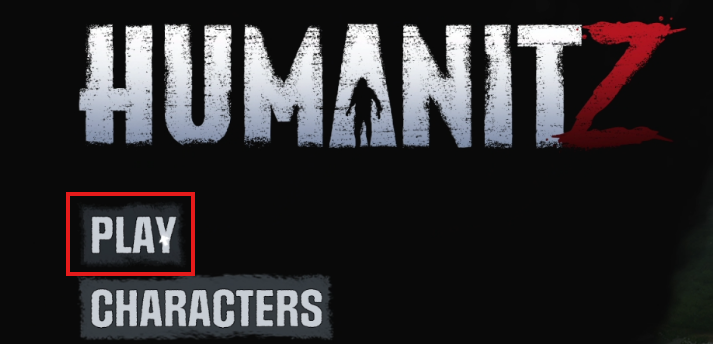
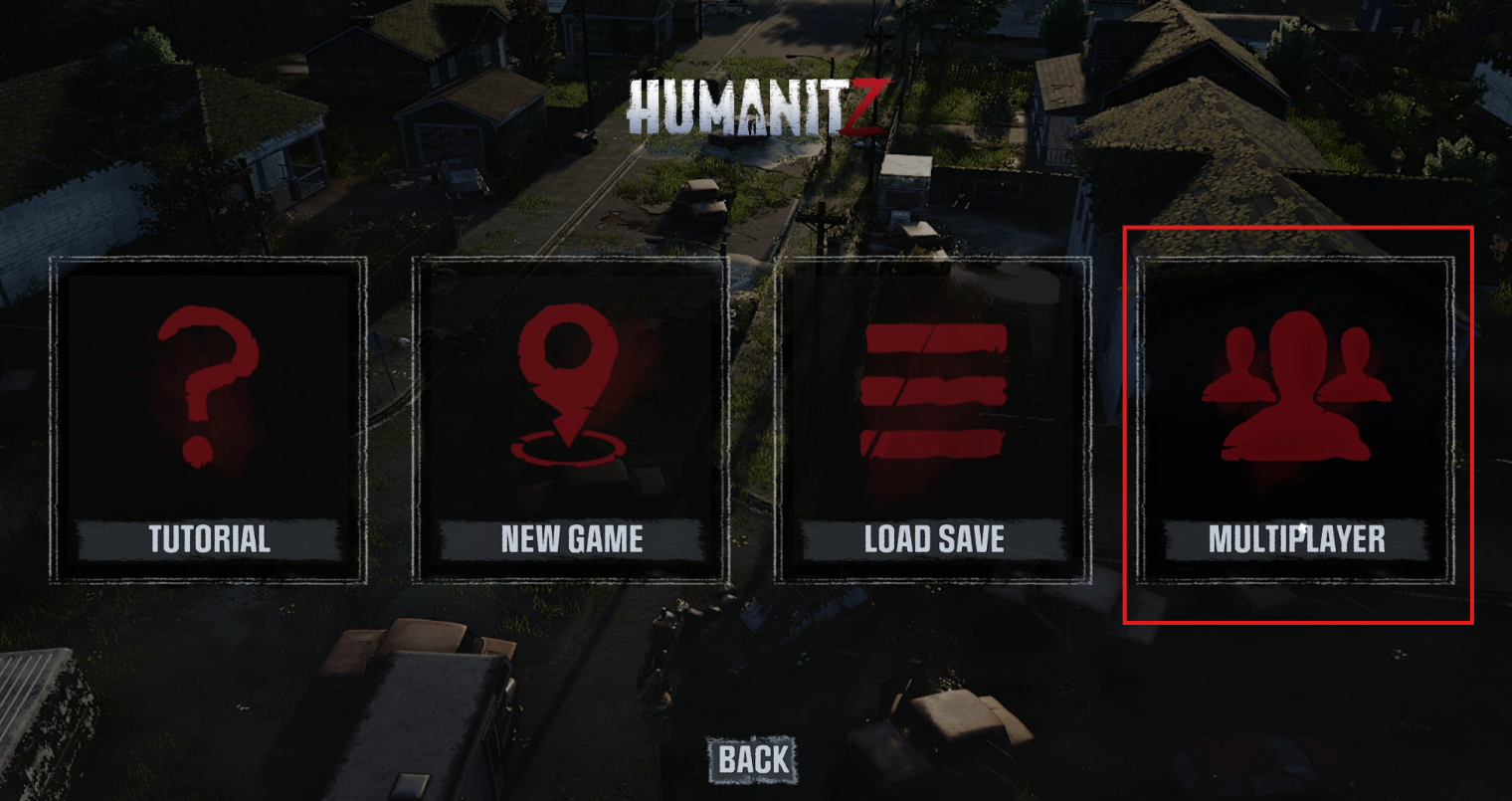
Ready to jump into your HumanitZ server? This guide shows you how to find your server in the in-game server browser, or connect directly using your server's IP address and port.
Before you try to join, make sure your server shows as Online in your MintServers panel. If it is Offline, click Start and wait for it to finish booting first.
Joining Through the Server Browser
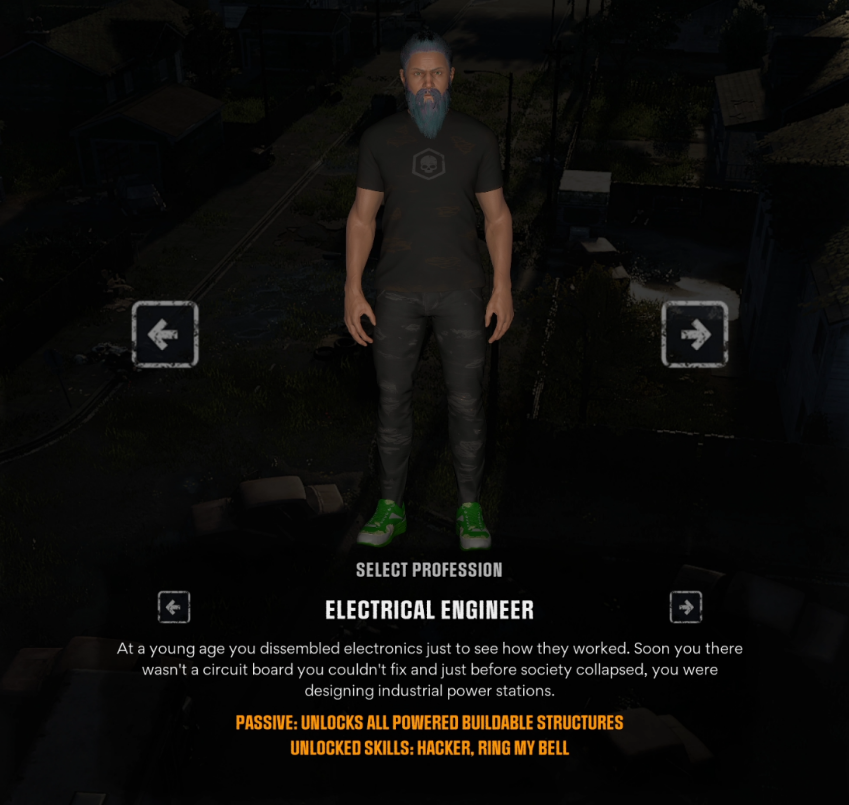
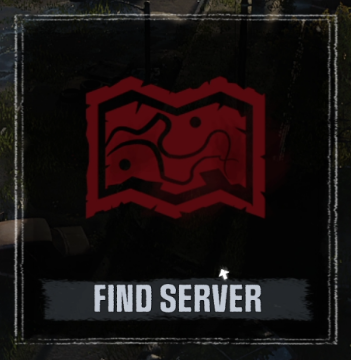
This is the easiest way to join. You just need to know your server's name, which you can view or change at any time in the Game Settings tab of your panel.
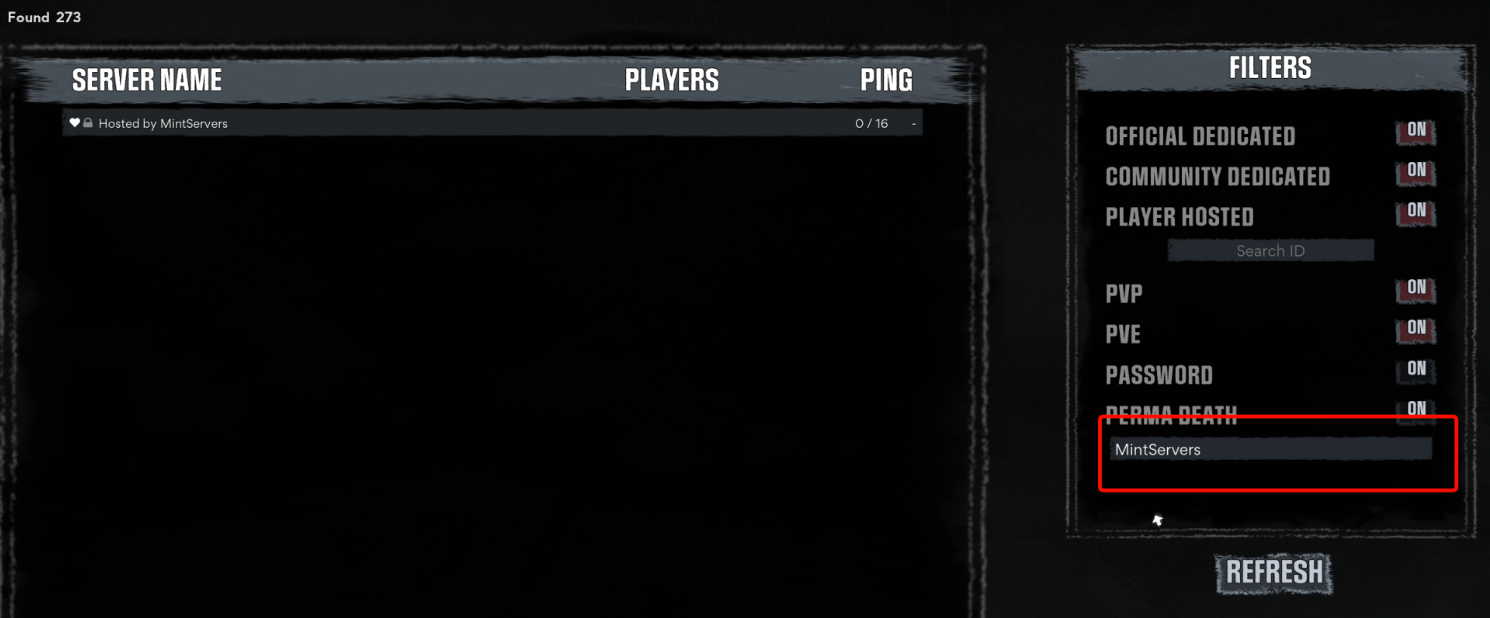
The Server Name is set in the
Game Settings tab of your MintServers panel. Change it to something unique so your server is easy to find in the list. See our HumanitZ Configure Server guide for more details.
Connecting via IP
If you cannot find your server in the list, or you would rather skip the search, you can connect directly with your server's IP address and port.

Your server password is set in the Server Password field in the Game Settings tab. If that field is empty, your server does not require a password.
Troubleshooting
🛠️ Troubleshooting Connection Issues
Server not in the list
Make sure the server is Online in your panel, and that the name you typed matches your Server Name exactly. You can always use IP CONNECT instead.
Wrong password
Check the Server Password field in Game Settings. Note that this is different from the Admin Password.
Cannot join at all
Check whether Only Allowed Players is turned on in Game Settings. When it is enabled, only players on the allowed list can join.
Wrong address or port
Copy the address again from the top of your Game Panel and make sure you include the port after the colon.
Once you are in, you are ready to survive together! To set up admin access, see our HumanitZ Become Admin guide.
Still stuck?
Our team is happy to help. Open a ticket through the live chat button in the bottom-right corner of our website, or join our Discord and open a ticket there.
Join our Discord