



 HumanitZ
Ready to jump into your HumanitZ server? This guide shows you how to find your server in the in-game server browser, or connect directly using your server's IP address and port.
Joining Through the Server Browser
This is the easiest way to join. You just need to know your server's name, which you can view or change at any time in the Game Settings tab of your panel.
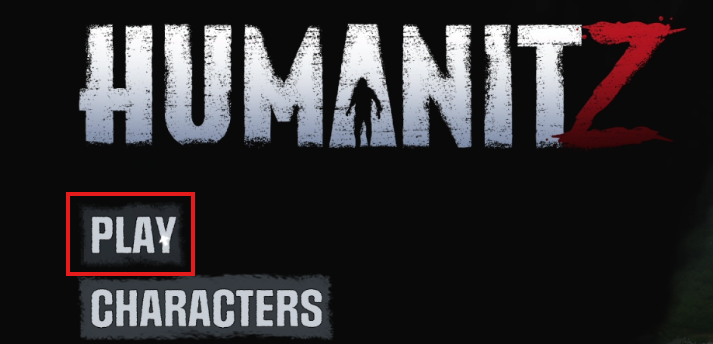
- Launch HumanitZ and click Play on the main menu.
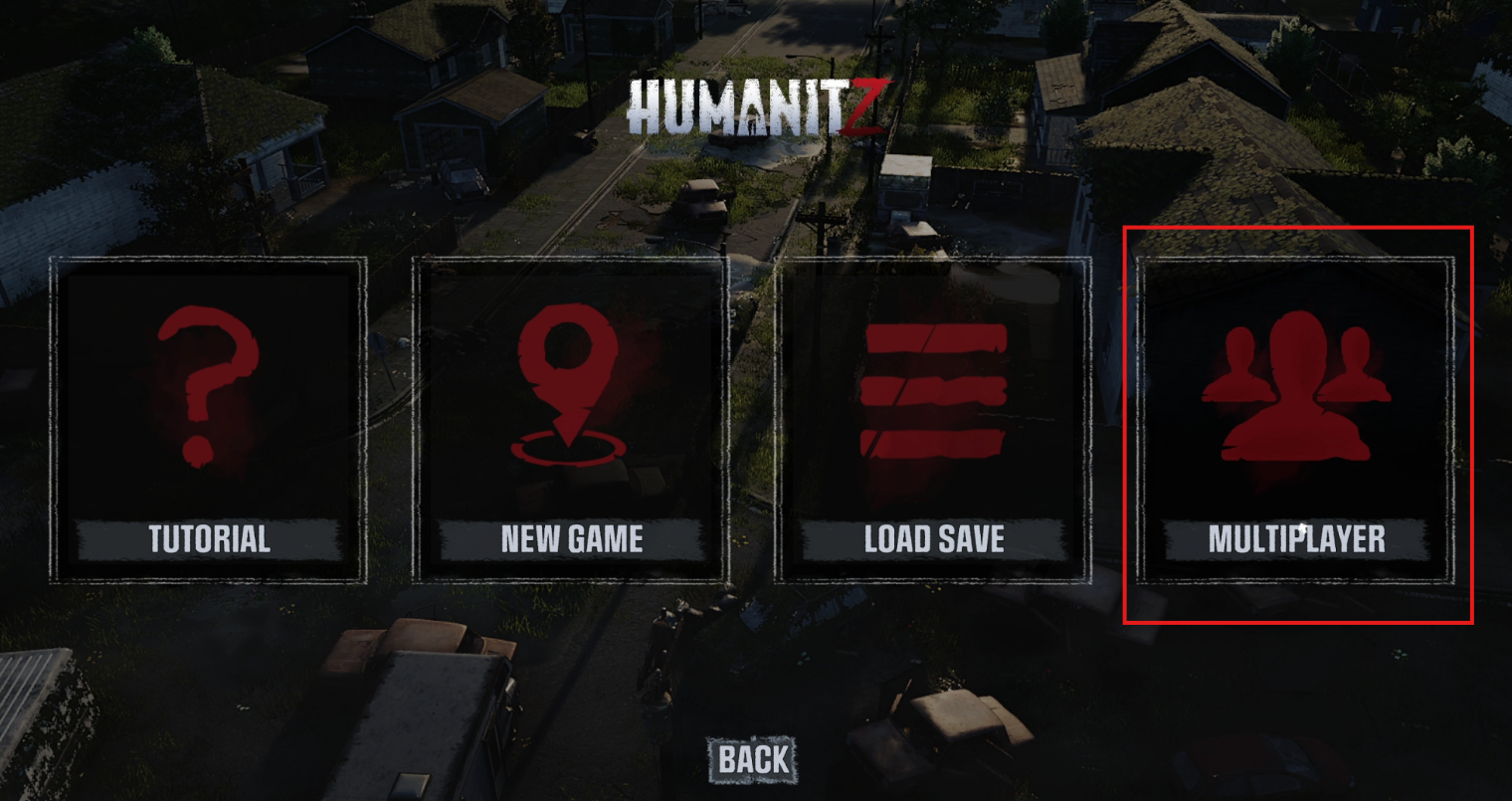
- Click Multiplayer.
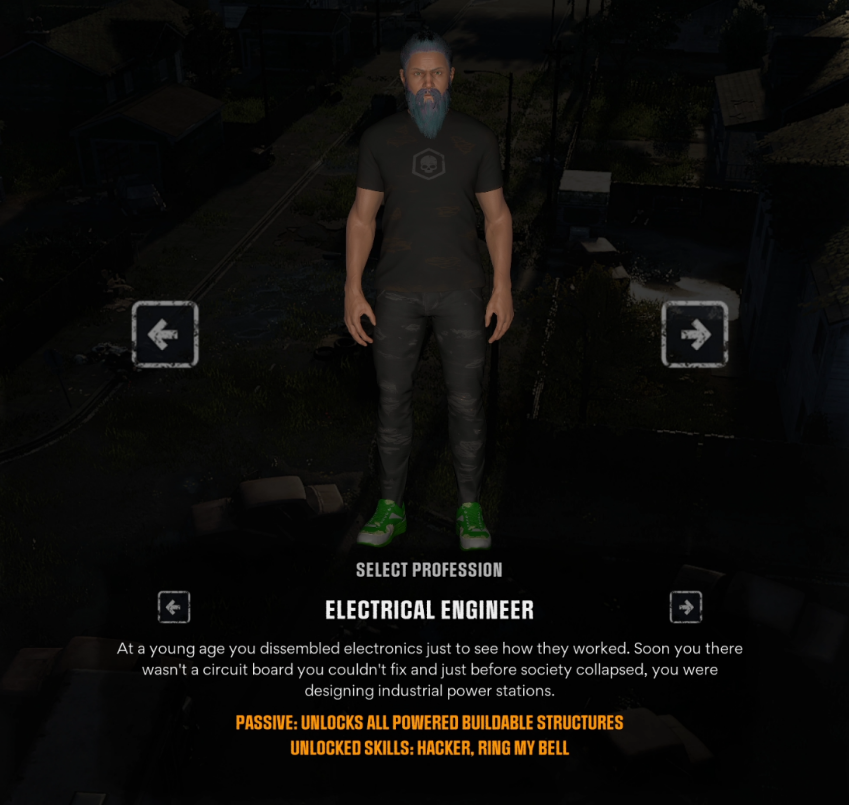
- Select your character's profession, then click Continue.
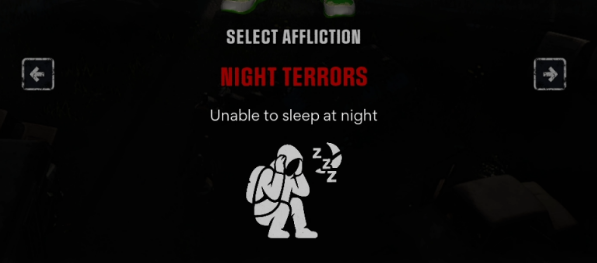
- Select your character's affliction, then click Continue.
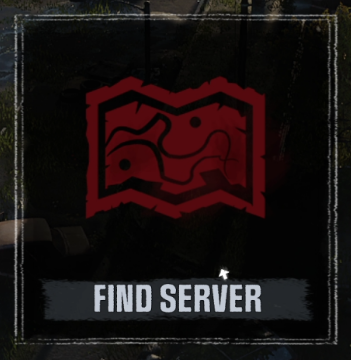
- Click Find Server. (Host Game and Rent Server are not what you want here.)
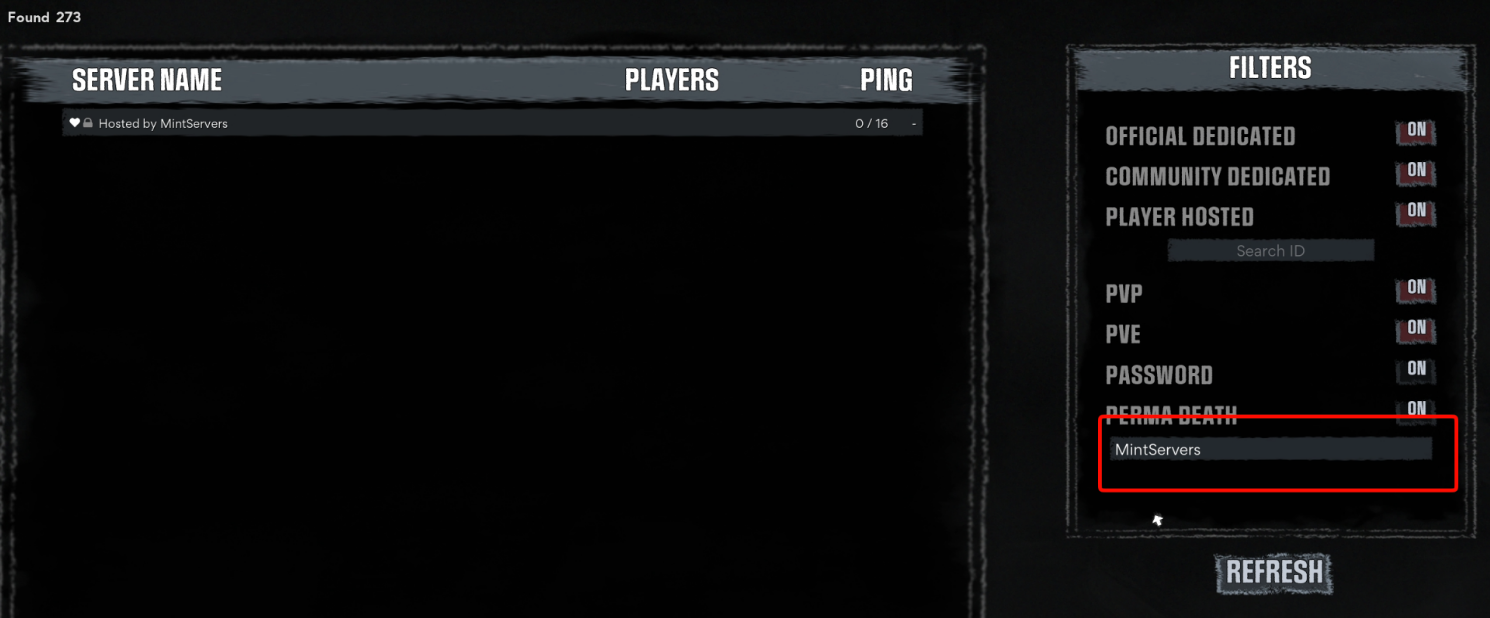
- Type your server's name into the search field at the bottom of the Filters panel on the right side of the server browser.
- Click your server in the list.
- Click Join at the bottom of the server list.
The Server Name is set in the
Game Settings tab of your MintServers panel. Change it to something unique so your server is easy to find in the list. See our HumanitZ Configure Server guide for more details.
Connecting via IP
If you cannot find your server in the list, or you would rather skip the search, you can connect directly with your server's IP address and port.
- Log into your MintServers panel and open your HumanitZ server.
- Look at the top of the Game Panel, right next to your server name. Your connection address is shown there, written as the address followed by a colon and the port number. Copy all of it.
- In HumanitZ, follow steps 1 to 5 above until you reach the server browser.
- In the bottom-right corner, paste the address and port you copied into the address field.
- If your server has a password, enter it in the password field below the address.
- Click IP CONNECT.

Your server password is set in the Server Password field in the Game Settings tab. If that field is empty, your server does not require a password.
Troubleshooting
🛠️ Troubleshooting Connection Issues
Server not in the list:Make sure the server is Online in your panel, and that the name you typed matches your Server Name exactly. You can always use IP CONNECT instead.Wrong password:Check theServer Passwordfield in Game Settings. Note that this is different from the Admin Password.Cannot join at all:Check whetherOnly Allowed Playersis turned on in Game Settings. When it is enabled, only players on the allowed list can join.Wrong address or port:Copy the address again from the top of your Game Panel and make sure you include the port after the colon.
Once you are in, you are ready to survive together! To set up admin access, see our HumanitZ Become Admin guide. If you are still having trouble connecting, no worries! Just open a support ticket and our team will gladly jump in and get you sorted out.