



 s&box
s&box
Ready to jump into your new s&box server? Before your friends can connect and start playing, you will need to quickly configure your server's network ports so it properly shows up in the public server browser.
Let us walk through your MintServers panel and get your connection settings established so you can join the game!
Step 1: Configure Your Panel Settings
First, we need to allocate a query port and set up your server's public display name.
- Log into your MintServers game panel and select your s&box server.
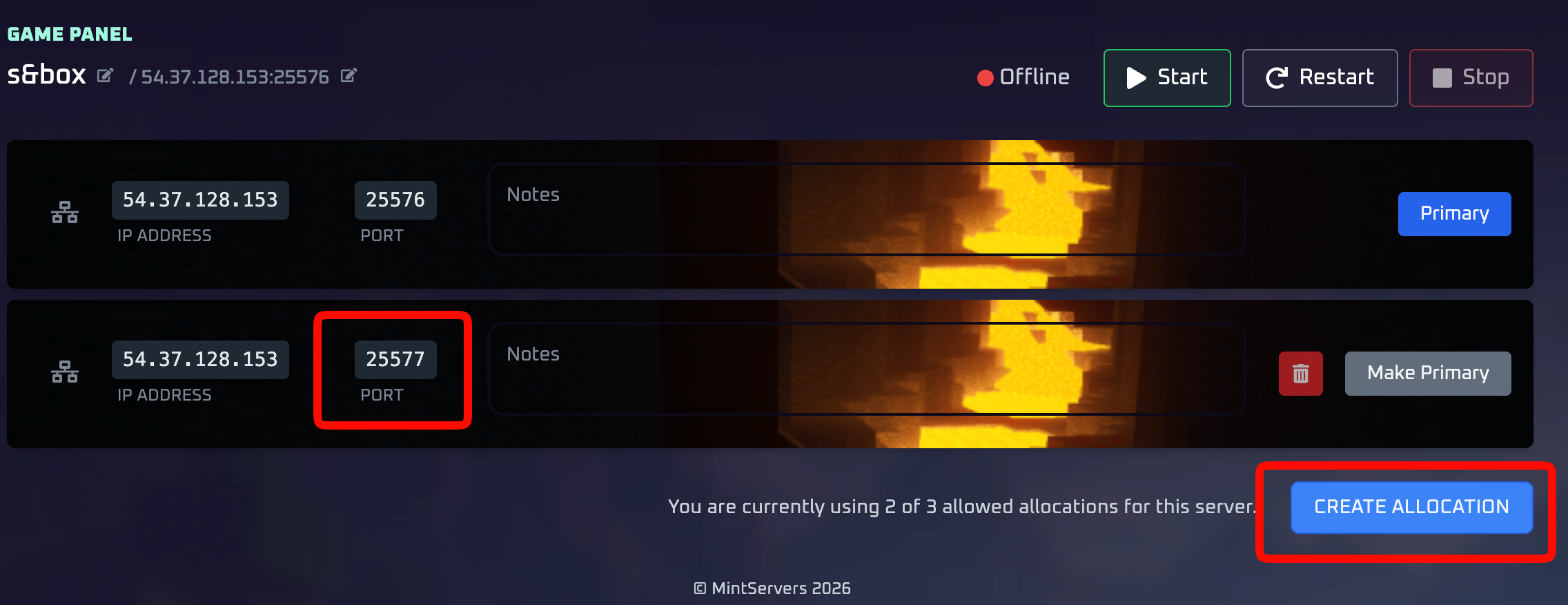
- On the left-hand sidebar, navigate to the Network tab.
- Click to allocate an additional port, and copy this new port number to your clipboard.
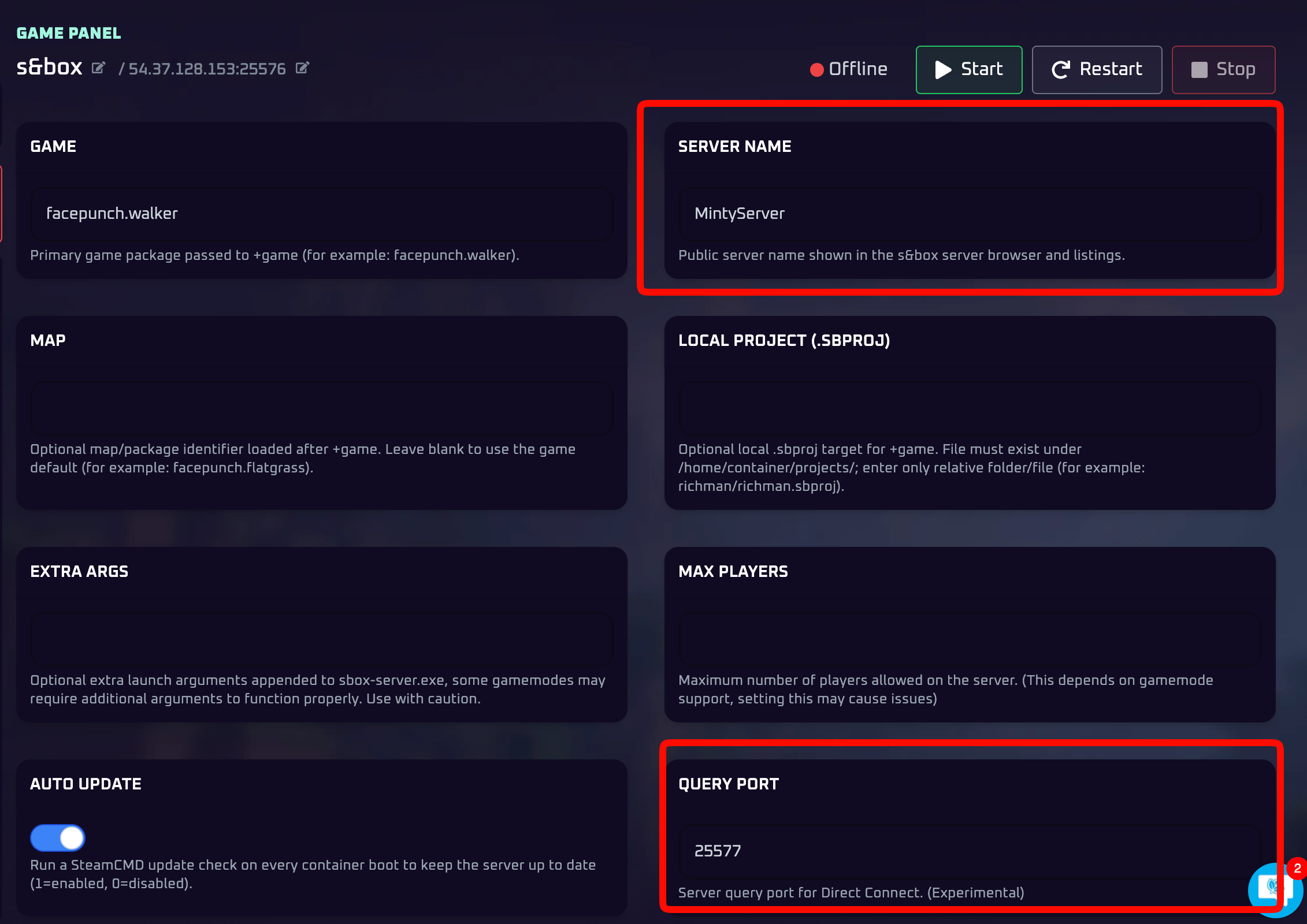
- Next, navigate to the Game Settings tab on the sidebar.
- Here, configure your Server Name and paste the port you just copied into the Query Port field. (Note: You can also change the active game or map in this menu!)
- Make sure to restart your server to apply these changes.

Step 2: Joining the Server In-Game
Now that your server is properly broadcasting its name and query port, you can easily find it from inside the game client.
- Launch s&box on your PC.
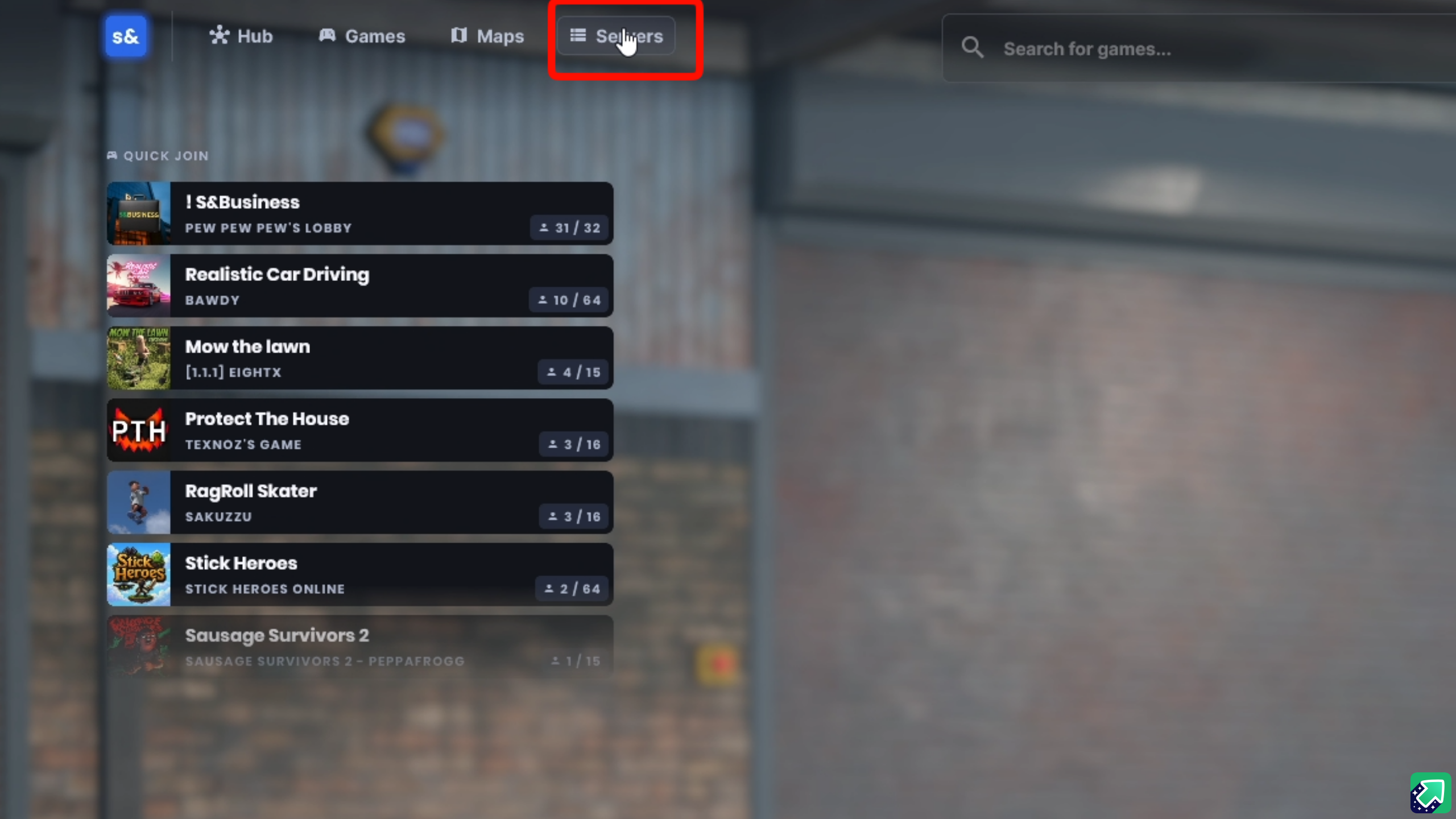
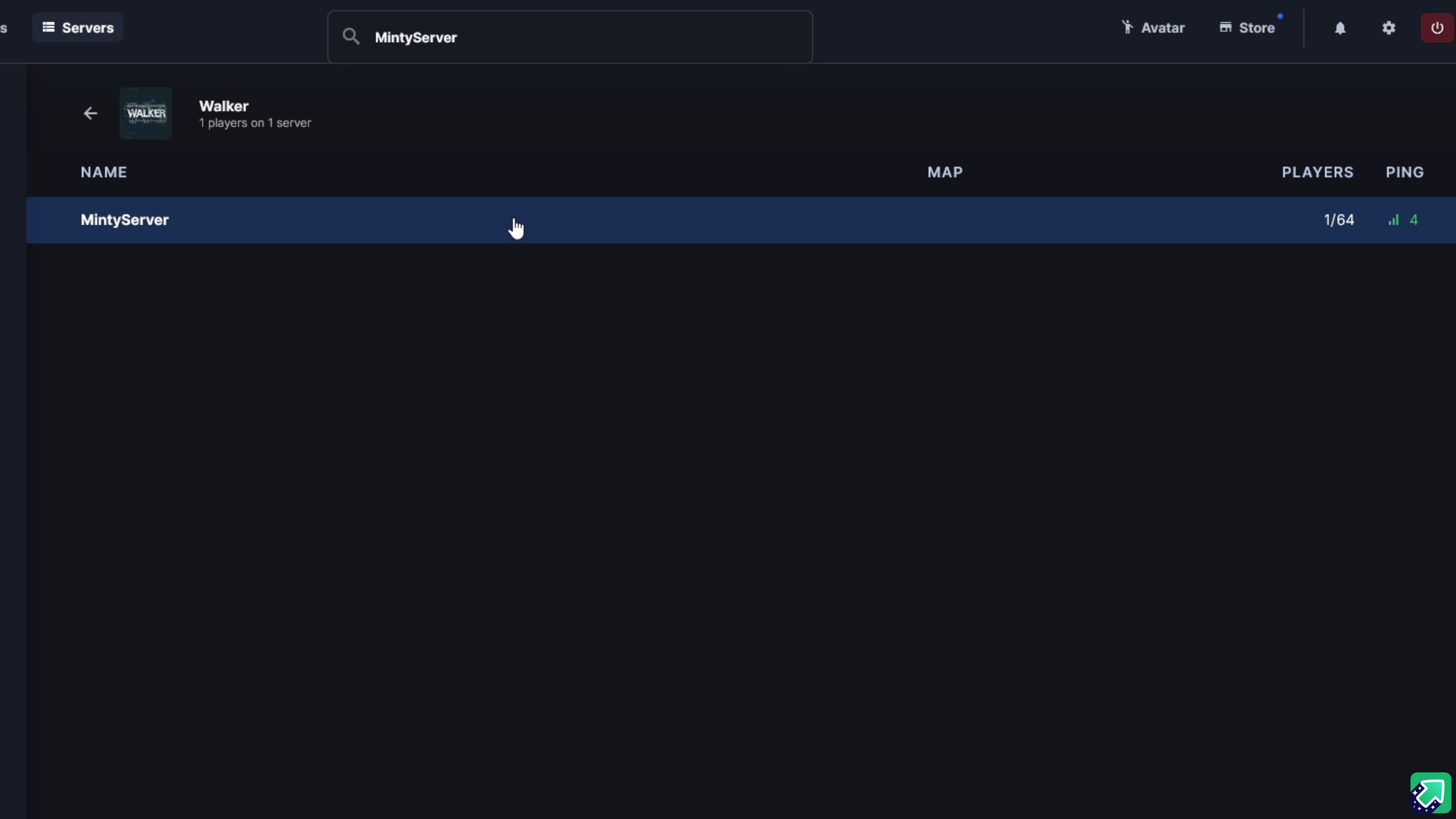
- From the main menu, navigate to the Servers tab.
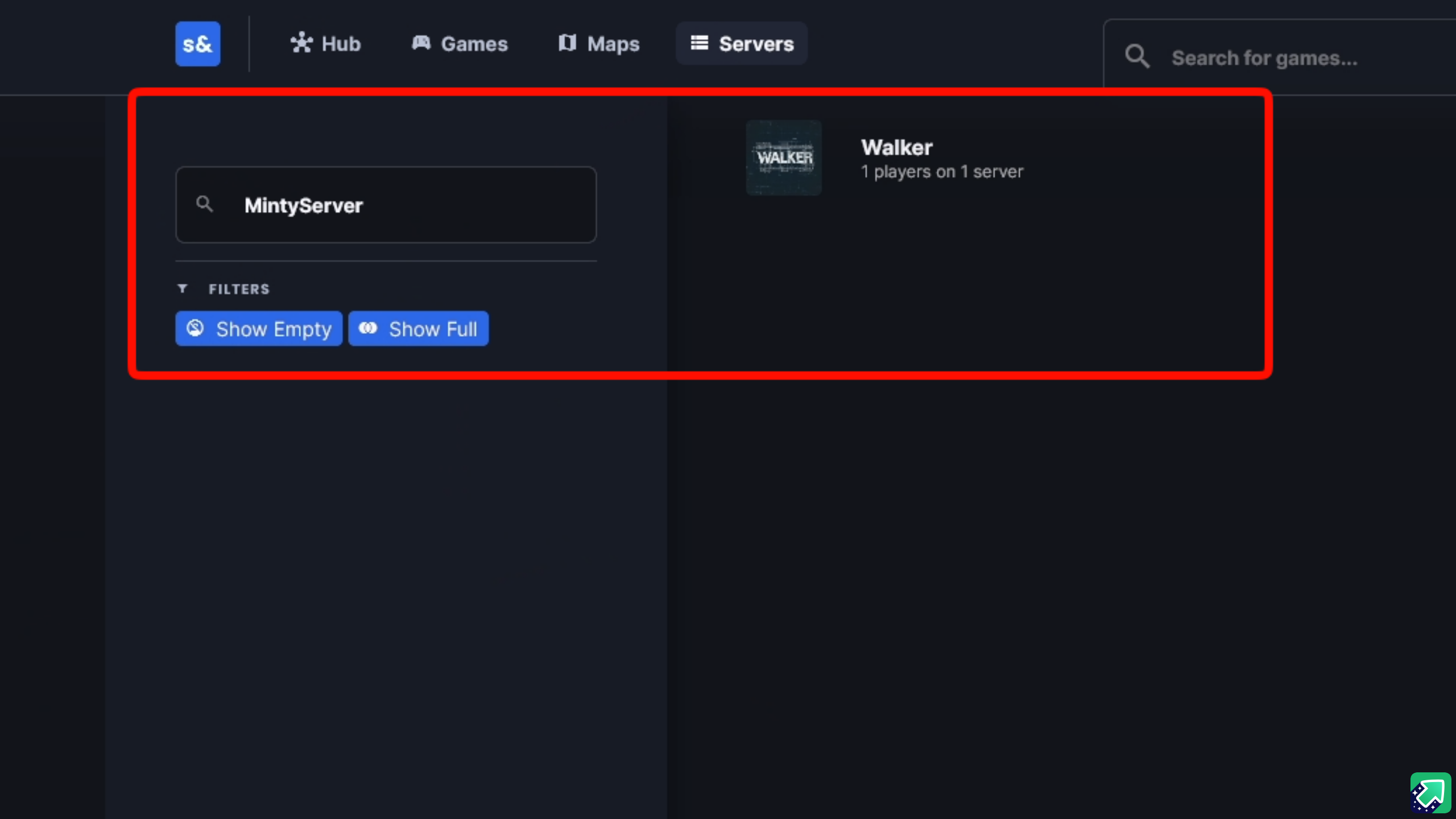
- In the lower search bar, type in the Server Name exactly as you configured it on your panel.
- Use the filter on the right side of the screen to choose the specific map your server is running.
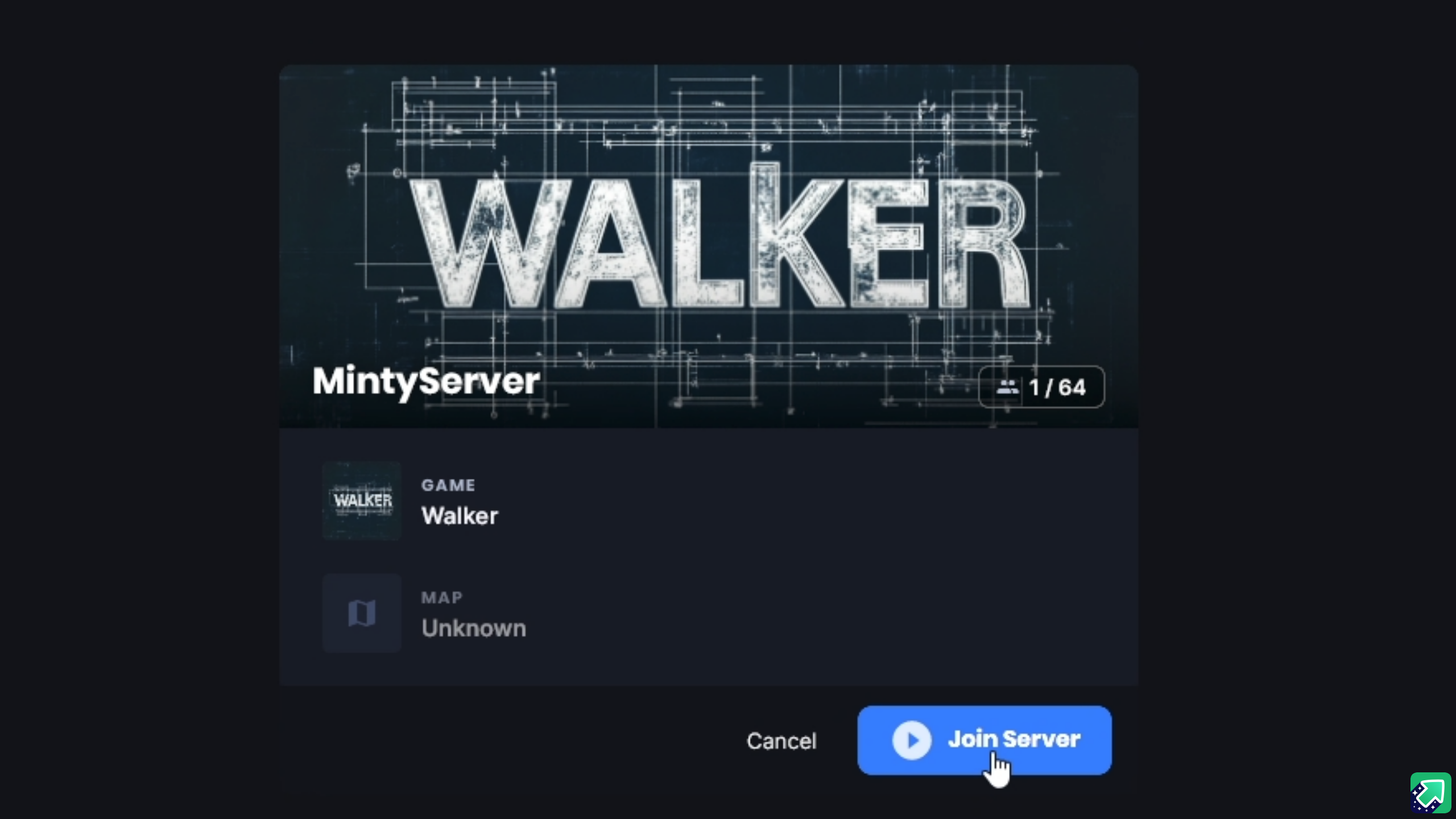
- Once your server appears in the list, click on it.
- Click the Join Server button to connect!
🛠️ Troubleshooting Connection Issues
Server isn't showing up in the list: Double-check that your Query Port in the Game Settings exactly matches the additional port you allocated in the Network tab. If they don't match, the server cannot communicate with the browser!
No worries if your server is still refusing to appear! Just open a support ticket and our team will gladly jump in and instruct you on how to resolve your network configuration.