



 Runescape: Dragonwilds
There are two ways to get into a RuneScape: Dragonwilds dedicated server. You can search for it in the game's Public world list, or you can connect straight to it with the IP address and port from your panel. Both end up in the same world; the Direct tab is just faster once you have the address saved. This guide covers each method and the one detail that trips most people up on the search route.
Method 1: Search the Public Tab
Step 1: Confirm Your World Name
- Log into your MintServers panel and open your Dragonwilds server.
- Click Game Settings in the left-hand sidebar.
- Note the value in the Default World Name field. Copy it exactly, capital letters and all.
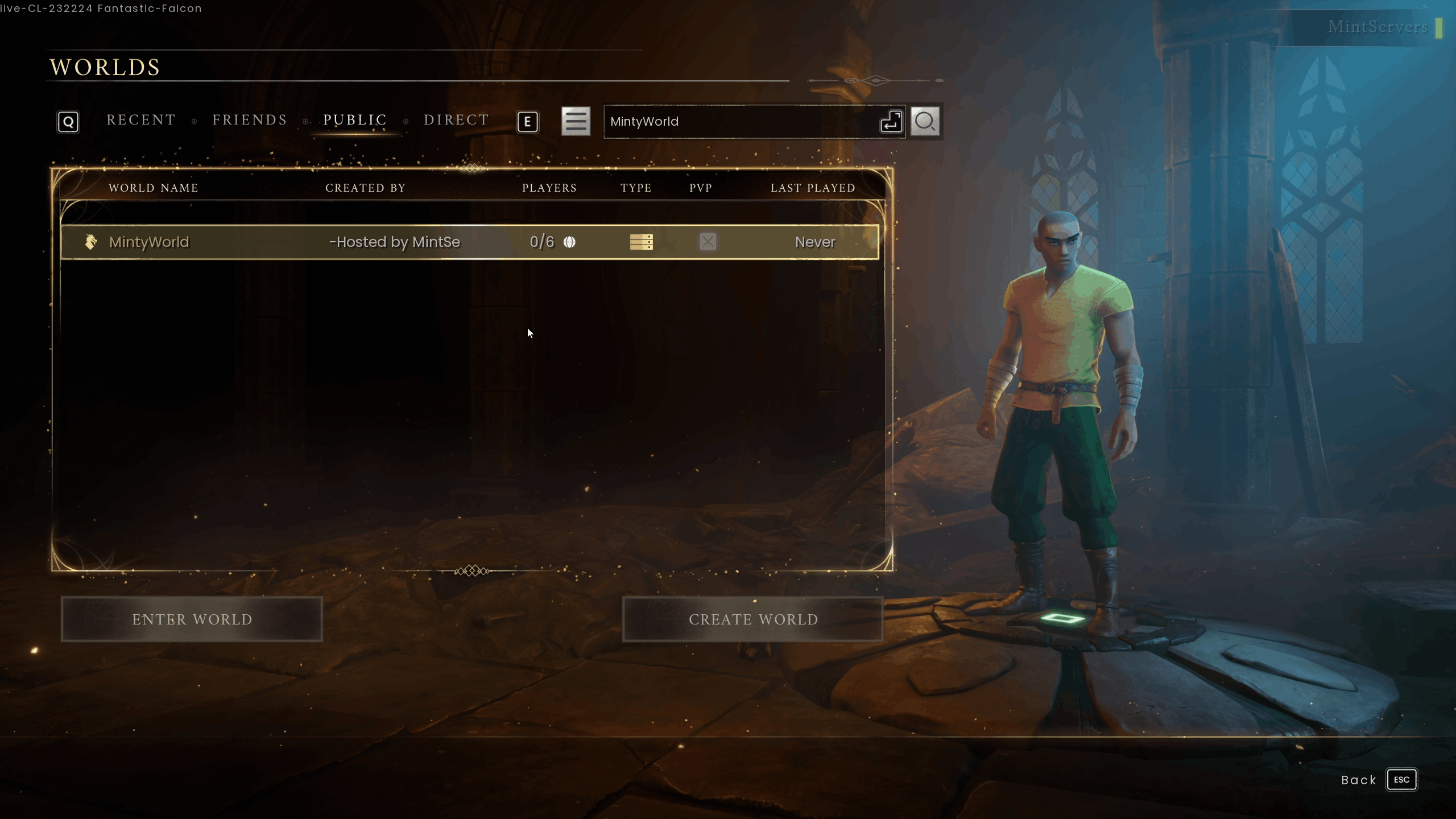
MintyWorld, searching Mint, minty or mintyworld returns nothing. Type the whole name with the same capital letters, or better, paste it.
.sav filename in RSDragonwilds/Saved/SaveGames is the name that counts.
Step 2: Make Sure the Server Is Fully Started
Open the Console tab and look for the line START SESSION - Success. The panel can show the server as running a little before the world is actually loaded and registered, so if you just clicked Start, give it a moment. Once that line appears, the server usually takes a few more seconds to show up in the game's list.
Step 3: Find and Enter the World
- Launch RuneScape: Dragonwilds and click Play to open the Worlds screen.
- Open the Public tab.
- Type your full world name into the search field at the top right and press Enter or click the magnifying glass.
- Select your world from the results. The "Created By" column shows your Server Name, so you can confirm it's yours.
- Click Enter World.
- If a World Password is set, a prompt will ask for it. Enter it and you'll load in.
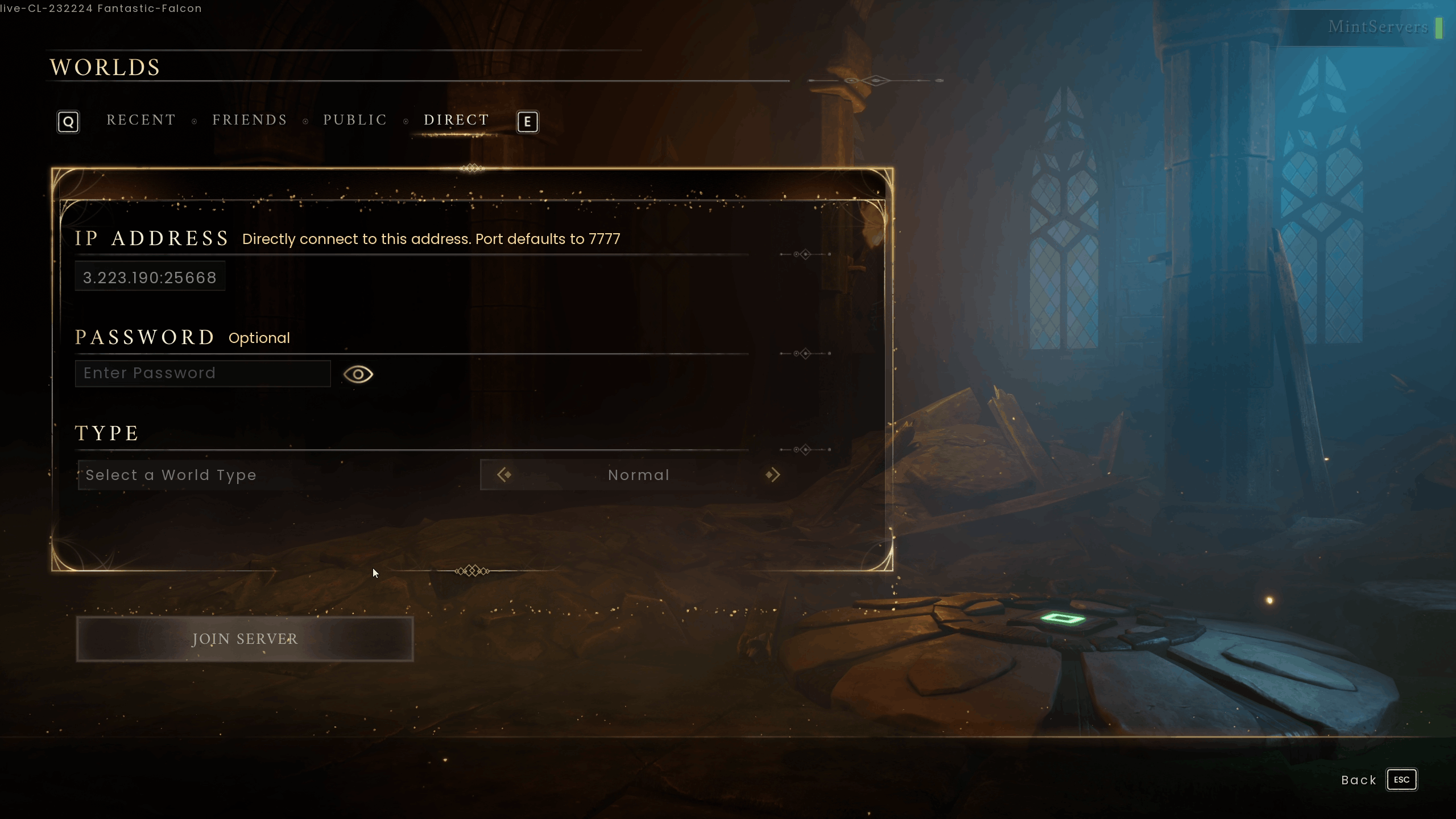

Method 2: Direct Connect With IP and Port
The Direct tab skips the search entirely. You'll need your server's address, which is on your panel.
- On your MintServers panel, open the Console tab and note the Address and Port shown at the top of the page. Together they look like
123.45.67.89:25668. - In the game, click Play, then open the Direct tab on the Worlds screen.
- Type the address into the IP Address field as
IP:PORT, with a colon and no spaces. - If the world has a World Password, enter it in the Password field. Leave it empty otherwise.
- Click Join Server.
🛠️ Troubleshooting Connection Issues
Nothing comes up in search:You need the complete world name with matching capitals; a partial name finds nothing. If it's exact and still missing, confirm the server has finished booting, then work through Server Not Showing in the Server List.Direct connect fails:Check the address isIP:PORTwith the port from your panel, not 7777. Then make sure the console showsSTART SESSION - Success.Wrong password:The World Password and the Admin Password are two different things. Players joining need the World Password only.World shows up but Enter World fails:The server may be full (6 players by default) or still finishing its startup. Wait a minute and try again.Friend got a Steam invite and it didn't work:Expected. Give them the world name or the IP:PORT.
Next Steps
- Server isn't listed at all: Dragonwilds Server Not Showing in Server List? Here's How to Fix It
- Keep strangers out: How to Password-Protect Your Dragonwilds Server
Search by the exact world name or connect by IP:PORT; either way, once you're in once, the Recent tab remembers it. If you run into any trouble, no worries! Just open a support ticket and our team will gladly help you get it sorted out.