



 Palworld
Mods can fix long-standing annoyances, rebalance progression, or add entirely new features to your Palworld server. MintServers now includes a one-click mod installer that handles the entire process for you - downloading, placing files in the right folders, and configuring your server automatically. No file management, no config editing, no manual steps.
Step 1: Switch To The Palworld (Mods) Game Type
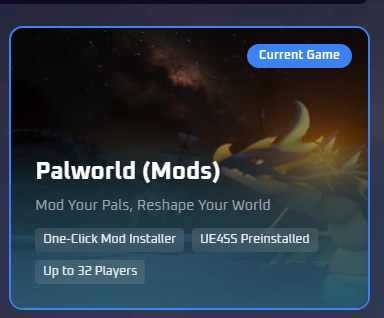
Modded Palworld runs on its own game type. To switch over:
- Log into your MintServers panel and select your Palworld server.
- Open Game Swap in the left sidebar.
- Choose Palworld (Mods) from the list and confirm the switch.
If you haven't used Game Swap before, our guide to changing games on your server walks through it step by step.
🪟 Why A Separate Game Type?
The Palworld (Mods) platform runs the Windows server build rather than Linux, with the UE4SS scripting framework already set up. That means every mod format works automatically - plain .pak mods, UE4SS Lua mods, PalSchema mods, and LogicMods alike. You never need to check whether a mod is compatible with your server type. PalSchema mods specifically (the JSON-based ones that add or rebalance items, Pals, and recipes) have their own dedicated setup notes in our PalSchema guide, worth a look if you're installing one manually rather than through Step 3 below.
Step 2: Keep Your Existing World (Optional)
Only needed if you're coming from an existing Palworld server and want to keep your world. Starting fresh? Skip straight to Step 3. There are two ways to bring your world with you - pick whichever you're more comfortable with. Both end with a server reinstall, which converts your world to the new server type automatically.
✨ Method 1: Restore A Backup (Easiest)
- Before switching, open the Backups tab in your panel and create a backup.
- Switch to Palworld (Mods) using Game Swap, as in Step 1.
- Back in the Backups tab, restore the backup you just created.
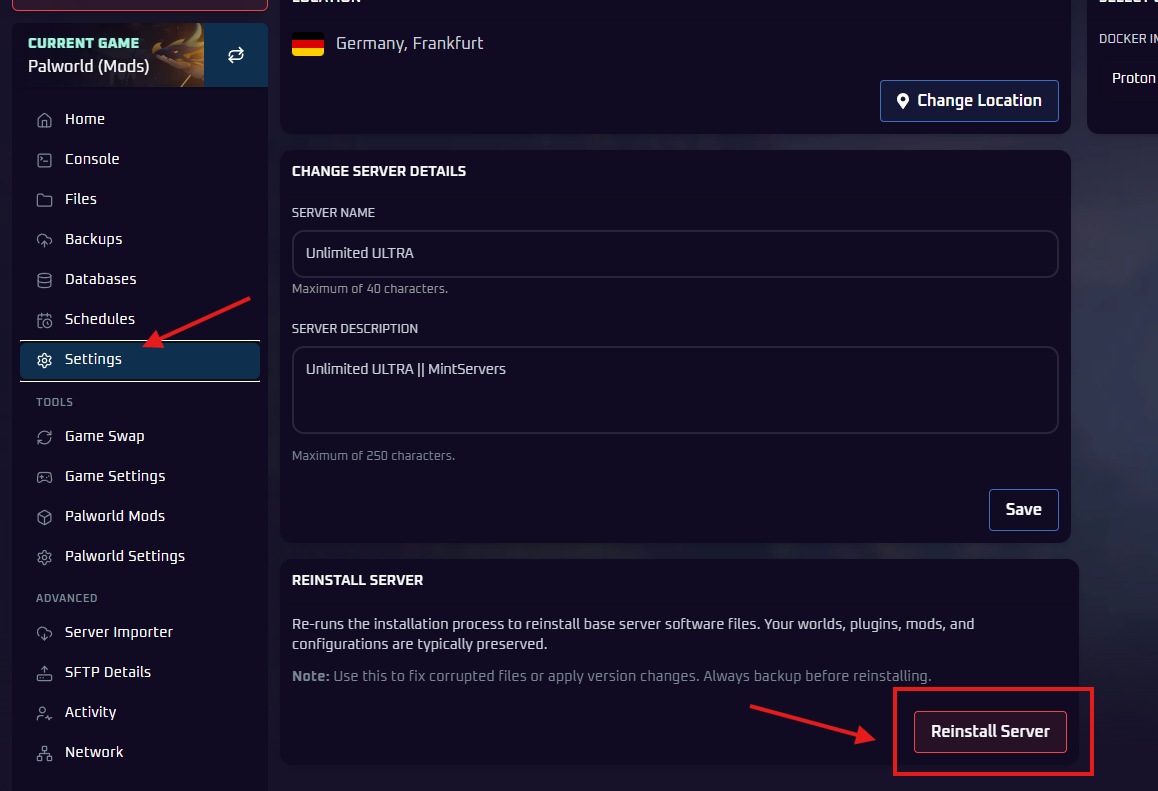
- Open the Settings menu in the left sidebar and use the Reinstall Server function.
- Once the reinstall finishes, start your server.
📁 Method 2: Move Files With SFTP
- Before switching, connect to your server with SFTP - our FileZilla / WinSCP guide shows how - and download your files to your PC. Everything that matters lives in the
Pal/Savedfolder (world saves and settings), so downloading just that folder is enough. - Switch to Palworld (Mods) using Game Swap, as in Step 1.
- Reconnect with SFTP and upload your
Pal/Savedfolder back to the same location on the server. - Open the Settings menu in the left sidebar and use the Reinstall Server function.
- Once the reinstall finishes, start your server.
Step 3: Install Mods With One Click
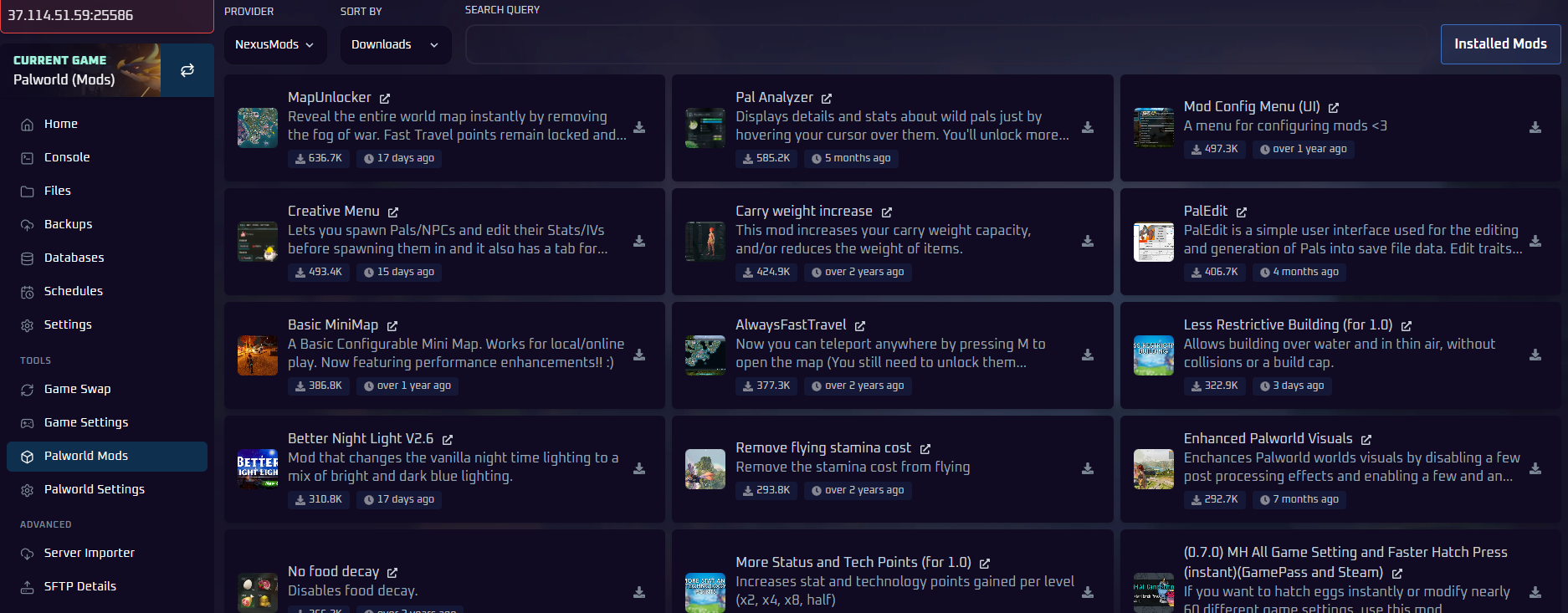
- Open Palworld Mods in the left sidebar of your panel.
- Browse or search mods - you can switch between NexusMods and CurseForge with the provider dropdown, and sort by downloads or last updated.
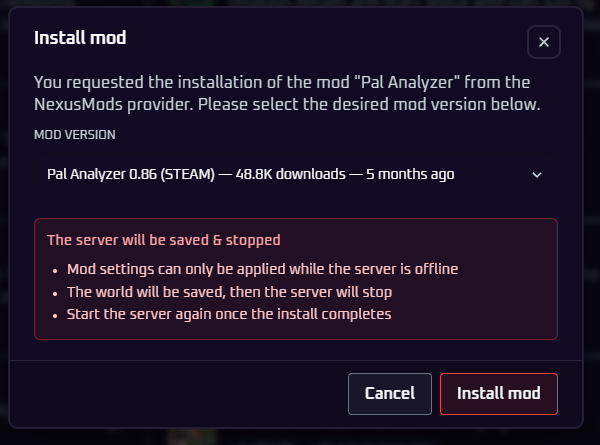
- Click the install icon on a mod, pick the version you want, and confirm.
✅ Everything Is Handled For You
The installer takes care of the rest - files end up exactly where the game expects them, and your server is configured so modded players can join. If your server is running, it will be saved and stopped automatically first; just start it again once the install finishes.
Step 4: Steam Workshop Mods (Manual)
The one-click installer covers NexusMods and CurseForge, but Steam Workshop mods aren't part of it yet. Pocketpair's own Steam Workshop support for Palworld is also still labeled experimental, so treat this path as less reliable than Step 3 above. For now, getting a Workshop mod onto your server is a manual process:
- On your own PC, subscribe to the mod on its Steam Workshop page. Steam downloads it locally to your computer's
steamapps/workshop/content/folder, inside a subfolder named with the mod's numeric Workshop ID (visible in the mod's Workshop URL). - Locate that downloaded folder on your PC and open it to confirm it contains an
Info.jsonfile. Note thePackageNamevalue inside it - you'll need this in a later step. - Stop your server, go to the Files tab, and navigate to
Mods/Workshop/, creating it if it doesn't exist. - Upload the entire downloaded mod folder into
Mods/Workshop/, keeping it named with the same numeric Workshop ID. - Open
Mods/PalModSettings.ini(this file only appears after your server has started at least once) and make sure it looks like this, adding anActiveModListline for your mod'sPackageName:
- Save the file and Start your server.
ActiveModList line per mod if you're running more than one - don't list several on the same line. If a Workshop mod fails to load, remove its ActiveModList line and delete its folder from Mods/Workshop/, then check whether the same mod is also available through the one-click installer above instead.
Some PalSchema-based Workshop mods aren't packaged to deploy correctly on a dedicated server through the steps above alone. If you've followed everything and it's still not loading, this extra step (reported by a customer after some trial and error) has fixed it for mods like this:
- Open the mod's folder at
Mods/Workshop/<WorkshopId>/and look for a subfolder literally namedPalSchemainside it. If there isn't one, this fix doesn't apply to this mod. - Go to
Pal/Binaries/Win64/ue4ss/Mods/PalSchema/mods/and create a new folder named after the mod'sPackageName- the same name fromInfo.jsonused forActiveModListabove. - Copy everything from inside the Workshop mod's
PalSchemasubfolder into this new folder. - Leave the mod in
Mods/Workshop/and itsActiveModListentry in place too - this adds to the steps above rather than replacing it. - Restart your server.
Step 5: Client-Side vs Server-Side Mods
Installing a mod on the server is only half the picture. Palworld mods come in three flavors, and the mod's own page (open it via the link on each mod in the installer) will tell you which one you're dealing with:
- Server-side mods change gameplay that runs on the server - install them through the panel and every player benefits without installing anything themselves.
- Client-side mods are things like minimaps, UI tweaks, and visual changes. These only need to be on each player's own PC - installing them on the server does nothing.
- Both-sides mods change shared gameplay content and must be installed on the server and on every player's PC, in matching versions.
For both-sides mods, a mismatch between the server's mods and a player's mods is the most common cause of connection errors and strange in-game behavior. Share the exact mod list and versions with everyone on the server - most players use a mod manager like Vortex on their own PC to keep things tidy.
PalWorldSettings.ini or any other config to let modded players join - that's enabled automatically. And remember: a lot of what players want from "mods" - faster XP, better capture rates, day/night speed - doesn't need mods at all. Check our server settings guide first.
Troubleshooting
My old world didn't load after moving:Make sure the backup restore or SFTP upload actually finished (thePal/Savedfolder must be back in the same path), then run Reinstall Server again and start the server - the reinstall is what links the old world up.Server won't start after adding a mod:Remove the most recently added mod (the Installed Mods button in the installer takes you to the mod files) and start again. If the server comes up, that mod is either broken, outdated, or incompatible with the current game version.Steam Workshop mod isn't loading:This feature is still experimental. Confirm the folder inMods/Workshop/is named with the correct numeric Workshop ID, thatActiveModListinMods/PalModSettings.iniexactly matches thePackageNamefrom the mod'sInfo.json, and thatbGlobalEnableModis set totrue. For PalSchema mods specifically, also see the extra step under Step 4 above.Players see "Mods are not allowed on this server":This is configured automatically whenever you install a mod through the panel. If you're still seeing it, install any mod through the installer once, start the server, and try again.Mod seems to do nothing:Check the mod's page - it may be client-side only and belong on player PCs, or need to be installed on both server and clients.Everything broke after a game update:This is normal, unfortunately. Remove your mods, confirm the server runs clean, then re-add them one at a time as their authors publish updated versions.Players get connection or timeout errors on a modded server:Make sure every player is on the same game version and the same mods as the server.
If a mod is giving you trouble even after these checks, the mod's own comments section or Discord is often the fastest place to find version-specific fixes. And if you'd like a hand confirming whether a particular mod will work on your server, no worries! Just open a support ticket and our team will be happy to take a look.