



 Palworld
Direct Connect is the fastest and most reliable way to join your Palworld server. Rather than scrolling through the community server list, which only shows a limited number of servers at once, you enter your server's IP address and port directly and connect straight into your world.
This guide covers how to find your connection details and join your server, including the extra step needed for password-protected servers.
Step 1: Find Your Server's IP Address and Port
Before you can connect, you will need your server's IP address and port number.
- Log into your MintServers panel and select your Palworld server.
- On the Overview page, find your server's IP Address and Port. Copy both values, since you will need them in the next step.

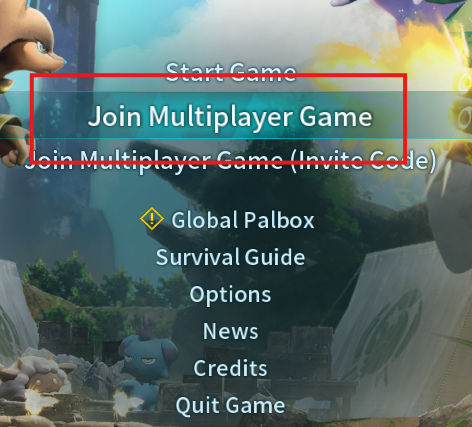
Step 2: Open The Join Multiplayer Game Menu
Launch Palworld. From the main menu, click Join Multiplayer Game.
Step 3: Enter Your Server Address And Connect
- At the bottom of the screen, paste your server's IP address and port into the address field, in the format
IP:PORT(for example,192.0.2.10:8211). - Click Connect.
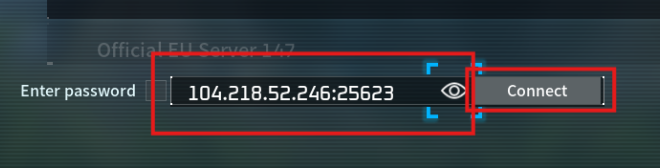
After a few moments, you will load into the world. If the connection fails, double-check the address for typos and confirm your server shows as fully started on the MintServers panel.
Step 4: Joining A Password-Protected Server
If your server has a password set, there is one extra step before connecting.
- Before clicking Connect, check the box labeled Enter Password.
- Type the server's password into the field that appears.
- Click Connect to join.
🛠️ Troubleshooting Common Connection Issues
Connection failed or times out:Double-check the IP address and port for typos, and confirm your server shows as fully started (not just starting) on the MintServers panel.Password prompt doesn't appear:Make sure the Enter Password box is checked before you click Connect. If it still does not prompt you, fully close Palworld and try again.Version mismatch error:Your Palworld client and server need to be on the same version. Update the game through Steam and make sure your server has been updated to match.Can't find the server by name instead:Searching the Community Servers list by name can be unreliable. Direct Connect with the IP address, as covered in this guide, is the more consistent method.
Once connected, Palworld remembers your server for next time, so future logins only take a couple of clicks. If you run into any trouble getting connected, no worries! Just open a support ticket and our team will be happy to help you get into your world.