



 Minecraft Java
Updating your Minecraft modpack to the latest version is quick and easy with the MintServers one-click installer. This step-by-step guide will show you exactly how to update your Minecraft modpack without losing your world data or configurations.
Follow these simple instructions to get your server running the newest modpack version in minutes!

Updating Your Modpack in 3 Simple Steps
If you installed your modpack using our one-click installer, updating to the latest version is straightforward and will not require any technical knowledge.
Step 1: Access the Modpack Section
- Log into your MintServers game panel.
- Navigate to the Modpacks option in the left-hand sidebar. This will display all available modpacks for installation.

Step 2: Find Your Current Modpack
- Locate the exact same modpack you currently have installed.
- Make sure to select the same mod loader type (Forge, Fabric, etc.) as your current installation. The newest version will be displayed for each modpack.

Always select the same mod loader type (Forge/Fabric) as your original installation to prevent compatibility issues!
Step 3: Install the Updated Version
- Click on the modpack to open the installation window.
- Select the Update box (this option ensures you keep your world and configs safe).
- Verify the version you want to install from the dropdown menu.
- Click the blue Update modpack button to confirm.
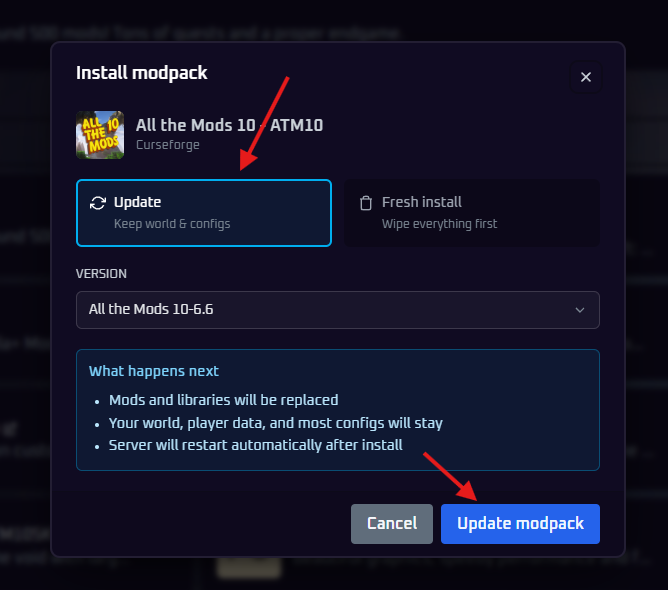
That is it! Once the installation finishes, your server will restart automatically and run the latest version of your modpack. All your world data, player information, and custom configurations will remain completely intact while you benefit from the newest modpack features and fixes.
Why Update Your Minecraft Modpack?
Regular modpack updates provide several benefits to your server:
- Access to new content and features.
- Important bug fixes and stability improvements.
- Enhanced performance optimizations to reduce lag.
- Compatibility with the latest Minecraft versions.
- Security patches for multiplayer servers.
🛠️ Troubleshooting Common Update Issues
- Check that you selected the correct mod loader type (Forge/Fabric).
- Verify that the update process completed successfully in the server console logs.
- Restart your server if the new version does not appear to be running.
- Make sure all players update their personal client-side modpacks to the exact same version so they can connect!
No worries if you run into any trouble during the update process! Just open a support ticket and our team will gladly jump in and instruct you on how to resolve the issue.