



 Minecraft Java
Enable Bedrock players to join your Java Minecraft server with GeyserMC! It is the perfect bridge for cross-platform gameplay, allowing you to expand your player community across all devices.
GeyserMC is a powerful network protocol translator that allows Minecraft Bedrock Edition players (on Windows 10/11, mobile, and consoles) to join Java Edition servers without needing to purchase the Java version. It translates all necessary data between the two versions in real-time, creating a seamless cross-platform experience.
Always make sure your server is completely stopped on your MintServers panel before uploading new plugins or modifying configuration files!
Step 1: Installing GeyserMC
GeyserMC is available as a plugin for standard servers and as a mod for Fabric and NeoForge servers. Follow the method that matches your server type!
Method A: Plugin Servers (Paper, Purpur, Spigot)
For most standard servers running Paper, Purpur, or Spigot, the plugin installation method is highly recommended.
- Download the appropriate GeyserMC plugin from the official GeyserMC download page. You will want to grab the
Geyser-Spigotversion for standard Bukkit-based servers. - Log into your MintServers panel and navigate to the
Filestab. - Open your
pluginsfolder. - Click
Uploadand select the GeyserMC JAR file you just downloaded. - Navigate back to the
ConsoleandStartyour server. This will generate the necessary configuration files!
Method B: Modded Servers (Fabric & NeoForge)
If your server runs the Fabric or NeoForge modloader, GeyserMC installs as a server-side mod instead of a plugin. Your players do not need to install anything on their end!
Geyser-Fabric and Geyser-NeoForge only support the latest version of Minecraft. If your modpack runs on an older version, the Geyser mod will not work on your server. Also keep in mind that Geyser only translates server-side mods, so any mod that requires a client-side install will not work for your Bedrock players.
- Download the
Geyser-FabricorGeyser-NeoForgemod from the official GeyserMC download page, matching your server's modloader. - If you are on Fabric, also download the Fabric API mod from Modrinth. Geyser-Fabric requires it to run.
- Log into your MintServers panel and navigate to the
Filestab. - Open your
modsfolder. - Click
Uploadand select the Geyser mod JAR (plus the Fabric API JAR if needed). - Navigate back to the
ConsoleandStartyour server to generate the configuration files. On modded servers, the Geyser config is created at/config/Geyser-Fabric/config.yml(or/config/Geyser-NeoForge/config.yml) instead of the plugins folder.

Step 2: Allocating a Bedrock Port
Java Edition and Bedrock Edition use different network protocols. To allow Bedrock players to connect simultaneously, GeyserMC needs its own dedicated port on your server.
Instead of making your Bedrock players type out a random port number, you can upgrade your server to use a Dedicated IP / Port! This assigns your server the official Bedrock port (
19132). It makes joining a breeze and allows you to easily link it to a custom domain using Cloudflare!
If you are using a standard random port, follow these steps to generate one for Geyser:
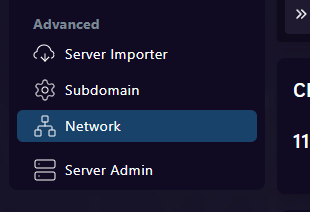
- On your MintServers panel, navigate to the
Networktab on the left sidebar. - Click the blue
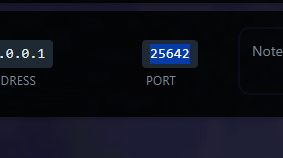
Create Allocationbutton on the right side of the screen. - A new port will appear in your network list. Copy this new port number, as you will need it for the next step!

Step 3: Configuring the Bedrock Port
Now we need to tell GeyserMC to listen to the port you just secured for it.
Stopyour server.- Navigate to the
Filestab and open the Geyser config folder. On plugin servers, this isplugins/Geyser-Spigot. On modded servers, it isconfig/Geyser-Fabric(orconfig/Geyser-NeoForge). - Click on the
config.ymlfile to open the text editor. - Scroll down to the bedrock section and find the port setting (the default is 19132). Replace it with your newly allocated random port number (or leave it as
19132if you purchased a Dedicated Port upgrade)!
Bedrock Edition uses UDP, so the port you assign to Geyser cannot be shared with any other plugin or mod that also uses UDP, such as Simple Voice Chat or Query. If you run one of those, create a separate allocation for each.
Step 4: Authentication Setup (Floodgate)
By default, Geyser requires Bedrock players to log in with an official Java Edition account. To allow Bedrock players without Java accounts to join, you must install Floodgate.
- Download Floodgate from the official Geyser website, matching your server type:
Floodgate-Spigotfor plugin servers, orFloodgate-Fabric/Floodgate-NeoForgefor modded servers. - Upload the Floodgate JAR into your
pluginsfolder (plugin servers) ormodsfolder (modded servers), right alongside GeyserMC. - Open your GeyserMC
config.ymlfile again. - Scroll down to the java section and change the
auth-typefromonlinetofloodgate.
- Click
Save Contentat the top right of the editor, thenStartyour server.
🛠️ Troubleshooting Common Issues
Address already in use/ Port binding errors: Ensure your port is not already in use by another service, and double-check that you entered the newly allocated port correctly in theconfig.ymlfile under the bedrock section. Never use your main Java port here!Unable to connect/Kicked for Secure Profile: Navigate to your main server directory, open theserver.propertiesfile, and verify thatenforce-secure-profileis set tofalse.- Authentication failures: Double check that Floodgate is properly installed in the plugins folder (or mods folder on Fabric and NeoForge) and that the
auth-typeis spelled correctly in the Geyser config asfloodgate. - Test your Bedrock port: You can run
geyser connectiontest <ip> <port>in your server console to verify that Bedrock players can reach your server on the port you configured. - Geyser mod won't load on Fabric or NeoForge: Confirm your server is running the latest version of Minecraft, as the Geyser mod does not support older versions. On Fabric, also make sure the Fabric API mod is installed in your
modsfolder. - Version compatibility: Geyser generally supports the latest Bedrock versions. If you have players on older Java versions attempting to connect with newer Bedrock clients, consider installing the ViaVersion and ViaBackwards plugins alongside Geyser to maximize compatibility!
With GeyserMC properly configured, your Minecraft server will become truly inclusive, allowing friends to play together regardless of which device they own. If you run into any trouble getting your Bedrock connection established, no worries! Just open a support ticket and our team will gladly jump in and get it sorted out together.