



 Rust
Rust
Ready to wake up on the beach and start your survival adventure? Before you and your friends can connect to your new Rust server, you will need to quickly configure your network ports so the server properly communicates with the game client.
Let us walk through your MintServers panel and get your connection settings established so you can join the game!
Step 1: Configure Your Network Ports
Rust requires a few specific network ports to handle the game connection, the server queries, and the companion app.
- Log into your MintServers game panel and select your Rust server.
- On the left-hand sidebar, navigate to the Network tab.
- Click the button to allocate 3 additional ports.
- Keep this page open or copy these new port numbers to your clipboard, as you will need them in the next step.
Step 2: Apply Your Game Settings
Now we need to assign those newly generated ports to their specific functions.
- Navigate to the Game Settings tab on the left-hand sidebar.
- Configure your Server Name to whatever you want it to appear as in the public browser.
- Set your Rcon Port to the first additional port you generated.
- Set your Rcon Password. (Make sure this is a highly secured password!)
- Set your Query Port to your second additional port.
- Set your App Port to your third additional port.
- Click Save, then head to your Console and Start the server.
Step 3: Joining the Server
Once your server has fully booted up, you have two different ways to connect to it from the game client.
Method A: Joining via Direct IP (Fastest)
Connecting directly via your server's IP and port is the most reliable way to join.
- Launch Rust.
- Press the F1 key on your keyboard to open the game console.
- Type the following command, replacing
IP:PORTwith your server's primary connection details:
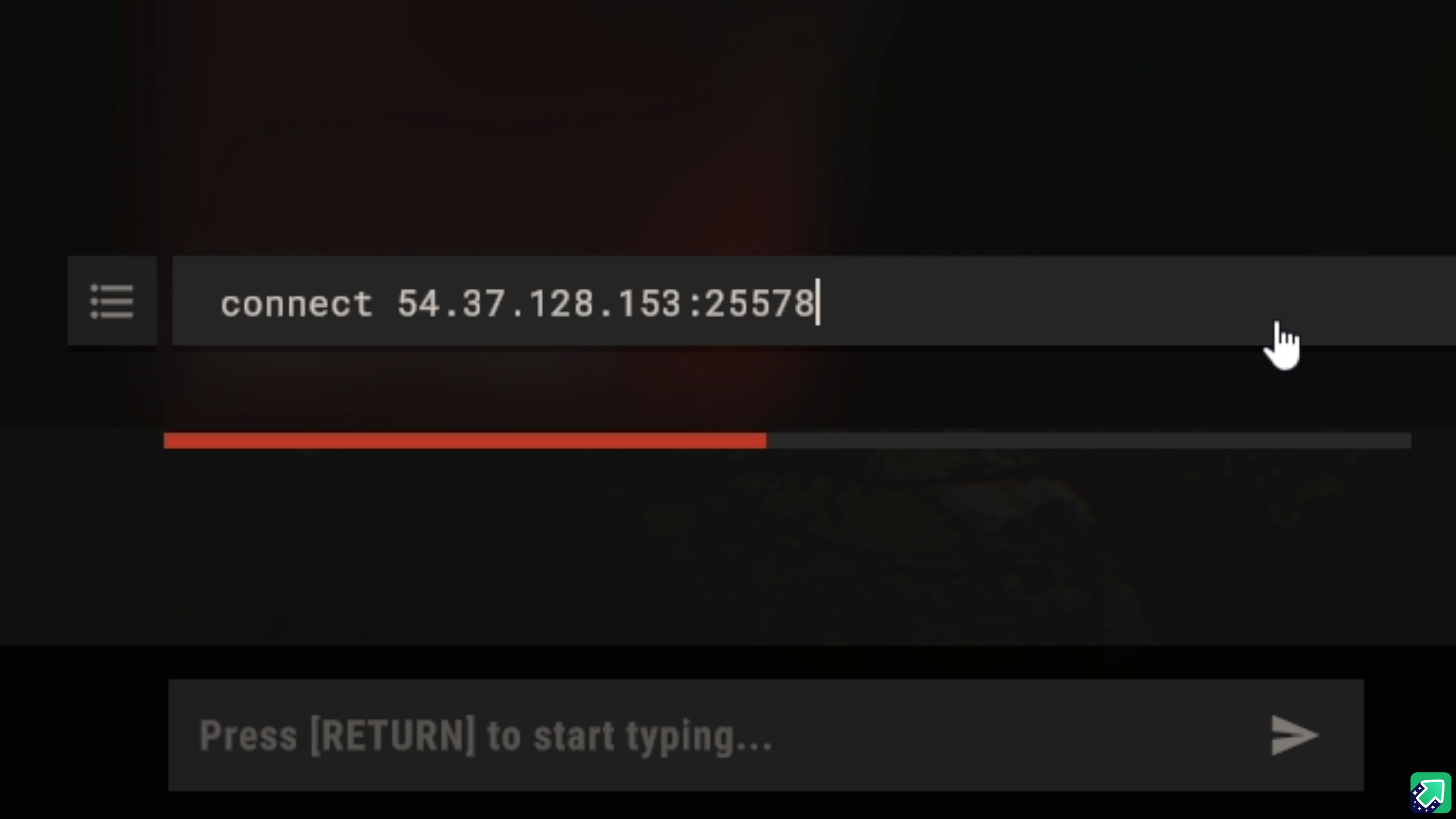
- Press Enter and the game will begin loading you in!
Method B: Joining via Server Name
If you prefer to use the in-game server browser, you can easily search for the name you set in Step 2.
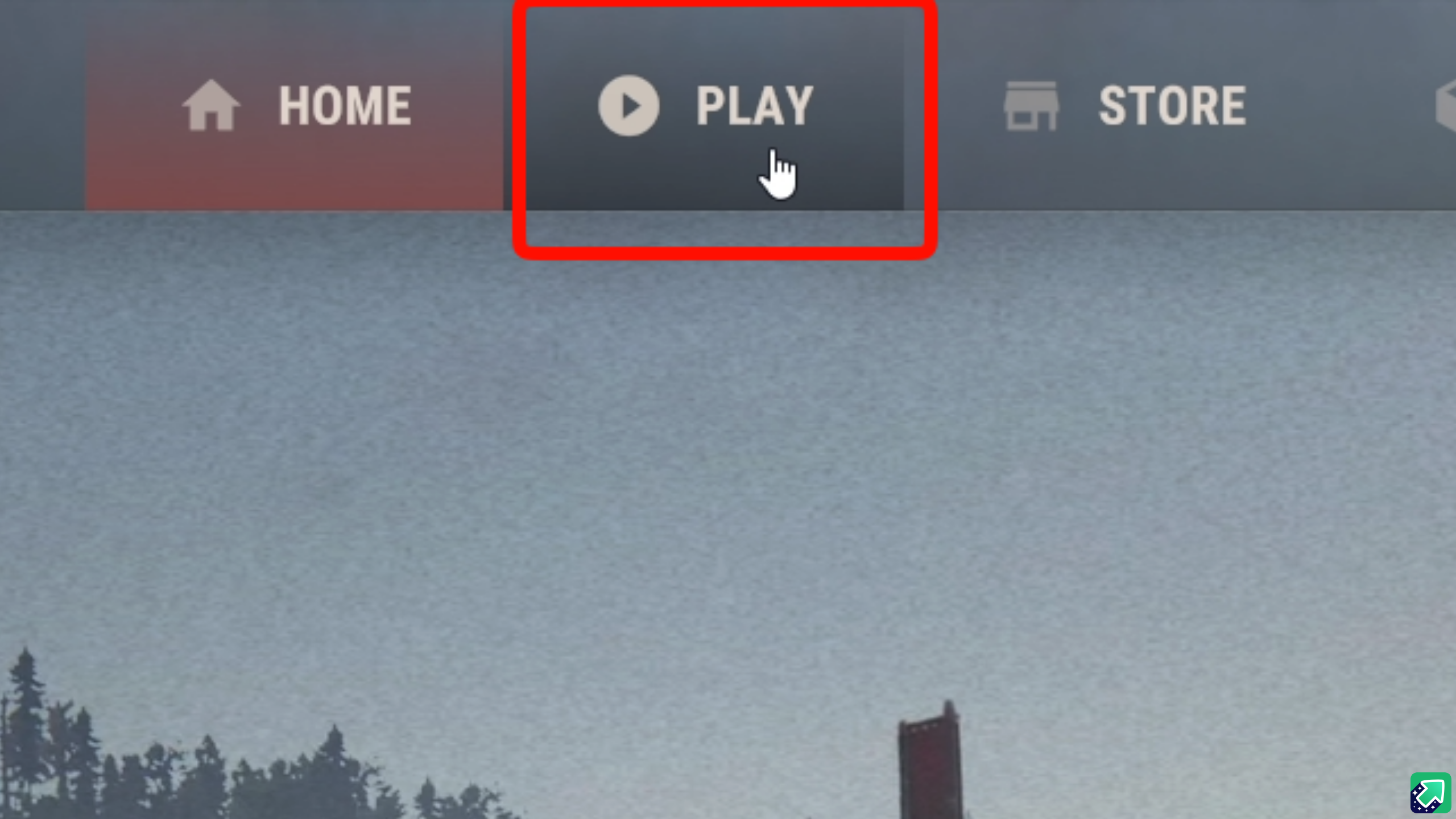
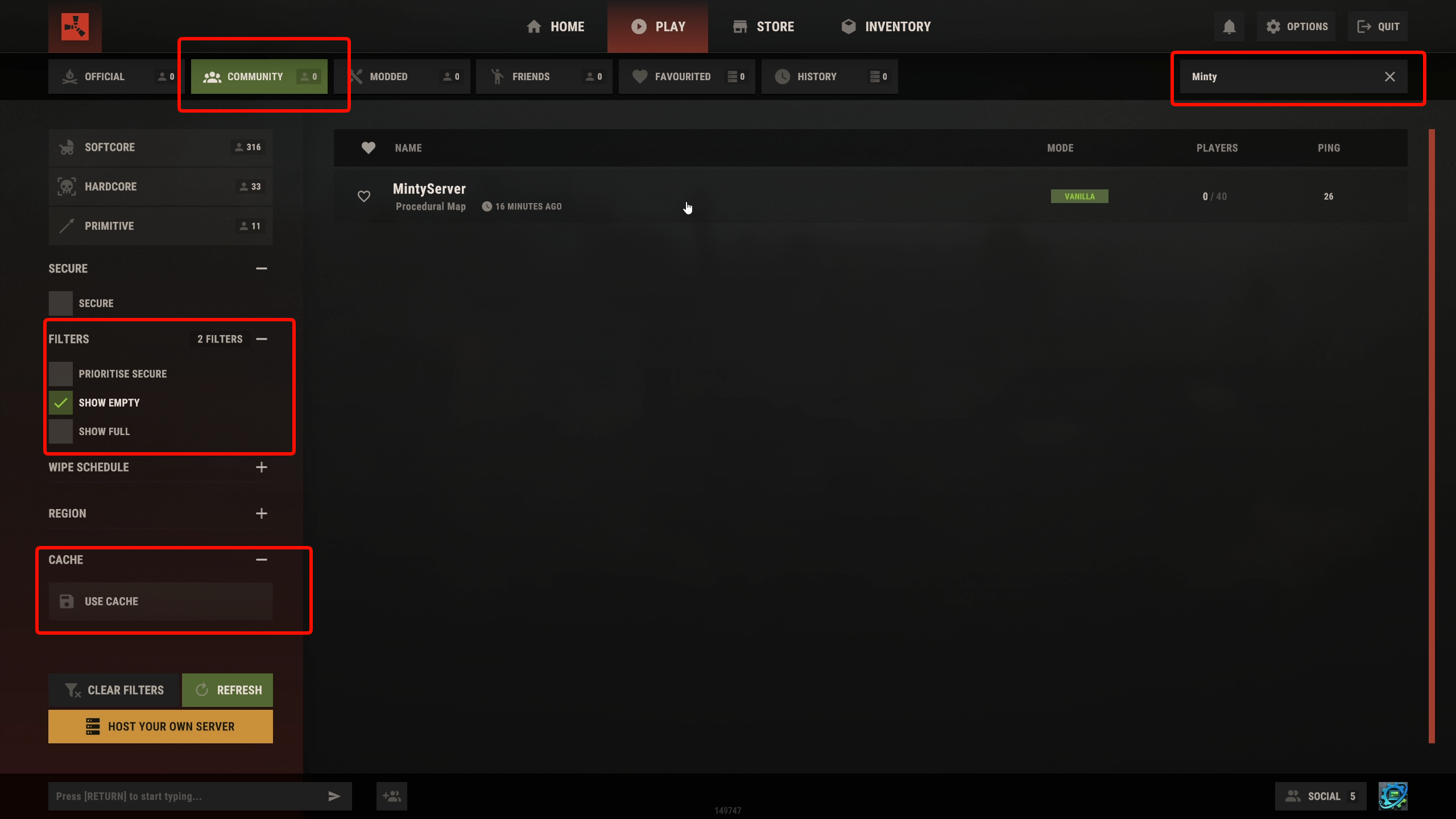
- Launch Rust and click on the Play tab.
- Navigate to the Community tab.
- In the filters on the bottom left, check "Show Empty" and uncheck "Use Cache".
- Type your exact server name into the search box and press Enter.
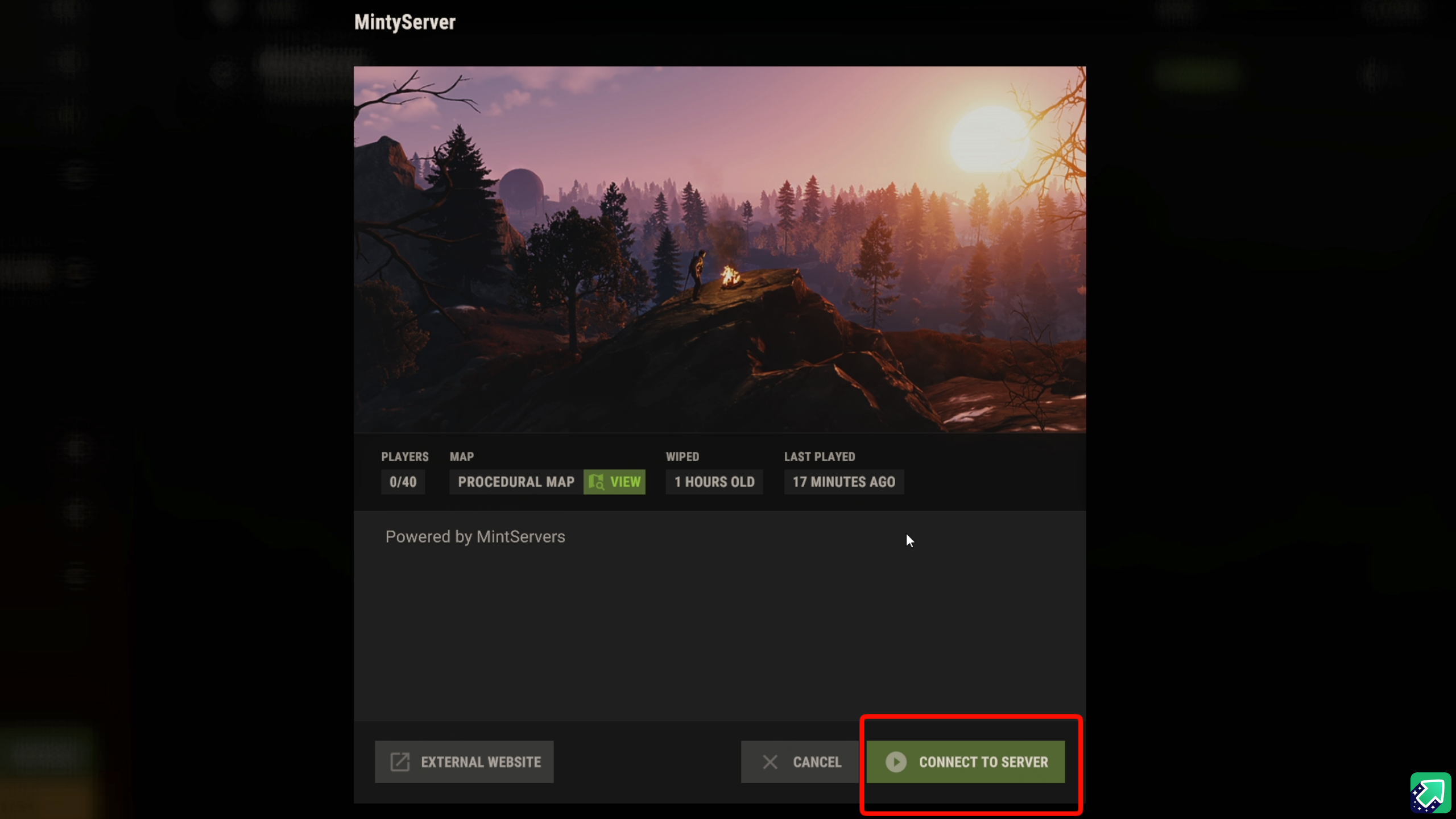
- Once your server appears, click on it and hit Connect to Server!
🛠️ Troubleshooting Connection Issues
Server isn't showing up in the browser: The Rust server browser can sometimes be slow to update. Connecting via the F1 Console using your Direct IP is always the best way to bypass browser cache delays!
No worries if your server is still refusing your connection! Just open a support ticket and our team will gladly jump in and instruct you on how to resolve your network configuration.