



 Rust
Rust
The Rust+ companion app is an incredible tool that lets you monitor your server, check the map, and even wire up smart switches to your phone so you can defend your base while you are away from your PC. Setting it up on your MintServers host is a quick and straightforward process!
Let us walk through how to enable the companion app features on your server and pair it with your mobile device.
Step 1: Enable Rust+ on Your Server
The server-side setup for Rust+ is entirely automated on our platform. The app functionality will be automatically enabled on your server as soon as you assign it a dedicated port.
- Log into your MintServers game panel and select your Rust server.
- Navigate to the Game Settings tab on the left-hand sidebar.
- Ensure you have a port filled in for the App Port field. (If you do not have one, go to the Network tab and allocate an additional port to use here).
- Save your settings and Restart the server.
Step 2: Set Up the Mobile App
Next, you need to get the app ready on your smartphone.
- Download Rust+ on your phone from the Google Play Store or Apple App Store.
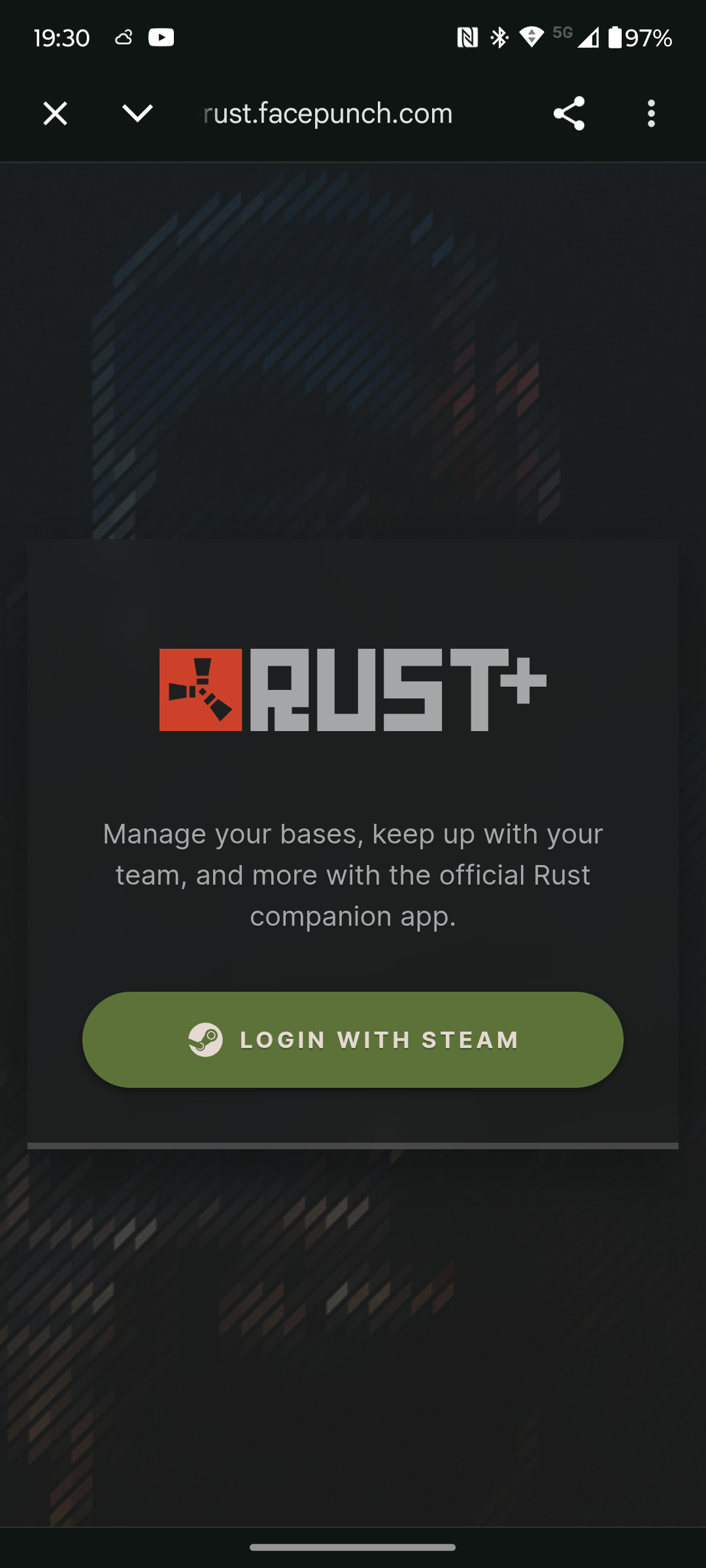
- Open the app and log in using your Steam account credentials.
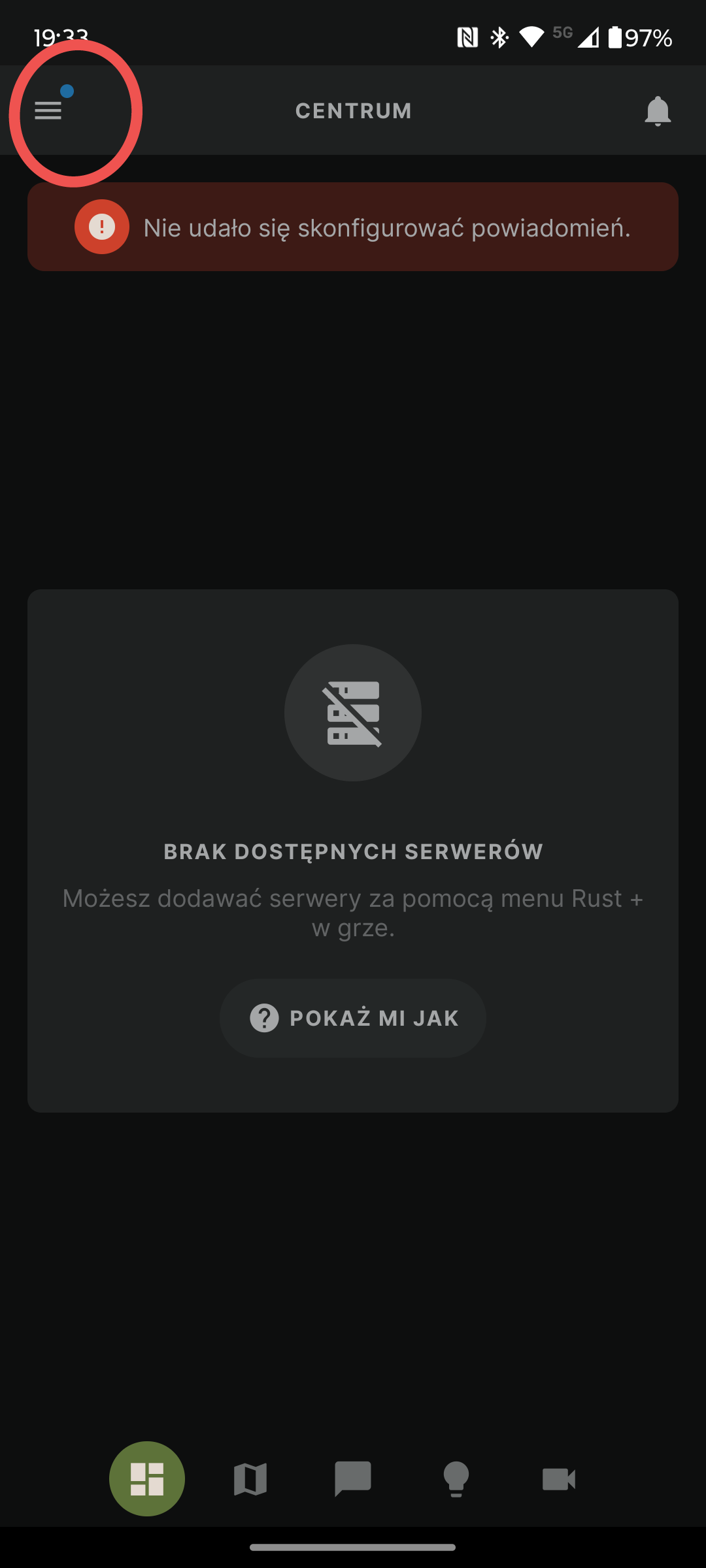
- When prompted, be sure to enable notifications for the app so server alerts can reach you.
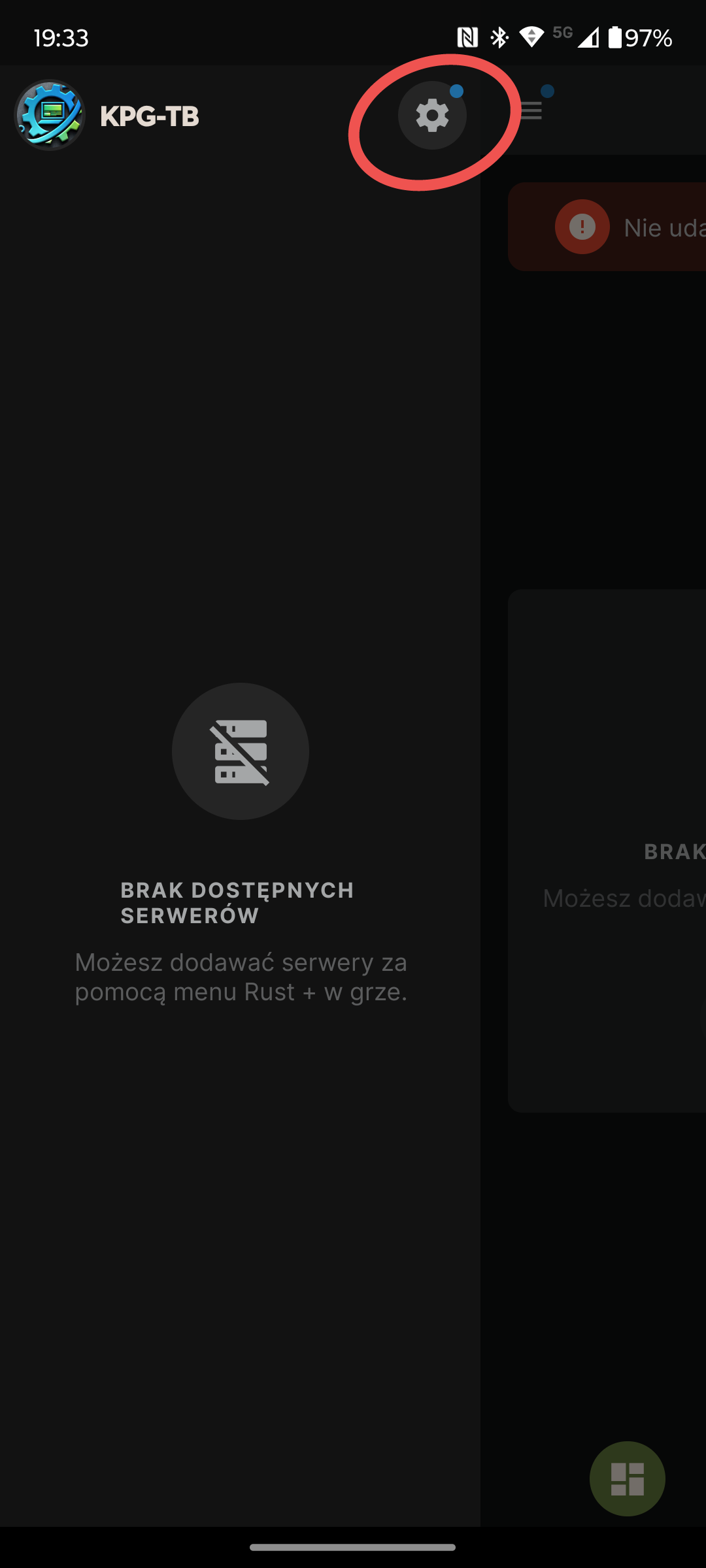
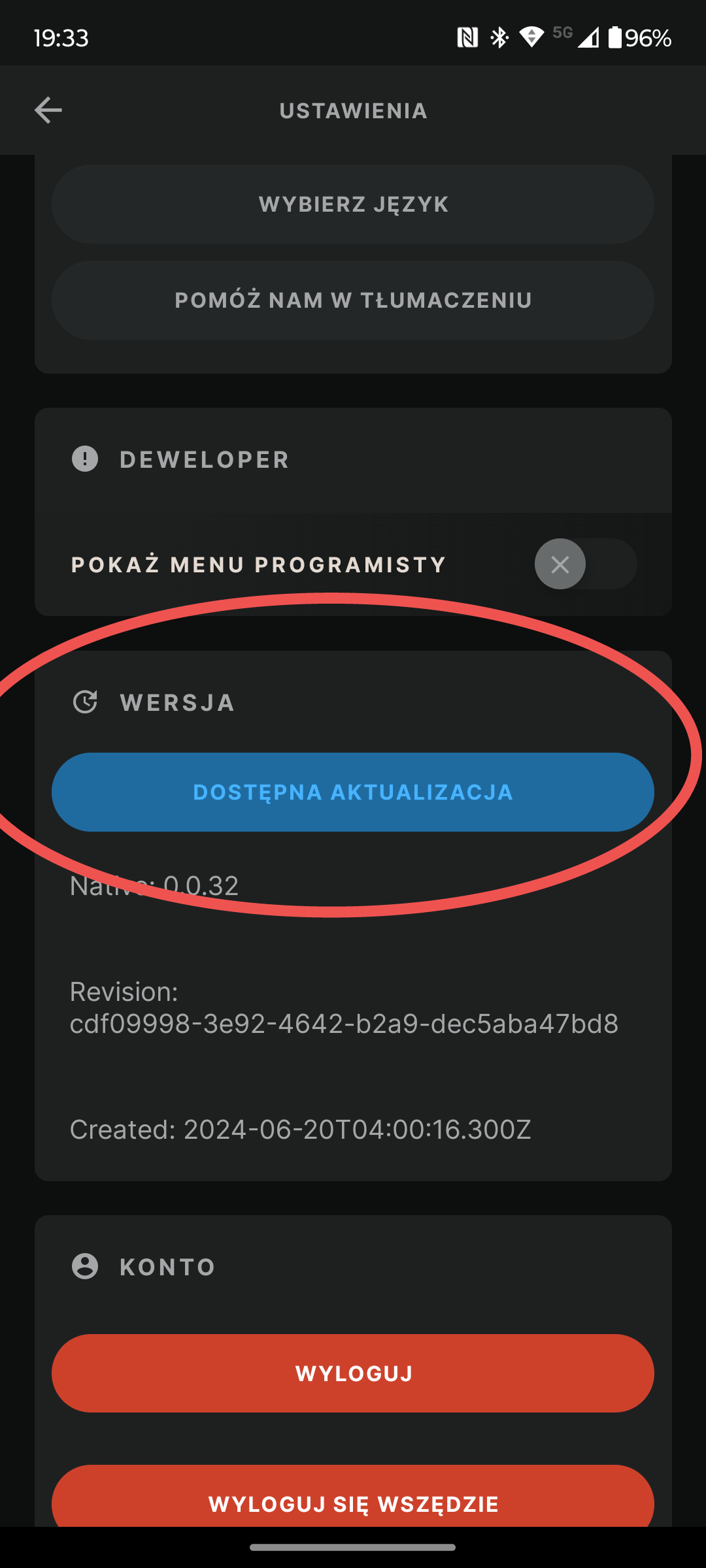
- Navigate to the app's settings and look for an update option. It is highly important that you update the app here!
- Once the update is complete, click to restart the app.
Step 3: Pair Your Device In-Game
With your server broadcasting and your phone ready, you just need to link the two together from within the game client.
- Launch Rust on your PC and join your server.
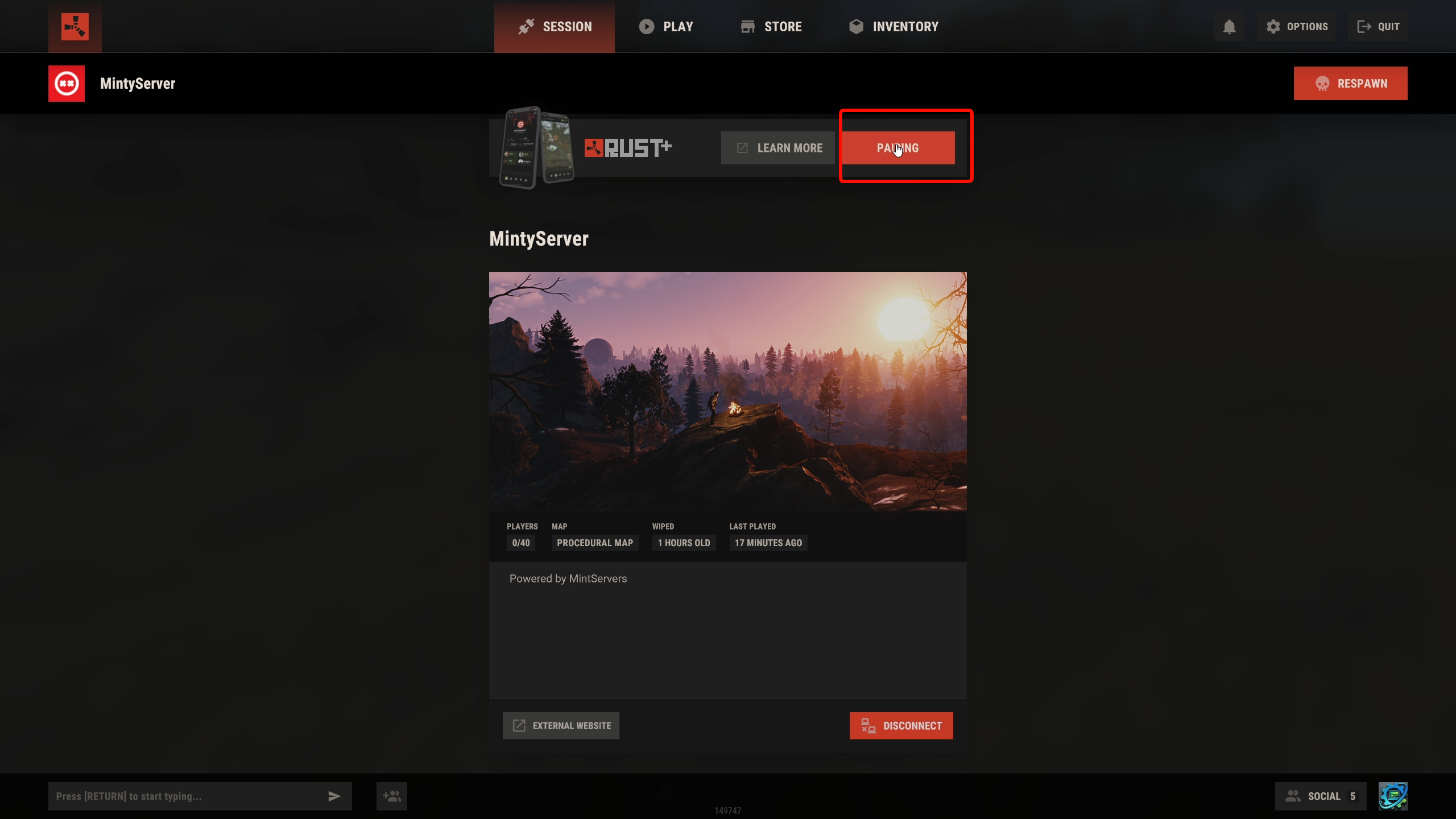
- Once you load in, press the ESC key to open the main menu.
- Choose the Pairing option from the menu list.
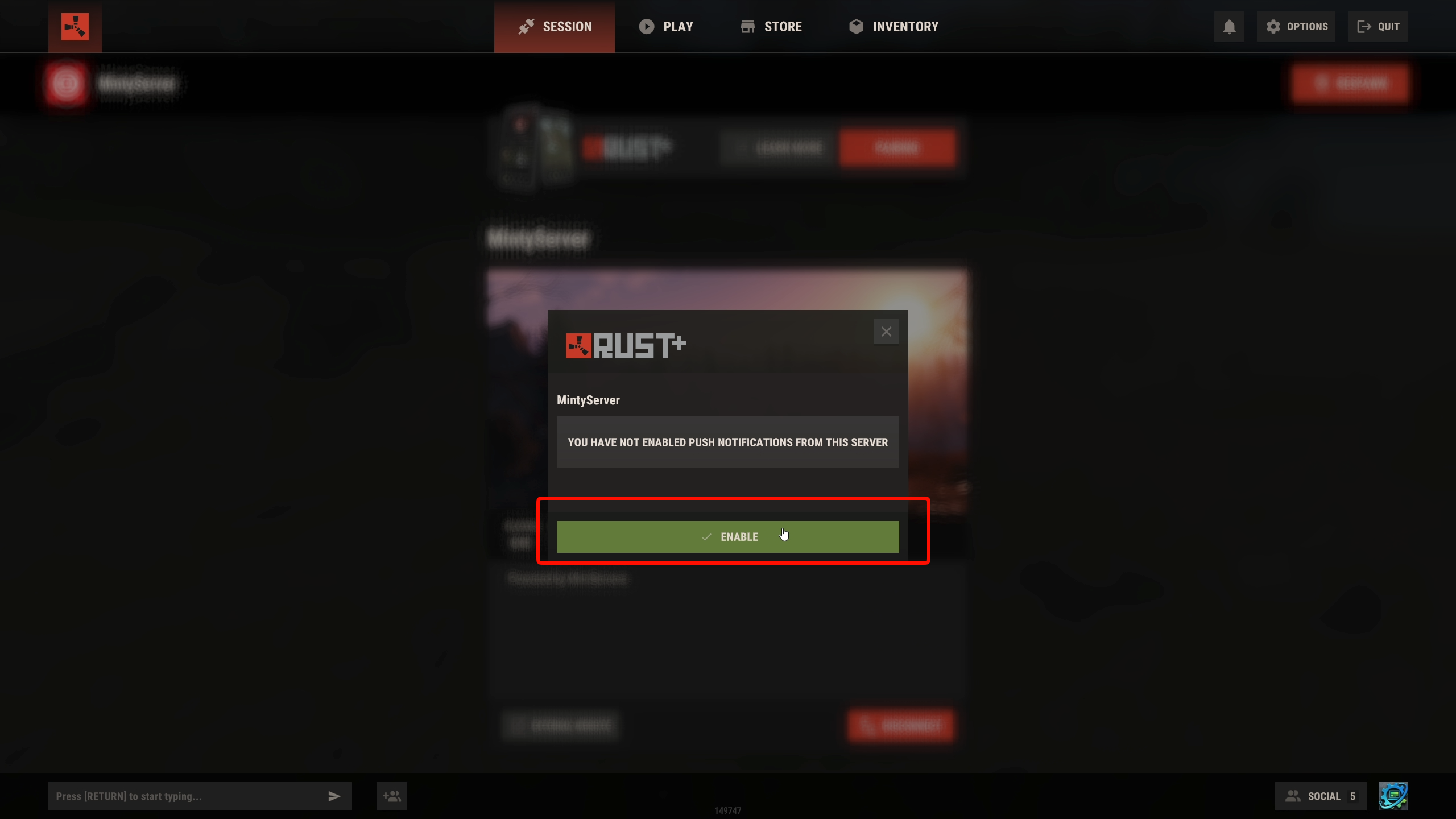
- Click the Enable button.
Step 4: Confirm the Connection on Your Phone
The game has now sent a pairing request to your mobile device.
- Open the Rust+ app on your phone.
- Go to your Notifications tab.
- Select the latest server pairing request.
- Click Pair the server!
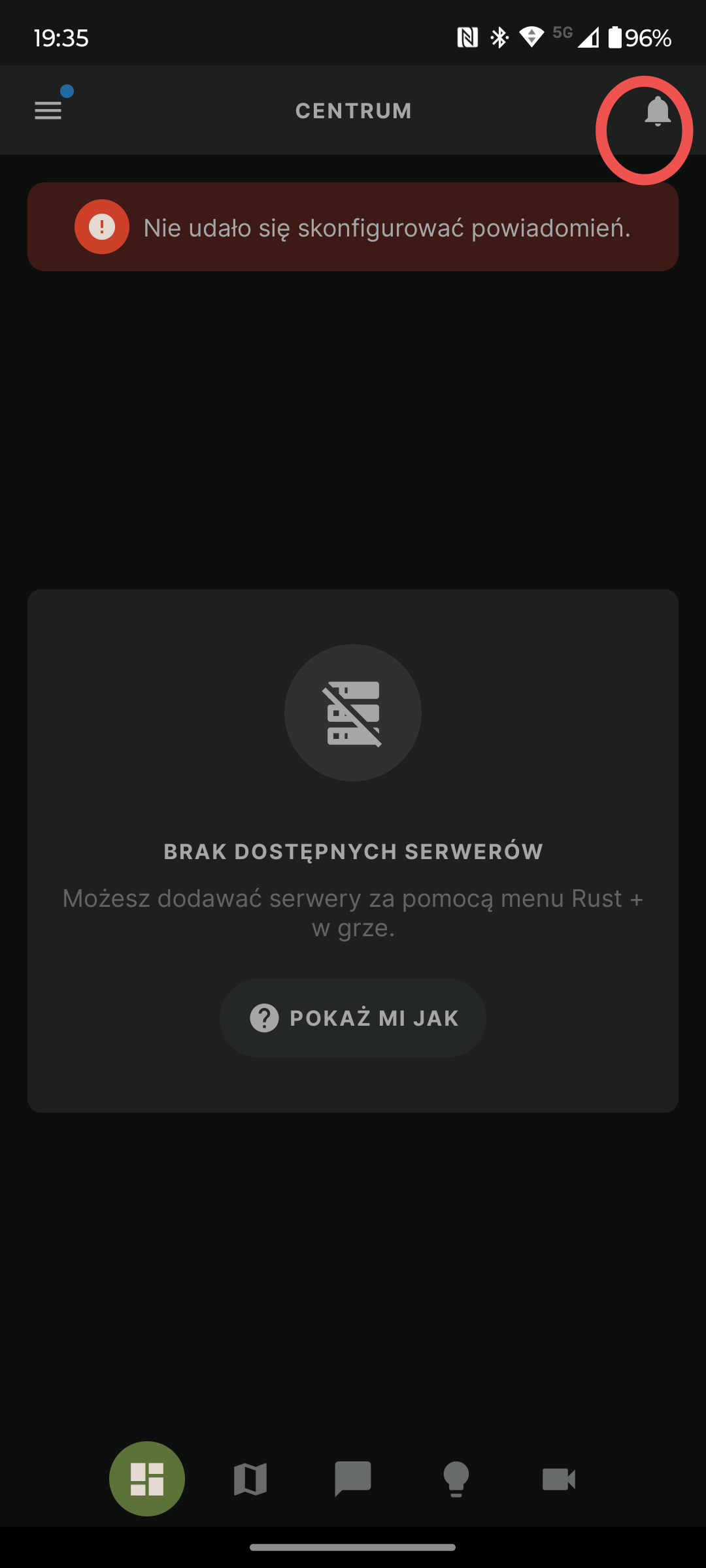
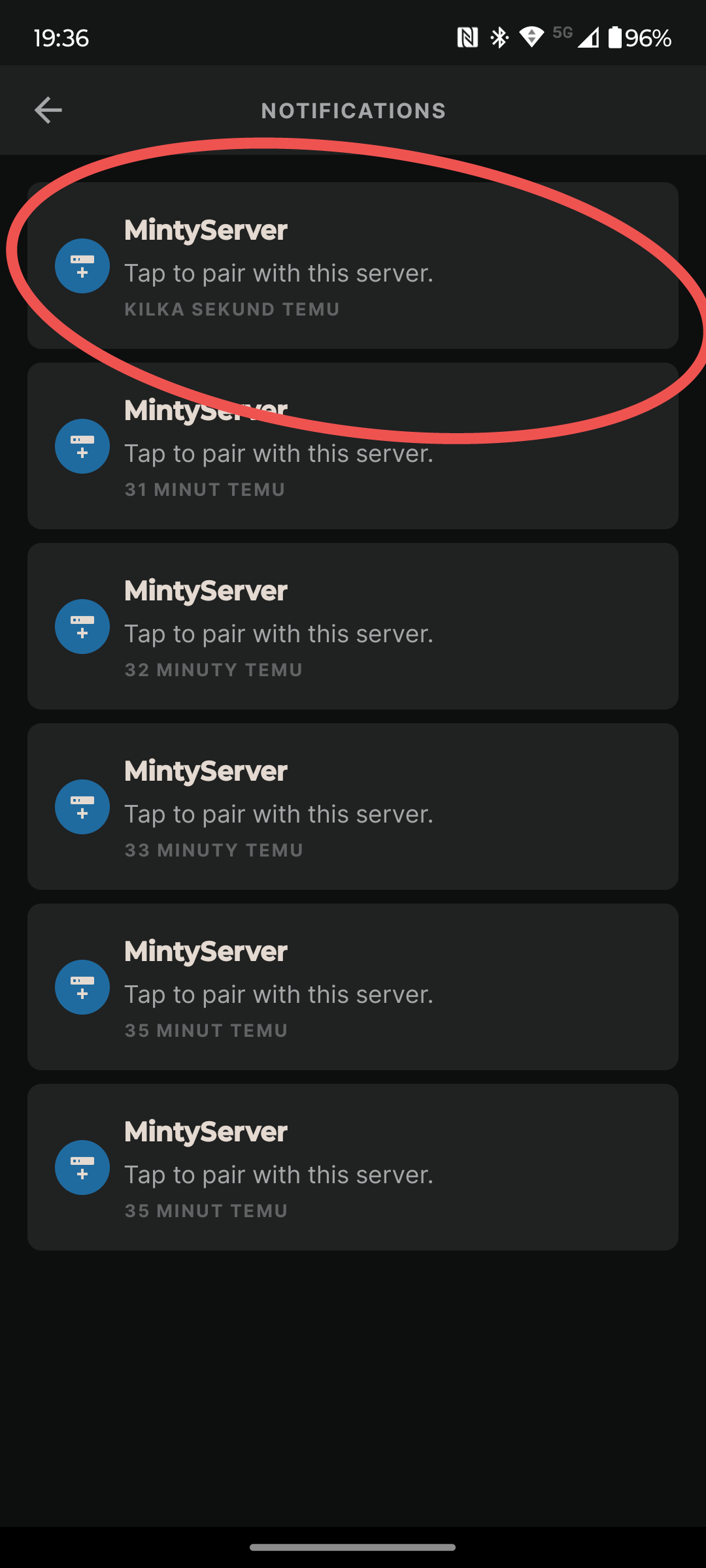
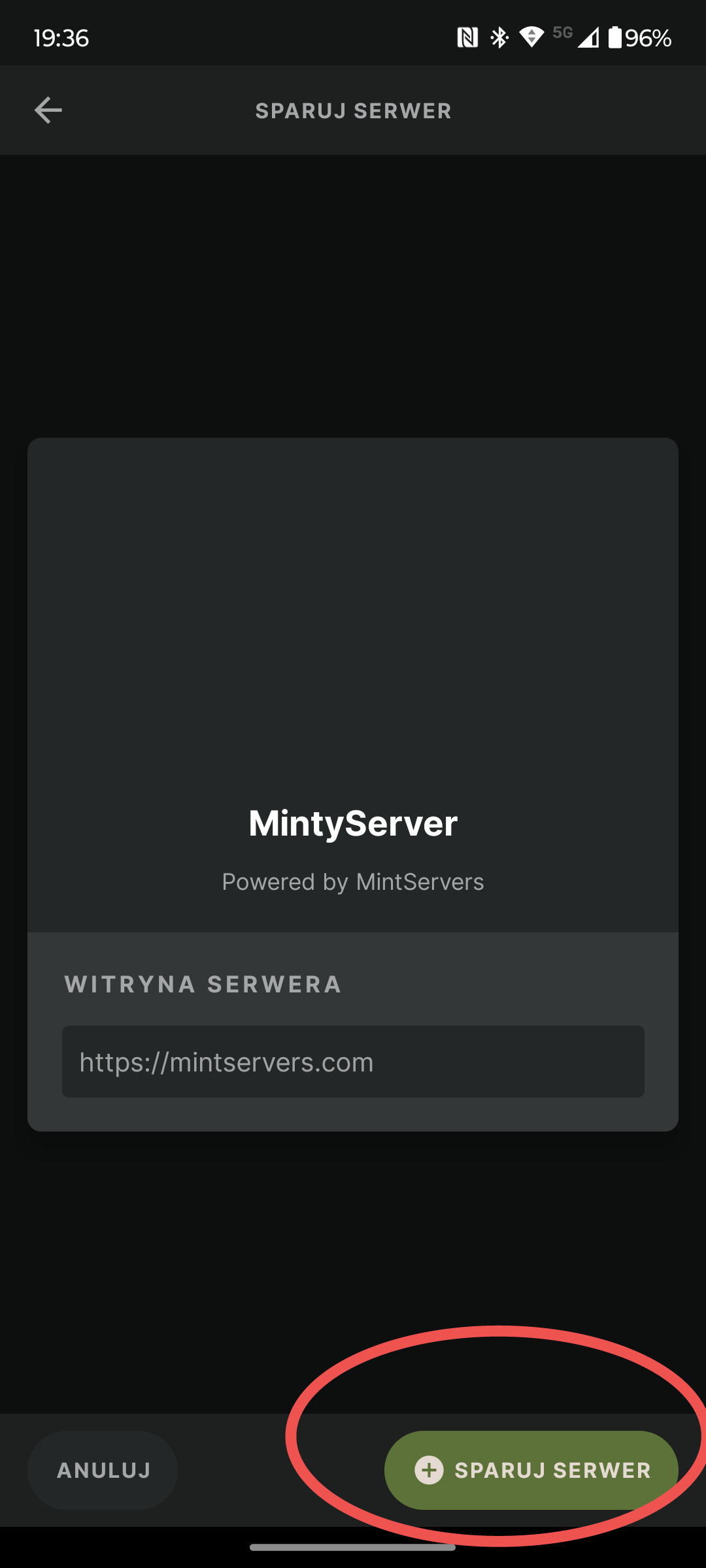
You are now fully connected! You can check the map, team chat, and set up your smart alarms right from your phone.
🛠️ Troubleshooting Pairing Issues
The pairing request isn't showing up on my phone: Make sure your server's App Port is configured correctly in the Game Settings, and ensure that you logged into the exact same Steam account on both your PC and the mobile app.
No worries if your app is still refusing to sync with the server! Just open a support ticket and our team will gladly jump in and instruct you on how to resolve the network connection.