



 Satisfactory
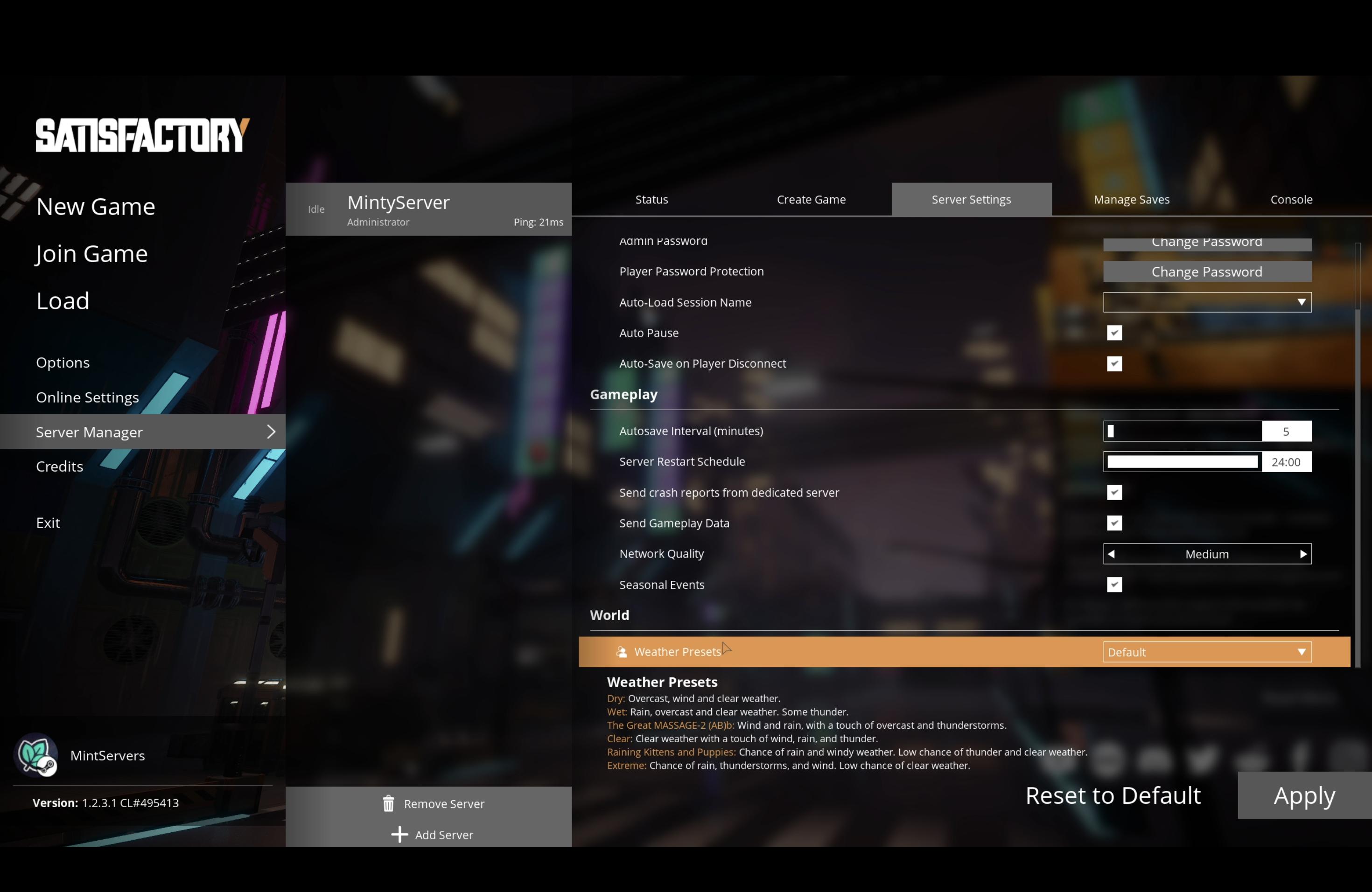
Satisfactory's Server Settings tab has a lot packed into it, from passwords and autosaves to network tuning and weather. Most of the defaults are fine to leave alone, but a few are worth changing the moment your server is up. This guide walks through what every setting does and which ones you'll actually want to touch.
Step 1: Open Your Server Settings
- Launch Satisfactory and select Server Manager from the main menu.
- Connect to your MintServers server using its address and Admin Password.
- Click the Server Settings tab.
Access & Session Settings
- Admin Password: Grants full admin access to the Server Manager, including every setting on this page. Only share this with people you trust to manage the server.
- Player Password Protection: Requires anyone connecting to the world (not the Server Manager) to enter a password first. Use this to keep your factory private.
- Auto-Load Session Name: Sets which save the server boots into automatically on startup. Leave this pointed at your active save so a restart doesn't leave the server sitting on the wrong world.

Auto-Save & Pause Behavior
- Auto Pause: Pauses the entire simulation, conveyors, machines, and power, whenever no players are connected. Turned on by default. Turn it off if you want production to keep running while everyone's offline.
- Auto-Save on Player Disconnect: Triggers an extra save the moment a player leaves, so their progress is captured even if the next scheduled autosave is a while off.
- Autosave Interval (minutes): How often the server saves automatically. The in-game default is every 5 minutes. Shorter intervals mean less progress lost if the server crashes, but very large factories may notice a brief hitch while the save writes to disk.
Server Restart Schedule
Sets a fixed time of day for the server to automatically restart. A scheduled restart clears out any memory bloat from a long uptime and applies pending updates, which helps keep performance consistent on servers that stay online for days at a time. Set this to a time when your group is unlikely to be playing.
Diagnostics & Network
- Send crash reports from dedicated server: Sends crash logs to Coffee Stain Studios if the server process crashes. Doesn't affect gameplay or performance either way.
- Send Gameplay Data: Shares anonymous gameplay analytics with the developers. Purely a data collection toggle, safe to leave on or off based on your preference.
- Network Quality: Controls how much state the server sends to connected clients each tick. This defaults to Low on dedicated servers, which is the single most common cause of belt stutter, vehicles teleporting, and rubber-banding. Set this to Ultra, and make sure every connecting player sets Network Quality to Ultra on their own client too, since a mismatch on either end causes desync.
World Settings
Seasonal Events: Toggles limited-time content like FICSMAS on or off. Turning this off only stops new seasonal content from appearing, it won't remove decorations you've already placed.
Weather Presets: Controls how often rain, wind, fog, and thunder occur on the server. This is a separate setting further down the World section.
If any of these settings aren't showing up, make sure your server is fully updated to the latest version. If something isn't saving the way you'd expect, no worries! Just open a support ticket and our team will be happy to take a look.