



 Sons of The Forest
Ready to jump into your Sons of the Forest world with friends? Sons of the Forest only supports joining through the in-game server browser or a direct IP connection, there is no separate server address field on the main menu. This guide covers both methods.
Step 1: Find Your Server's IP and Port
Before you can connect, grab your server's connection details from the MintServers panel.
- Log into your MintServers panel and select your Sons of the Forest server.
- On the Overview page, note down the
IP AddressandPortlisted for your server.
You'll use these details for either connection method below.

Step 2: Joining via the Server Browser
This method lets you find your server by name, but it can take a few minutes (sometimes longer for a brand new server) to appear in the list.
- Launch Sons of the Forest.
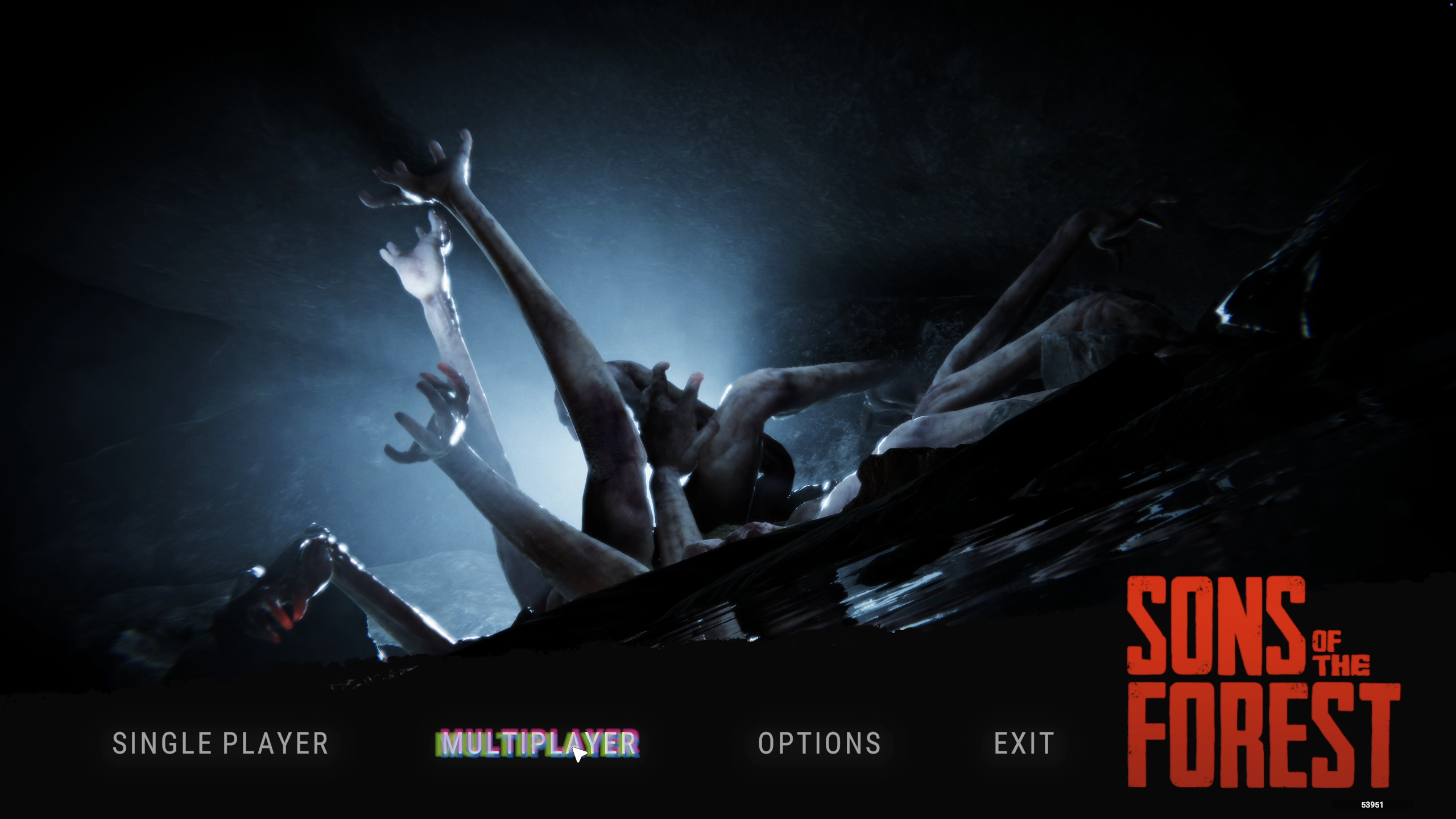
- From the main menu, click
Multiplayer. - Click
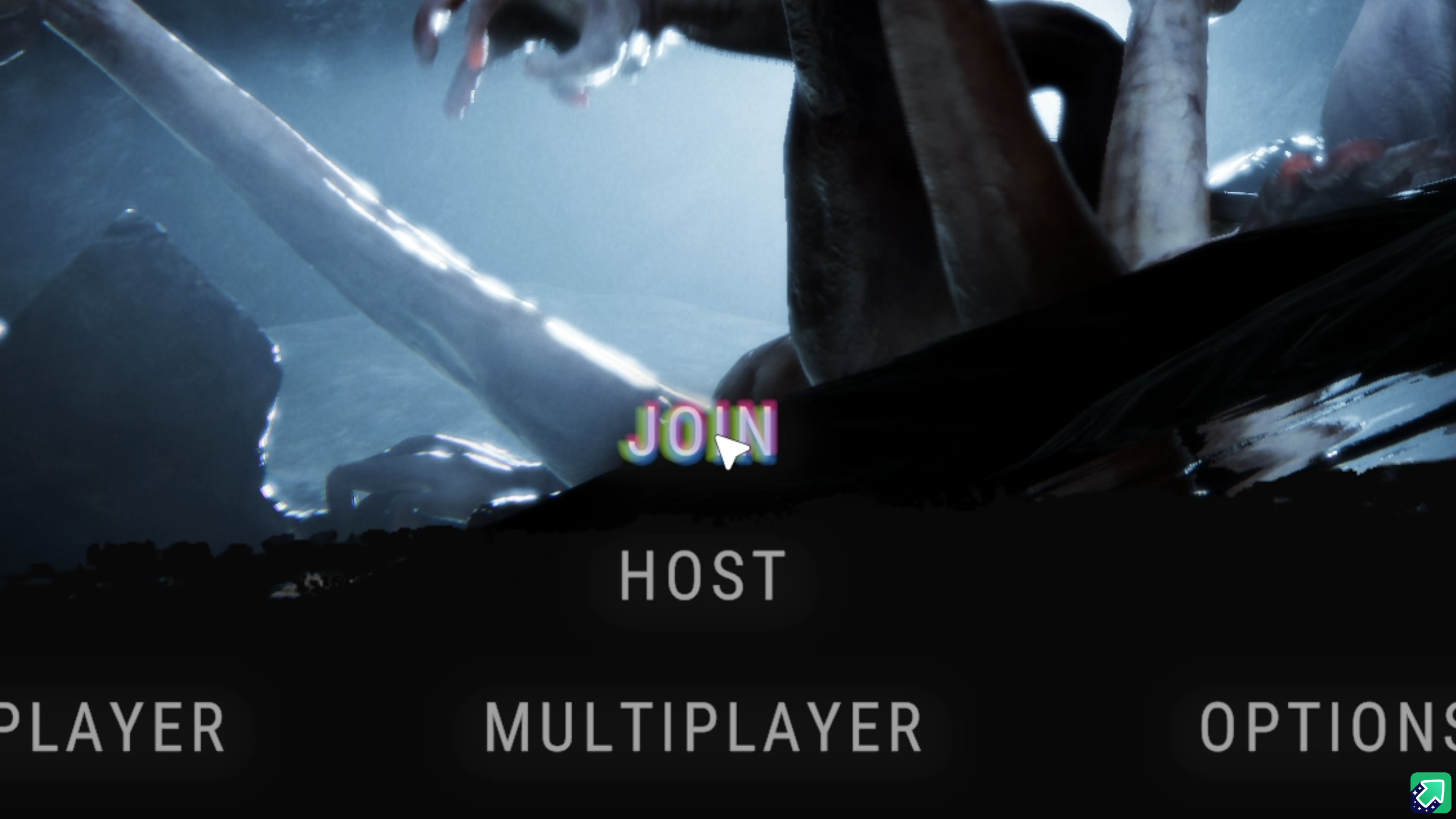
Join. - Set the
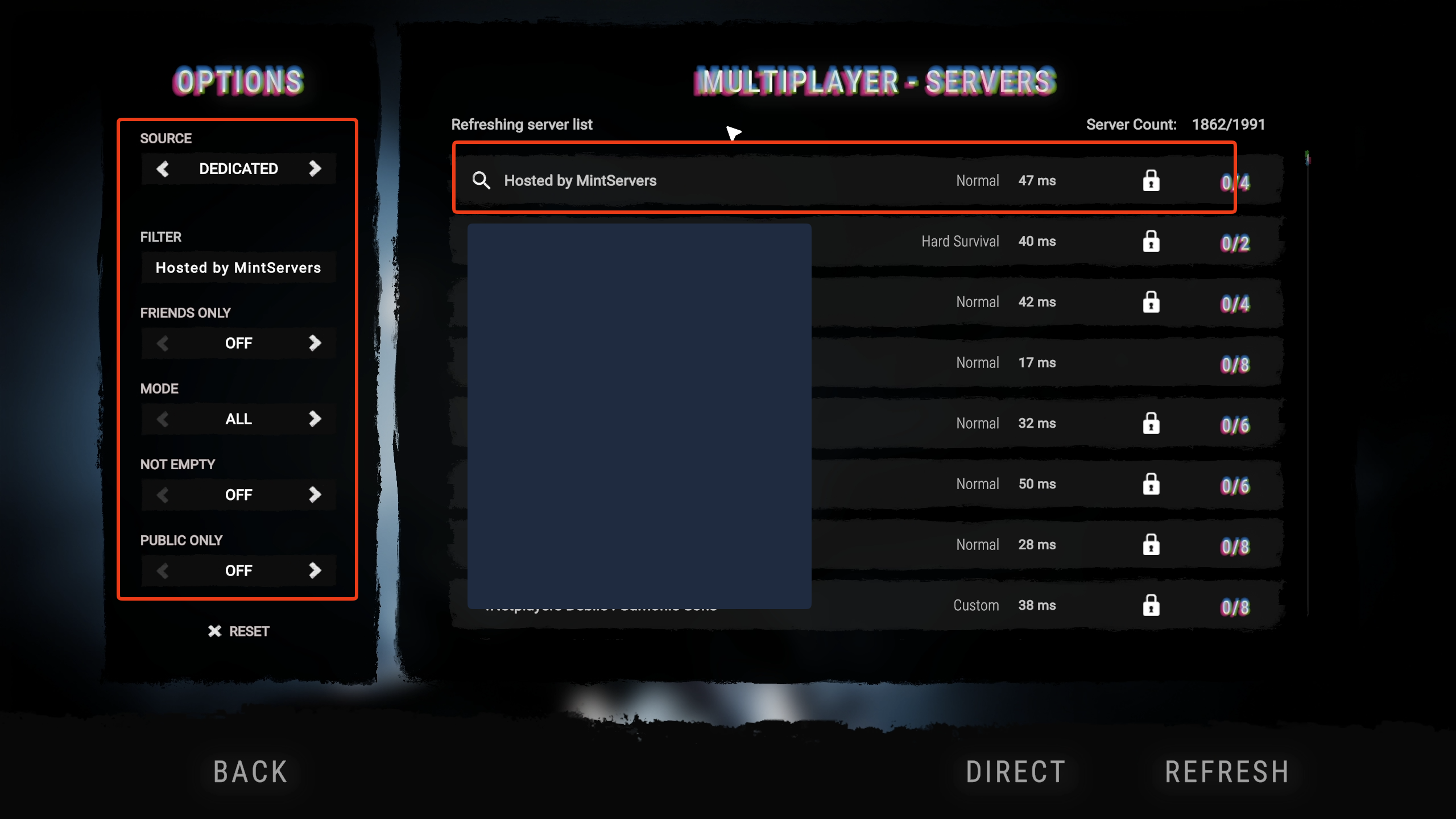
Sourcetoggle toDedicated. This filters out peer-to-peer sessions and shows dedicated servers only. - Use the Filter field to search for your server by name, then apply any other filters needed to narrow the results.
- Once your server appears, select it and click
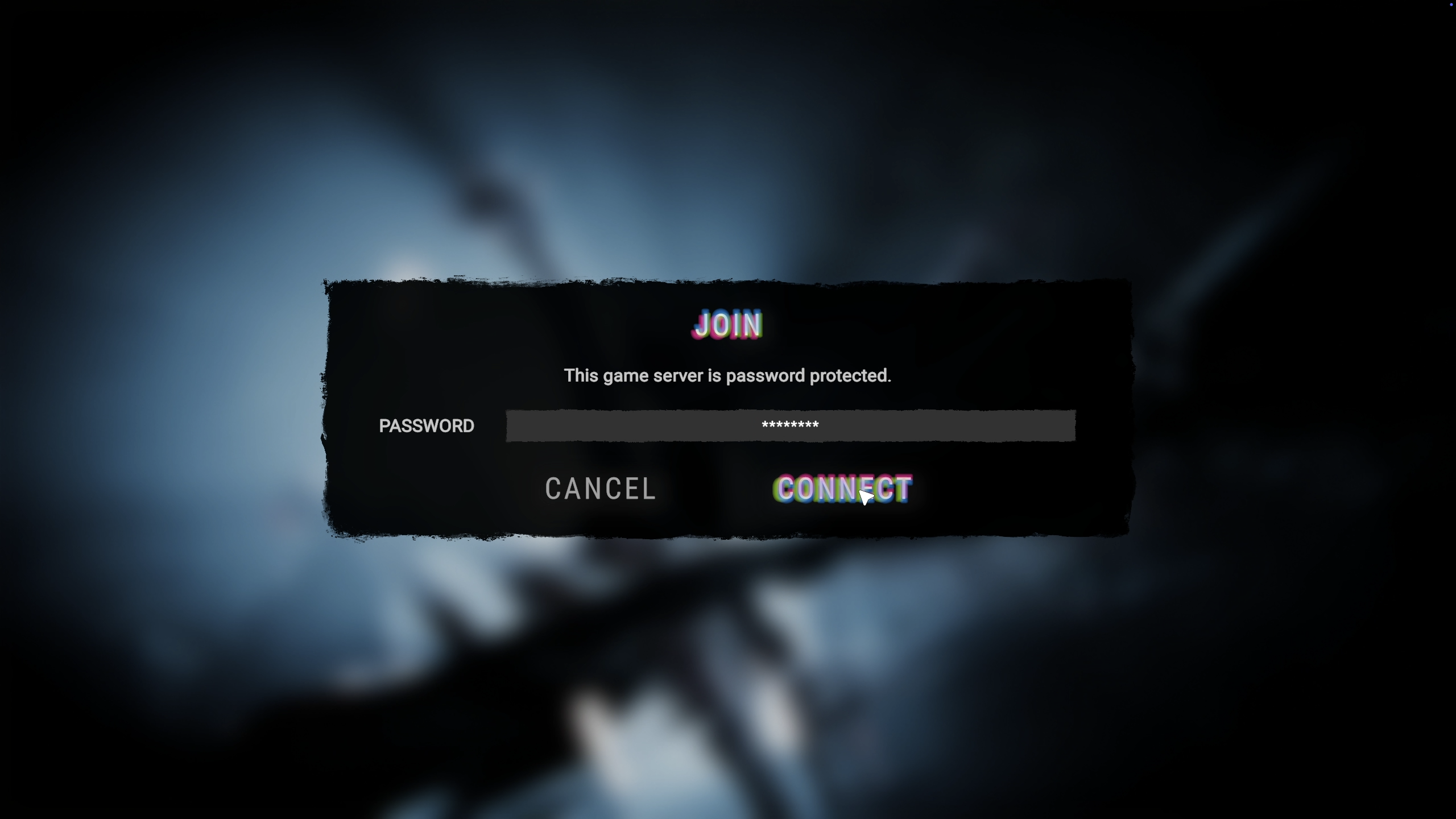
Join. - If your server is password protected, enter the password when prompted.
Step 3: Joining via Direct Connect
If your server isn't showing up in the browser yet, or you'd rather skip the search entirely, Direct Connect gets you in immediately using the IP and Port from Step 1.
- Launch Sons of the Forest.
- From the main menu, click
Multiplayer. - Click
Join. - Select
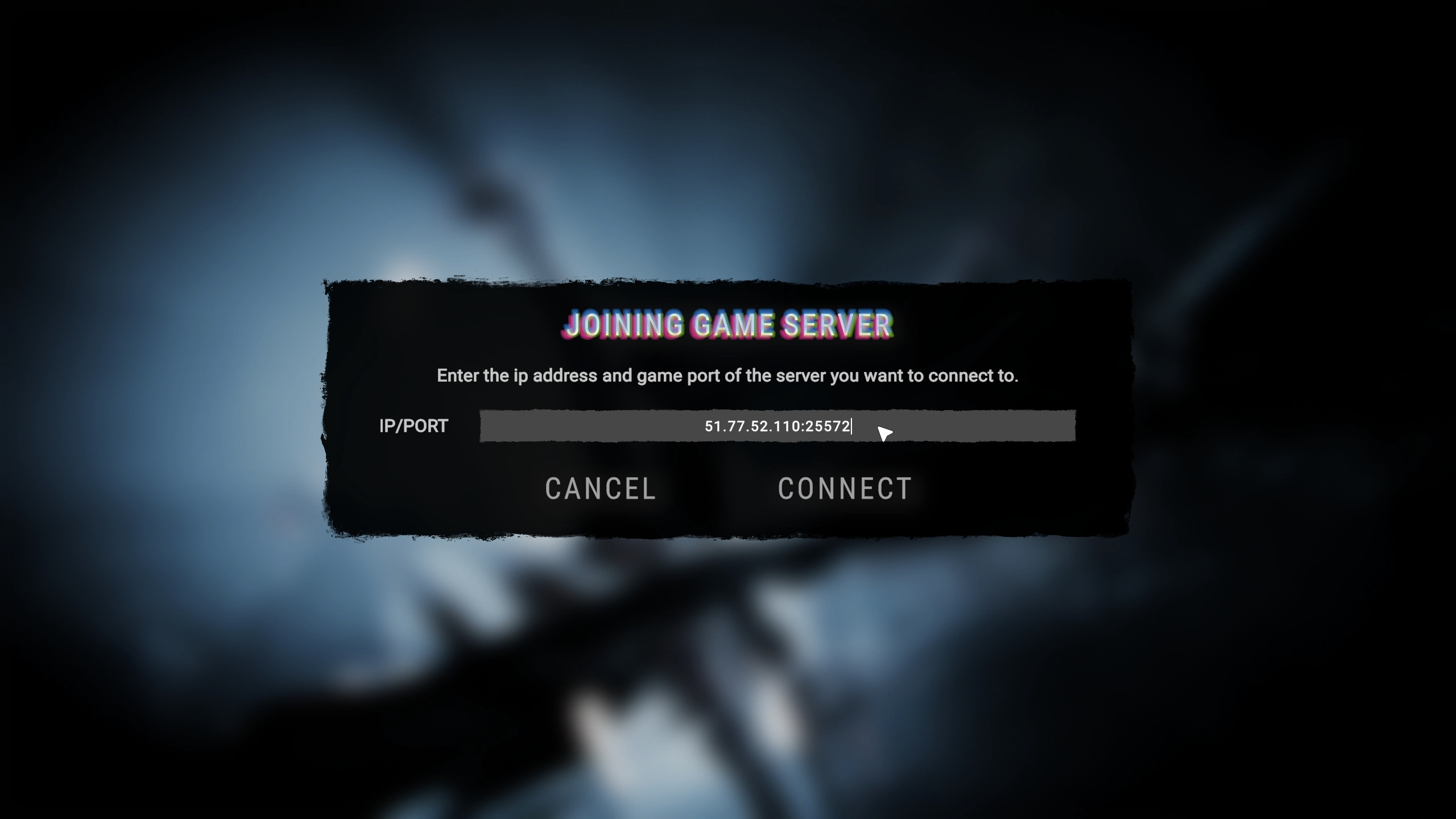
Directat the bottom of the screen. - Enter your server's IP address and Port.
- Click
Join. - If your server is password protected, enter the password when prompted.
🛠️ Troubleshooting Common Connection Issues
Server not showing in the browser:New servers can take several minutes to appear, and sometimes longer. Use Direct Connect in the meantime.Can't connect at all:Double-check the IP and Port from your MintServers Overview page for typos, and confirm your server is actually running.Prompted to restart on first join:This is expected on a server's first startup. Restart it once from the MintServers panel and try again.Wrong password error:Passwords are case-sensitive. Confirm the exact password set in your server configuration.
That's it, you're ready to survive the peninsula with your friends! If you're having trouble finding or connecting to your server, no worries! Just open a support ticket and our team will gladly jump in and help you get connected.