



 Hytale
Whether you are building secretly before a big release or just want to play a survival world with close friends, keeping your server private is essential. There are two main ways to secure your Hytale server on MintServers:
- Server Password: Easy to share and great for small groups of friends.
- Whitelist: Offers strict control, requiring you to manually approve and add every player.
Let us walk through your MintServers game panel and get your server locked down using either method!
Method 1: Setting a Server Password
The easiest way to lock your server is by adding a password. Anyone who knows the password can join your world.
- Log into your MintServers panel and click the Stop button to safely shut down your server.
- On the left-hand sidebar, navigate to the Files tab to open your File Manager.
- Navigate to your main server directory to locate your configuration file:
📁 server (main server directory)
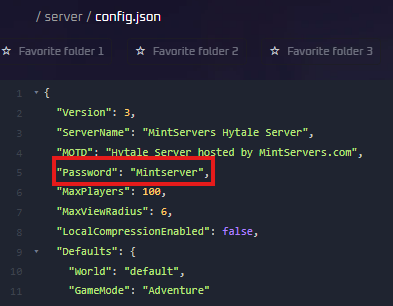
- Scroll down to find the
"Password"setting. - Type your desired password inside the quotation marks. (To remove the password later, simply leave the quotation marks empty).
- Click the Save Content button at the top of the editor.
- Head back to your Console and Start your server for the changes to take effect!

Method 2: Enabling the Whitelist
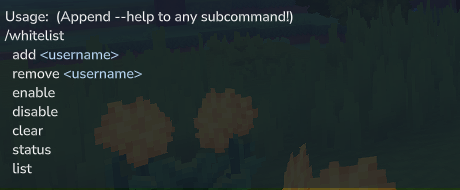
For stricter security, use a whitelist. When enabled, the server will block everyone except the specific players you manually add to the list.
Step 1: Turn on the Whitelist
You can enable the whitelist directly from your MintServers Console or via the in-game chat if you already have Operator (OP) permissions.
Via Console (Panel):
Via In-Game (Requires OP):

Step 2: Add Players
To allow a player to join, use the add command. You will need to repeat this process for every person you want to allow, including yourself! Replace PlayerName with their exact in-game username.
Via Console (Panel):
Via In-Game (Requires OP):

Removing Players from the Whitelist
If you ever need to revoke access for a player, you can easily remove them using the following command:
- Panel Console:
whitelist remove PlayerName - In-Game Chat:
/whitelist remove PlayerName
🛠️ Troubleshooting Access Issues
Friends are still getting blocked: If you enabled the whitelist, ensure you typed their names exactly as they appear in-game, as the list is completely case-sensitive!
No worries if your players are still struggling to connect! Just open a support ticket and our team will gladly jump in and instruct you on how to resolve the configuration.