



 Aloft
Aloft
Ready to take to the skies with friends? Joining a multiplayer Aloft server only takes a minute once you know where to look. This guide walks you through creating your character and connecting to a world, whether you're browsing the public server list or joining with a code.
💡 Prerequisite: Get Your World Code
If the server you're joining is set to Private, ask the server owner for the World Code before you start. If your server is hosted with MintServers, the owner can find this on the panel.
If the server you're joining is set to Private, ask the server owner for the World Code before you start. If your server is hosted with MintServers, the owner can find this on the panel.
Step 1: Create Your Character
- Launch Aloft through Steam.
- From the main menu, click
Create Character. - Customize your character's appearance, then confirm to finish creating them.
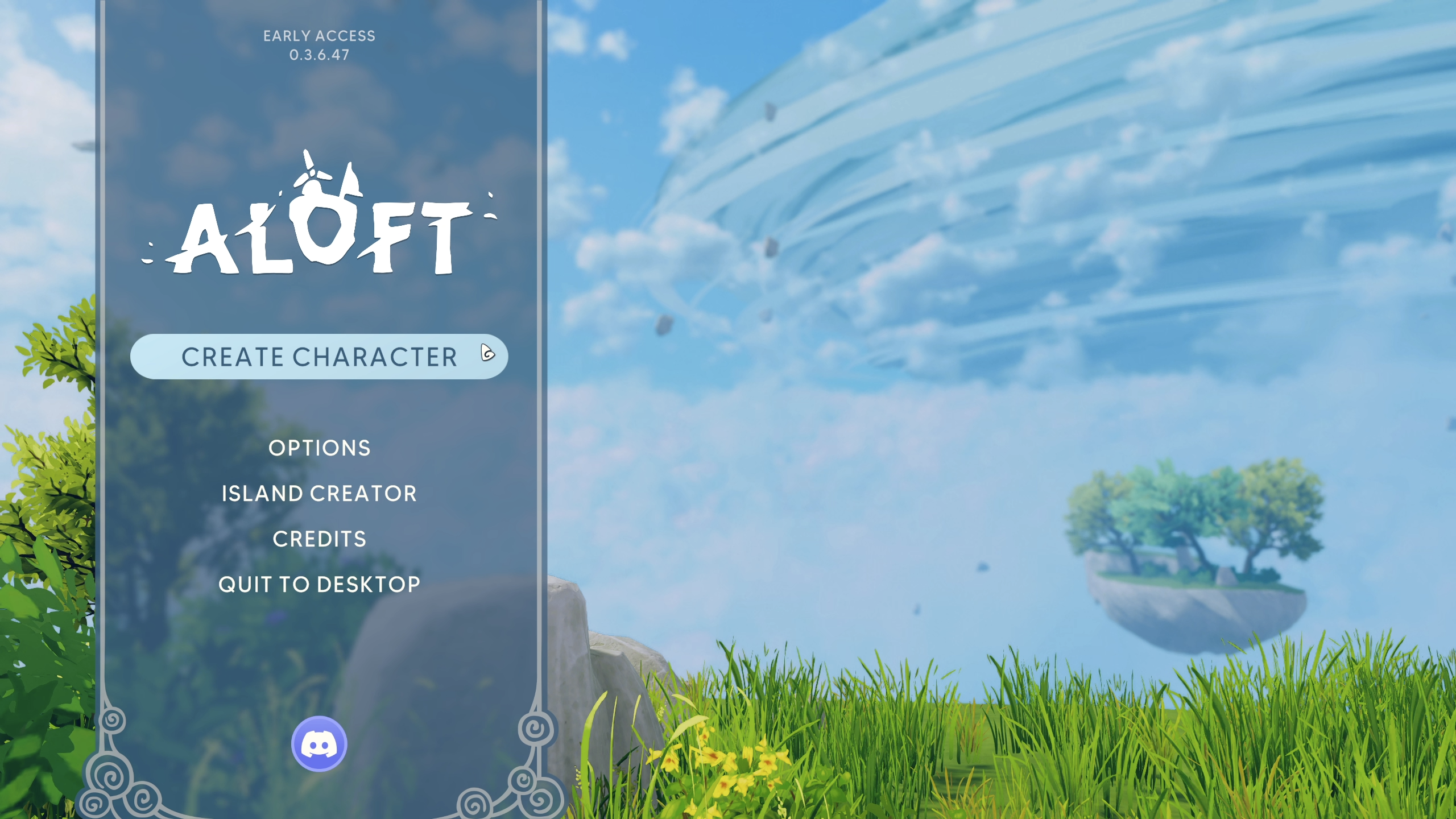
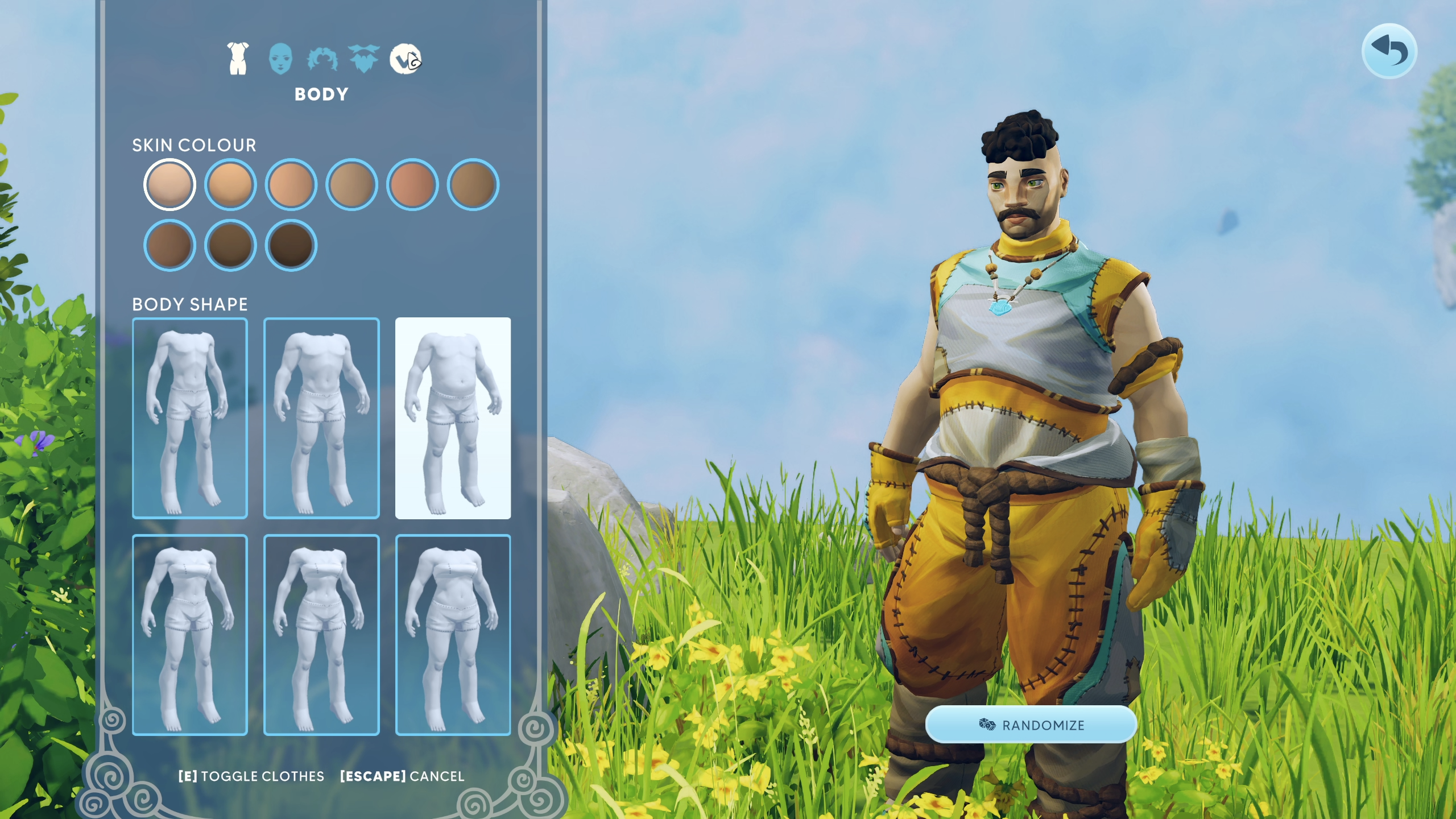
Step 2: Open the Multiplayer Menu
- From the main menu, click
Multiplayer. - Click
Join World.
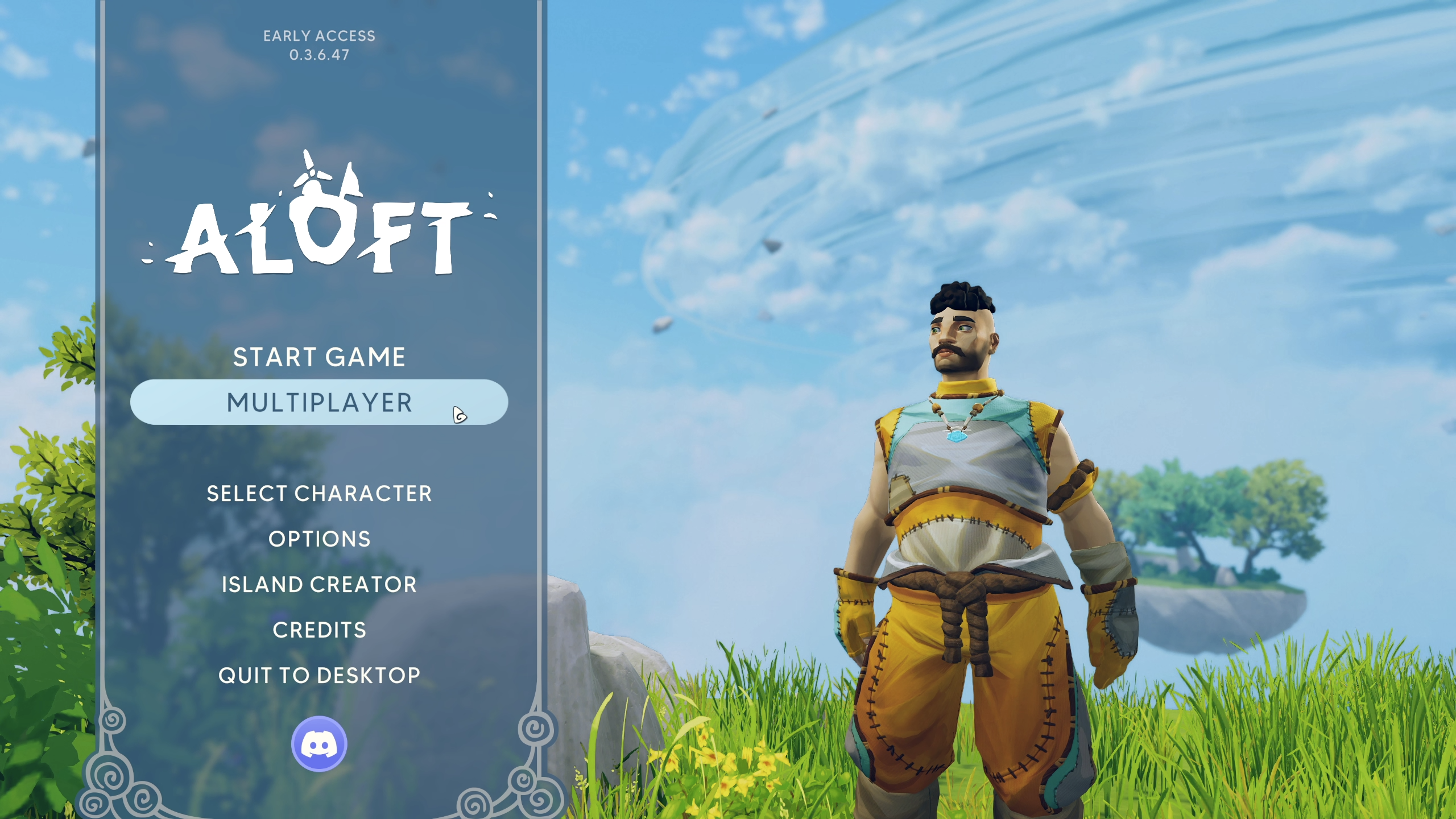
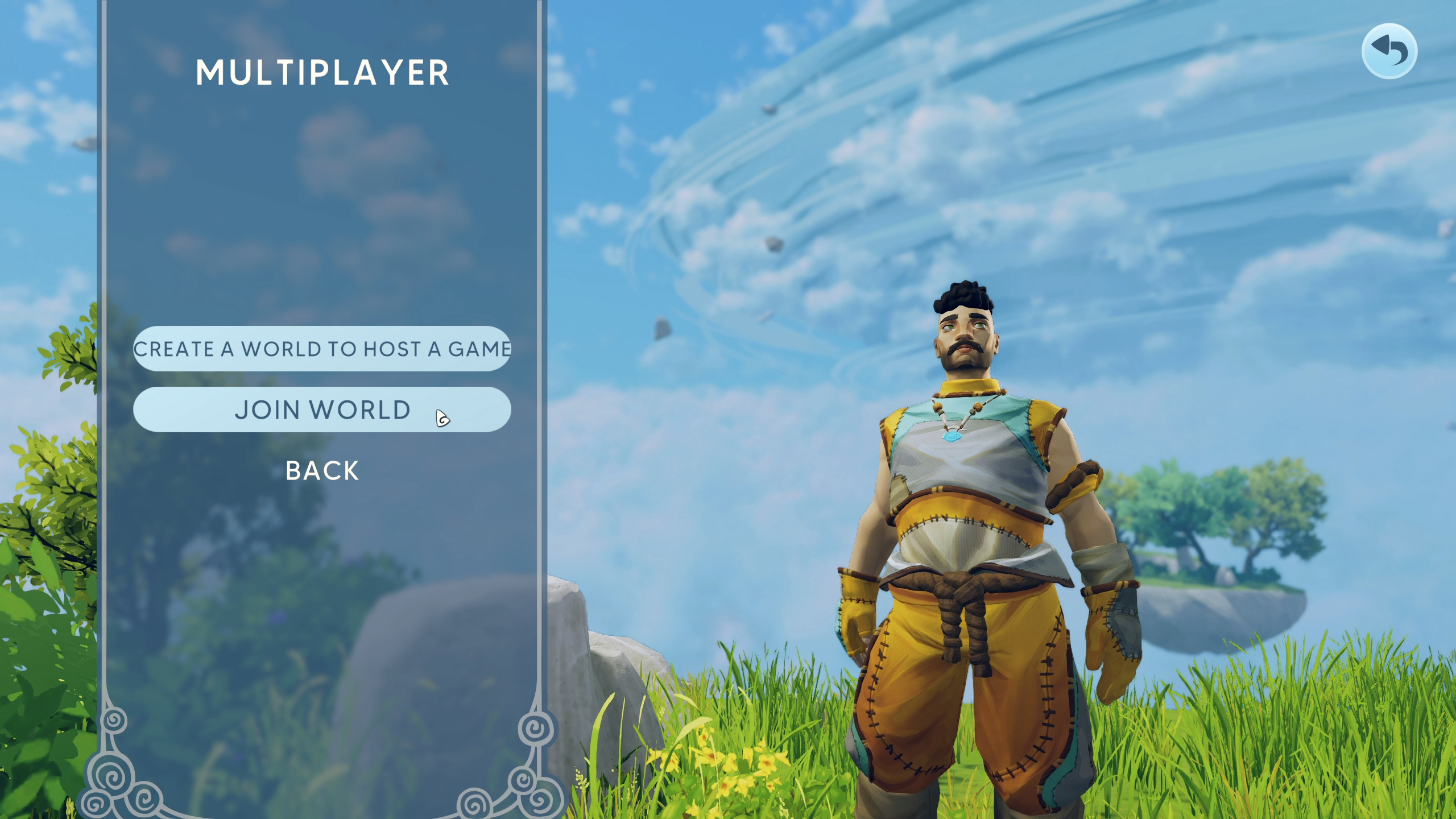
Step 3: Find a Server in the List
If the server is Public, you can find it directly through the in-game browser:
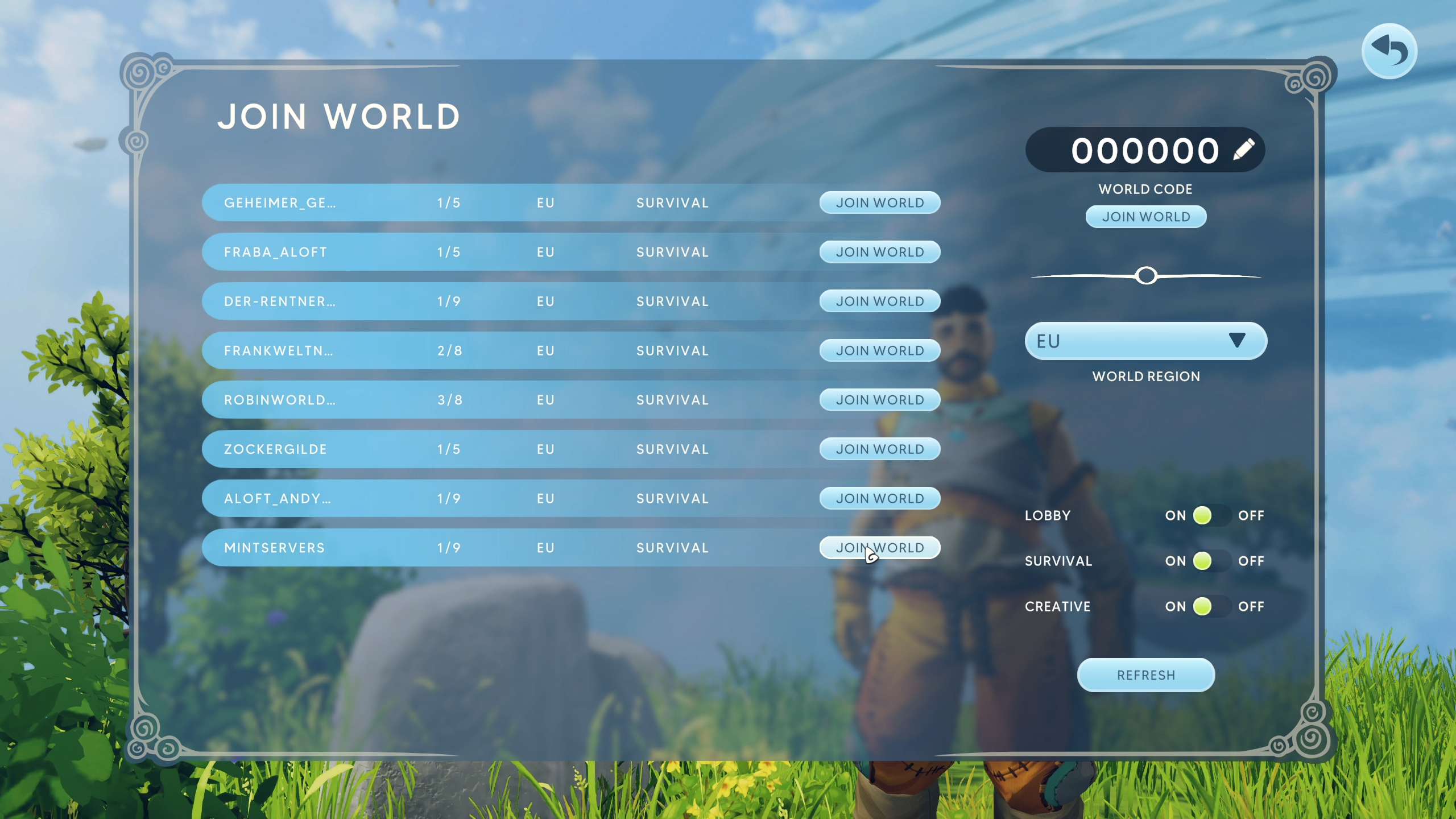
- Select the correct Region from the dropdown. If the server isn't set to your region, it won't show up in the list.
- Browse or search the server list for the server by name.
- Click
Join Worldnext to the server to connect.
📝 Note:
Newly created or recently restarted servers can take a little while to appear in the public list. If you can't find it right away, try joining with the World Code instead.
Step 4: Join With a World Code (Private Servers)
If the server is Private, or you'd rather skip searching the list, you can join directly with a code:
- From the server list screen, enter the World Code in the field in the top-right corner.
- Click
Join Worldto connect.
🛠️ Troubleshooting
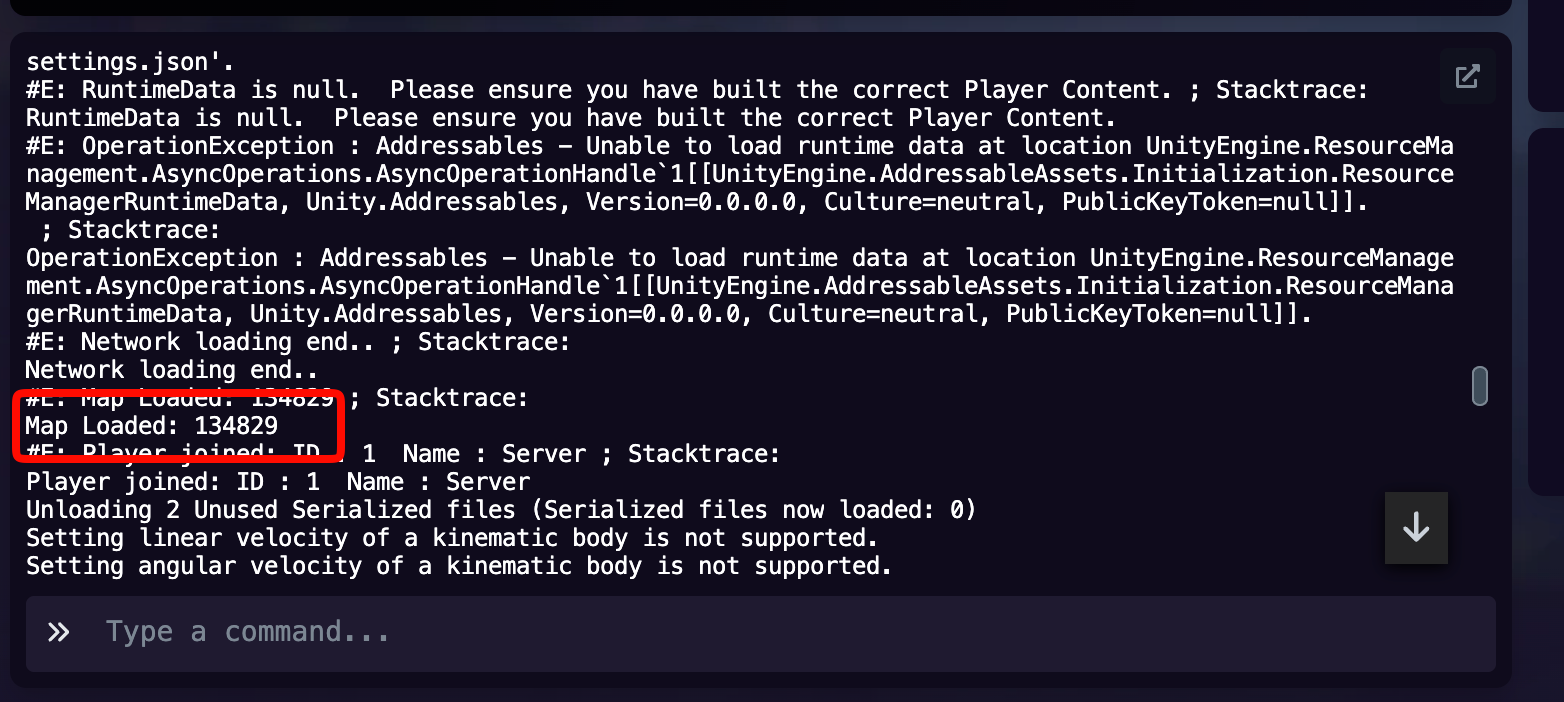
Can't find the server in the list:Double-check your selected Region matches the server's region, and confirm the server is actually running.World Code isn't working:Codes can change if the server restarts. Ask the server owner for the current code.Stuck loading in:This is usually temporary while the world data loads. Give it a moment before trying to rejoin.
That's it - you should now be exploring the skies with your friends! If you're still having trouble connecting to a server, no worries! Just open a support ticket and our team will gladly help you get sorted out.