


 BeamNG.drive
Taking your BeamNG.drive crashes and races online is an absolute blast! To get your BeamMP multiplayer server up and running, you will need to generate a quick authentication key from the official developers and apply it to your MintServers panel.
Let us get your server authenticated and your friends on the track!
⚠️ Important Reminder:
Always stop your server on the MintServers panel before generating and applying new authentication keys or changing Game Settings.
Step 1: Generate Your Authentication Key
BeamMP requires every server to have a unique key to show up on the public server list or to allow direct connections.
- Navigate to the official BeamMP Keymaster website at
https://keymaster.beammp.com/. - Log in using your Discord account when prompted.
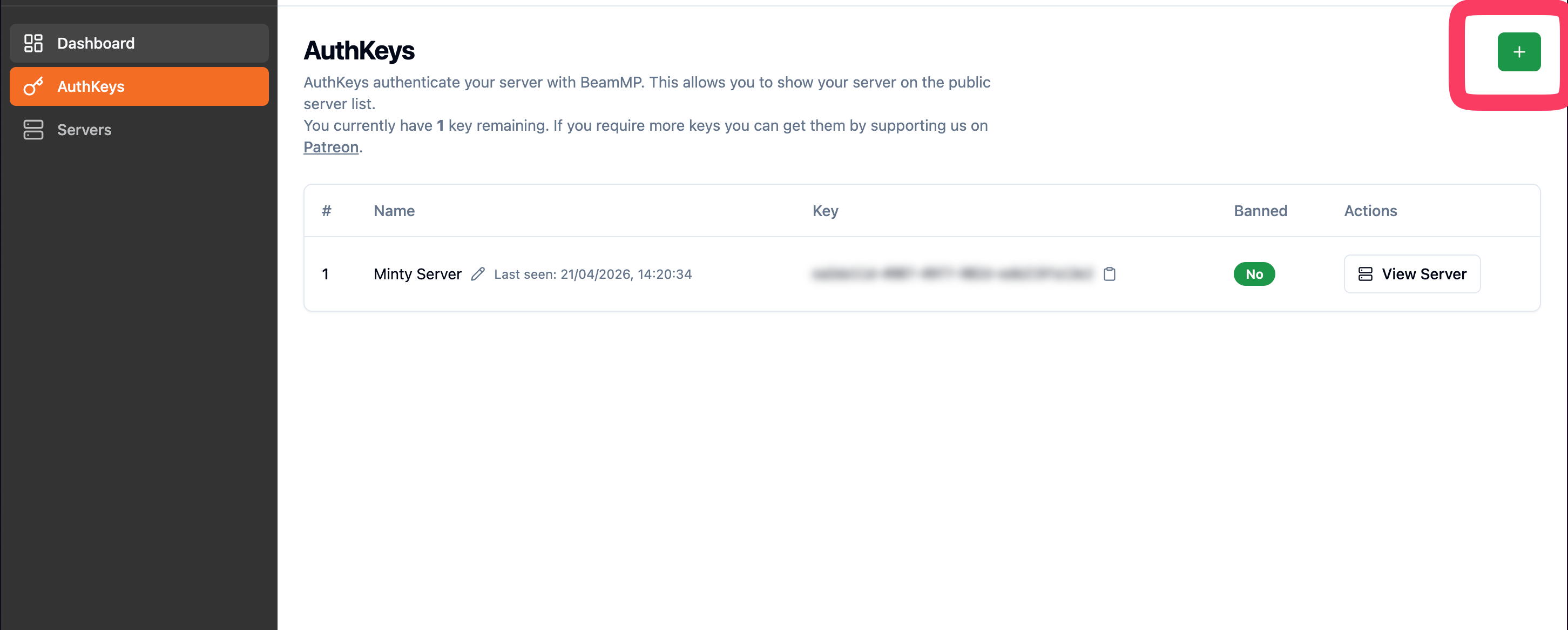
- Once logged in, click on the AuthKeys tab on the left side of the dashboard.
- Click the plus (+) button to create a new key.
- Enter a name for your server in the prompt and finalize the creation.
- Copy the newly generated key string to your clipboard.

Step 2: Apply the Key to Your Server
Now that you have your key, you need to tell your MintServers host to use it.
- Log into your MintServers panel and navigate to your BeamMP server.
- Ensure the server is stopped.
- Click on the Game Settings tab on the left-hand sidebar.
- Locate the Auth Key field and paste the key you copied from the Keymaster website.
- The panel will automatically save your changes. You can now return to the Console tab and start your server!
Step 3: Install the BeamMP Client
To join the server, you and your players need the official BeamMP multiplayer modification installed on your personal computers.
- Visit the official BeamMP website at
https://beammp.com/. - Download the BeamMP client installer.
- Run the installer and follow the on-screen instructions to inject the multiplayer mod into your BeamNG.drive game.
Step 4: Join Your Server
With the server running and your client installed, it is time to hit the road.
- Launch the game using your new BeamMP shortcut.
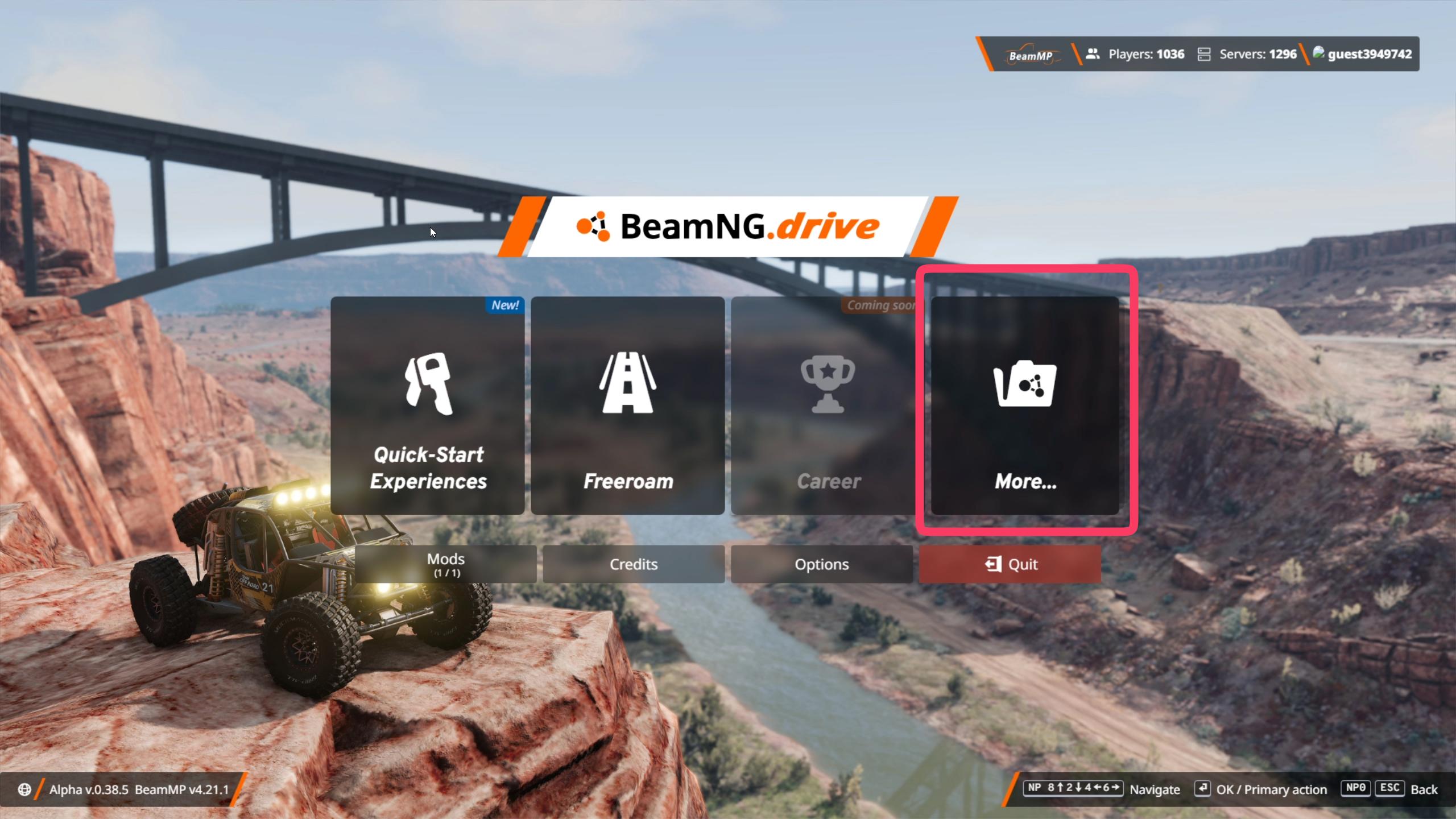
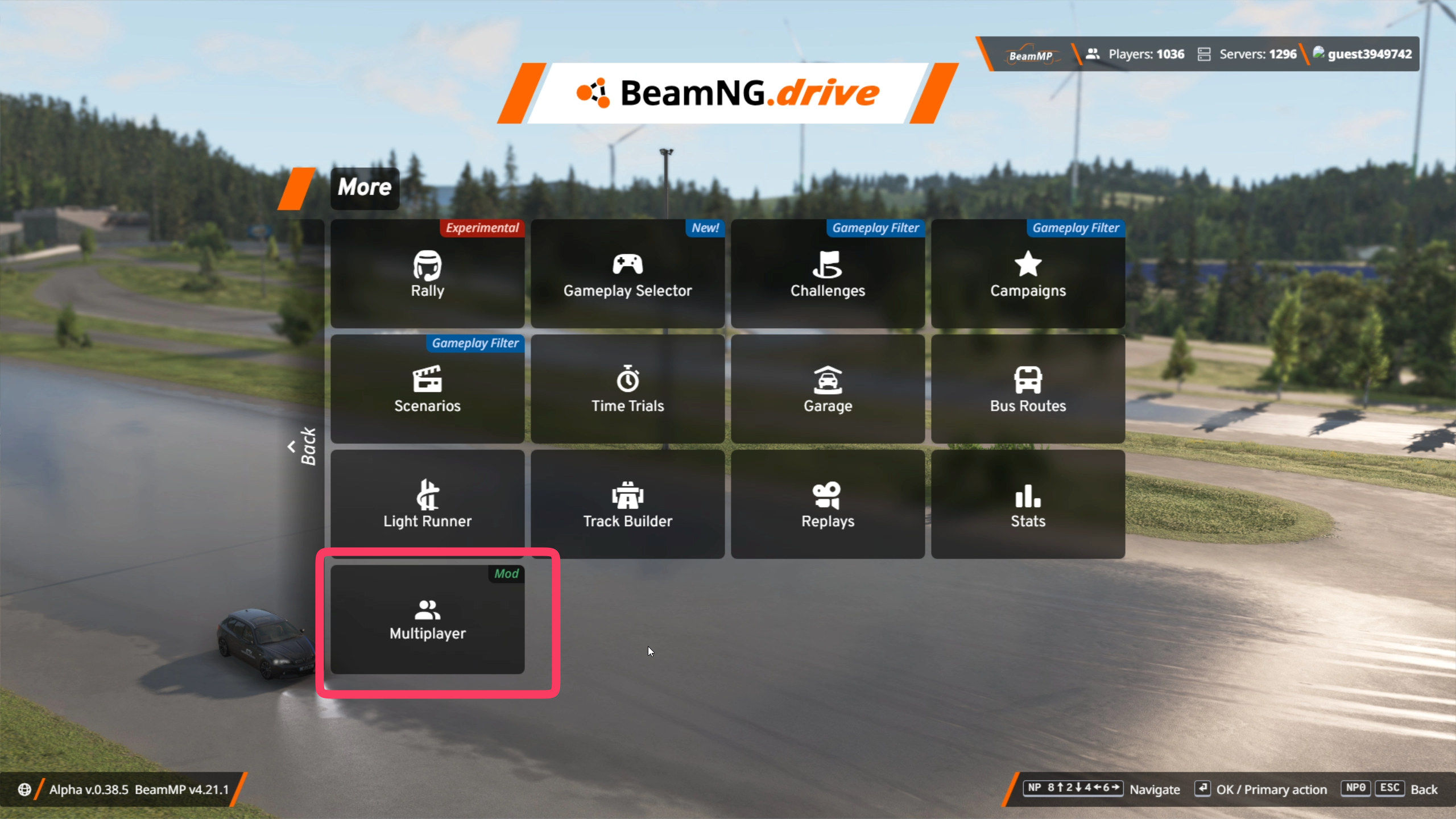
- From the main menu, click on the Multiplayer option.
- Accept the multiplayer rules and guidelines.
- Log into your BeamMP account if the game prompts you to do so.
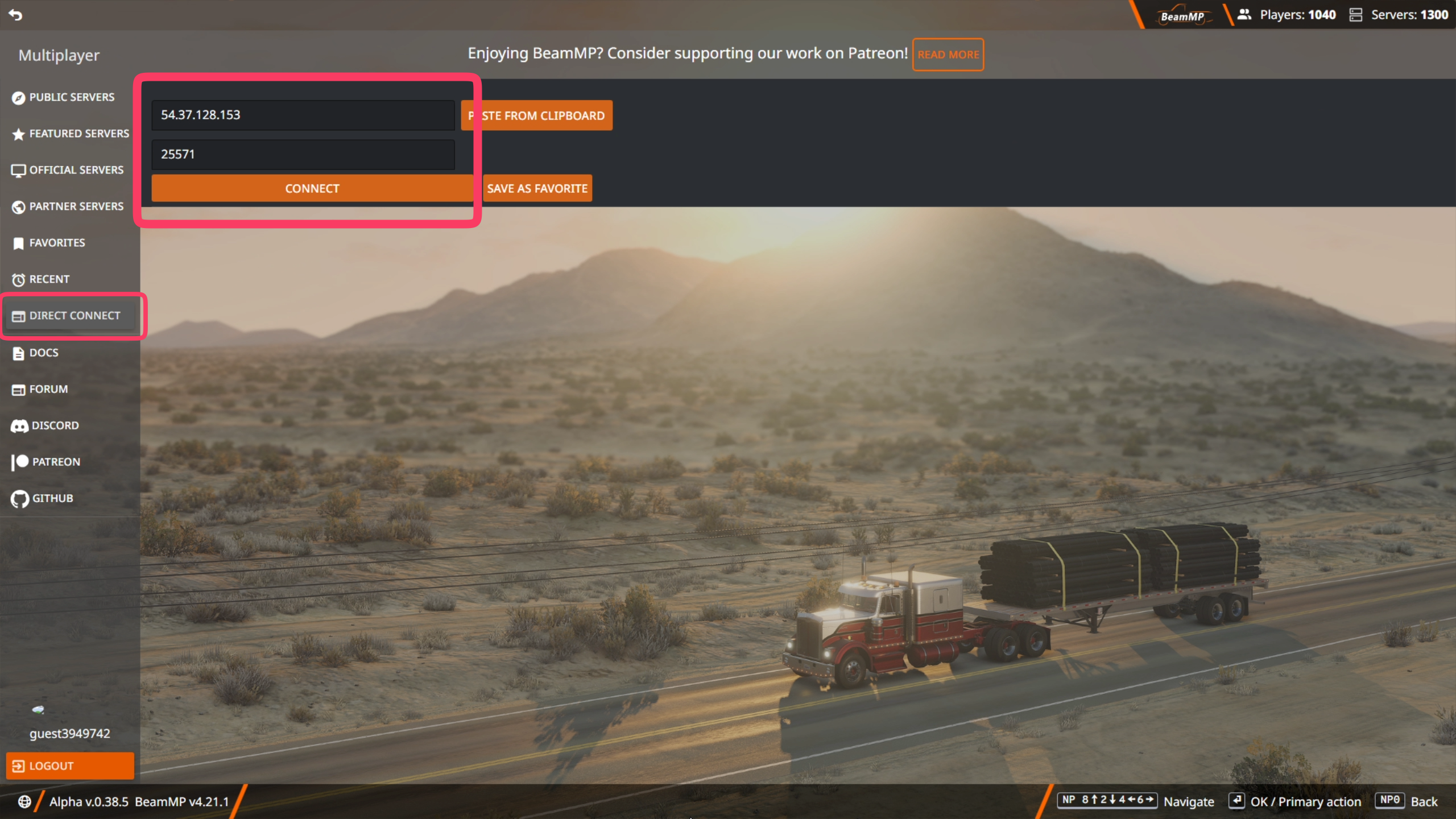
- You can now search for your server's name in the public list, or click Direct Connect and enter your MintServers numerical IP and Port to join instantly!
💡 Gameplay Tip: Control Bindings
By default, BeamNG.drive sometimes maps vehicle controls to the arrow keys. Do not forget to go into your in-game options and change your key mappings from the arrow keys back to WASD for a much smoother driving experience!
By default, BeamNG.drive sometimes maps vehicle controls to the arrow keys. Do not forget to go into your in-game options and change your key mappings from the arrow keys back to WASD for a much smoother driving experience!