



How to Set Up Automated Restarts
Keeping your server running fresh is key to a smooth, lag-free experience for your players. A regular restart automatically clears the server's memory (RAM) and prevents lag from building up over time. We recommend scheduling a restart at least once every 24 hours.
In this guide, you will learn how to set up an automated restart schedule directly from your MintServers game panel.
Step 1: Create a Schedule
First, log into your MintServers game panel and select the server you want to manage. On the left-side menu, find and click on the "Schedules" tab.

Once on the Schedules page:
- Click the blue "Create schedule" button.
- Give your schedule a clear name, like "Daily Restart".
- Set the time for the restart. This uses "Cron" syntax. You can use these common examples:
- Every 6 hours:
0 */6 * * * - Every 12 hours:
0 */12 * * * - Every day at 4 AM:
0 4 * * *
- Every 6 hours:
- Click "Create schedule" to save it.

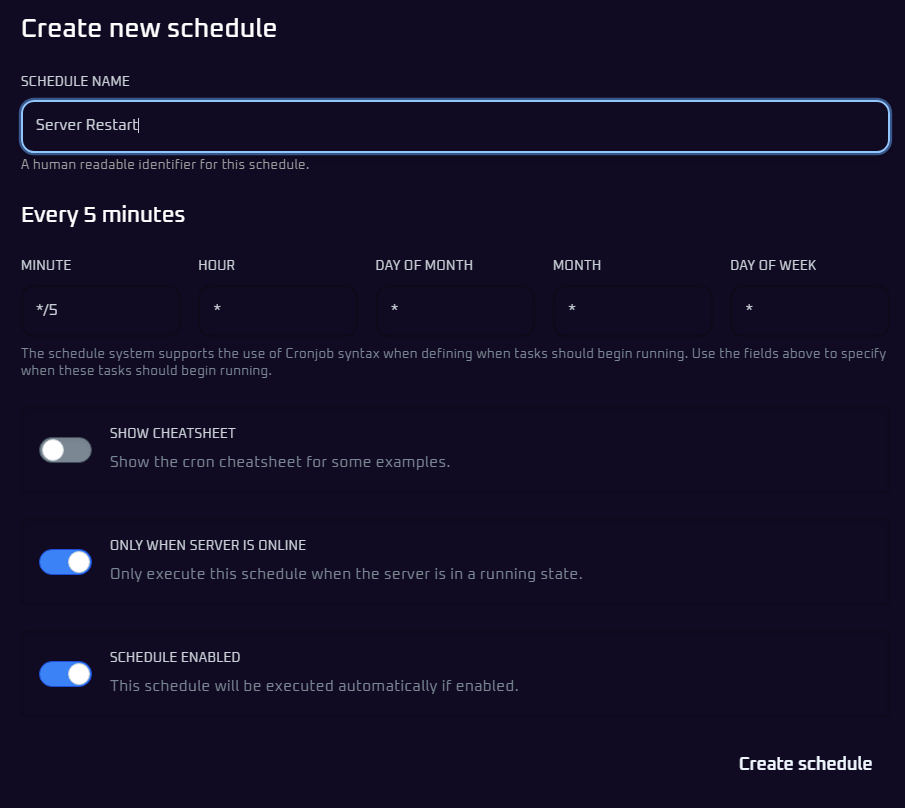

Step 2: Add the Restart Task
Now that you have a schedule, you must tell it what to do. Click on the new schedule you just created to open it.

- Click the blue "New Task" button in the top right.
- In the "Action" dropdown menu, select "Send Power Action".
- In the "Payload" dropdown that appears, select "Restart the server".
- Leave the "Time Offset" at
0seconds. - Click the blue "Create task" button.
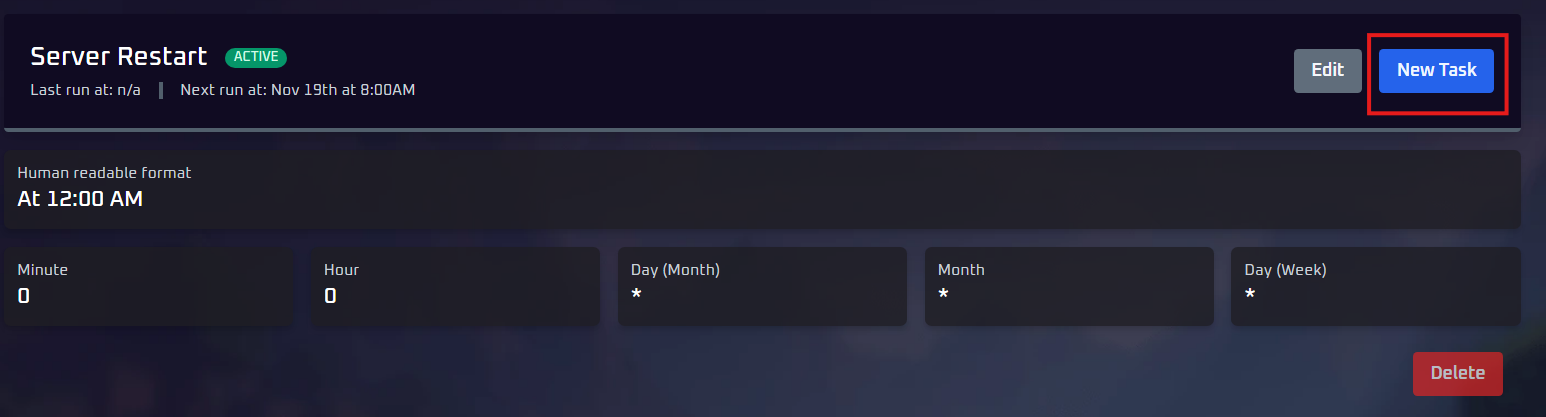
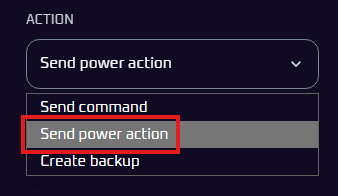
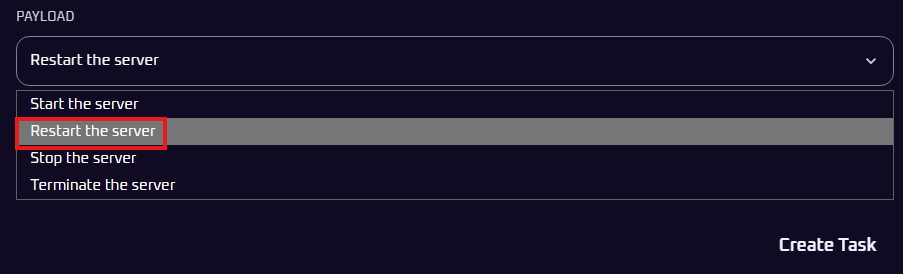

That's it! Your server is now set to restart automatically at the time you chose.

Optional: Add a Restart Warning
It's good practice to warn your players before a restart. You can easily add a warning message to the same schedule.
- Inside your schedule, click "New Task" again.
- Set the "Action" to "Send Command".
- In the "Payload" box, type your warning message (e.g.,
say Server restarting in 5 minutes!). - Leave this warning task's "Time Offset" at
0seconds and click "Create task". - Now, find your original "Restart the server" task and click the "..." icon to edit it.
- Change its "Time Offset" to 300 seconds (which is 5 minutes). Click "Save".
This will send the warning, wait 5 minutes, and. then restart the server, giving your players time to log off safely.
A Note on Time Zones
All schedules use the GMT+0 (UTC) time zone by default. You will need to adjust your schedule time based on your local time zone. For example, if you want a restart at 4 AM in EST (GMT-5), you would set the schedule time to 0 9 * * * (because 4 AM + 5 hours = 9:00).