



 Empyrion - Galactic Survival
Ready to jump into your Empyrion: Galactic Survival server? You can find it in the in-game server list or connect directly with its IP address and port. This guide covers both methods, plus the Easy Anti-Cheat setting that can stop you from joining.
Before you start, make sure your server is running on your MintServers panel.
Joining From The Server List
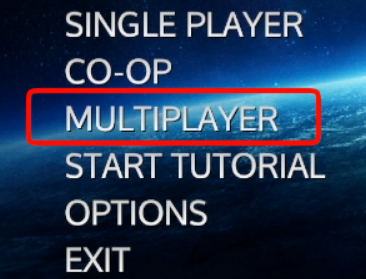
- Launch Empyrion: Galactic Survival and click Multiplayer on the main menu.
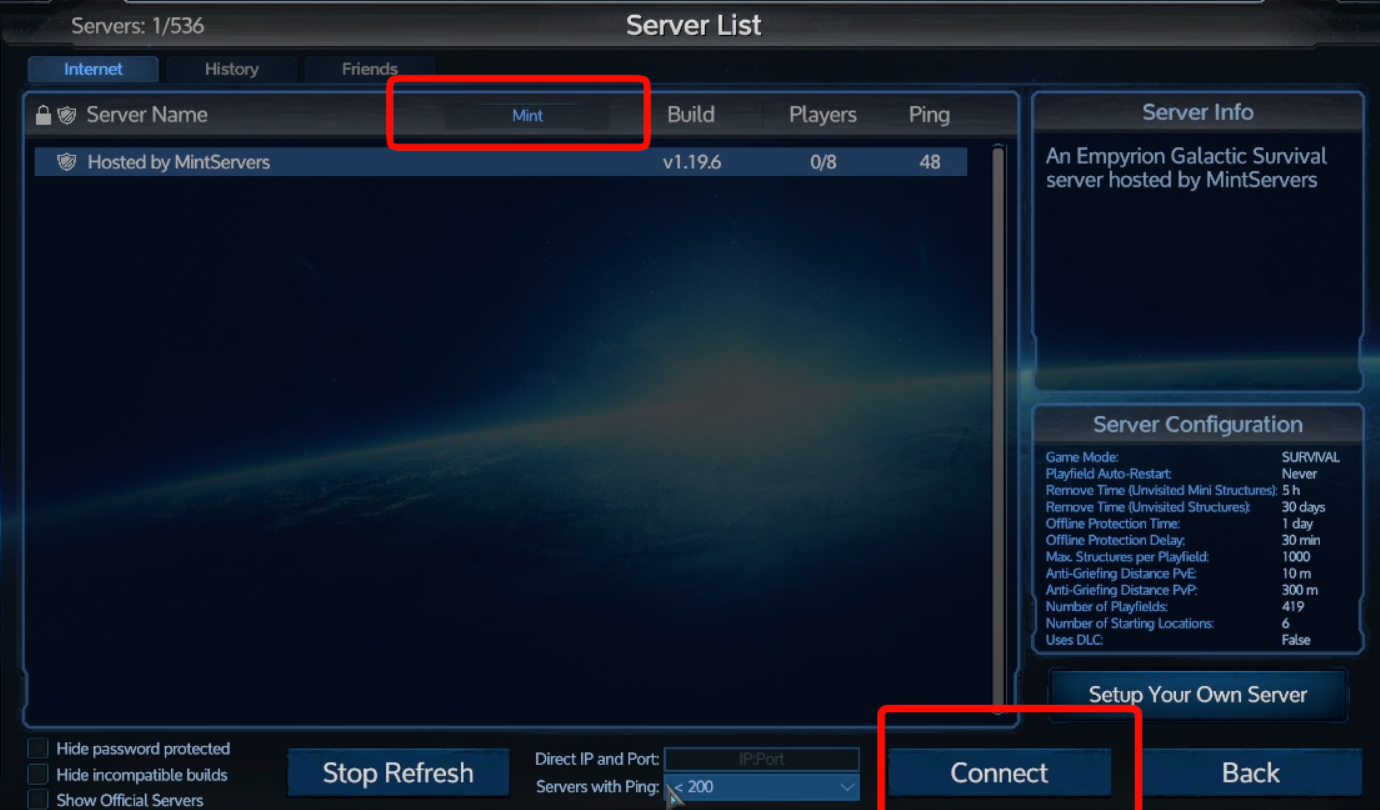
- Type your server name into the Filter field at the top of the Server List.
- Find your server in the list and select it.
- Click Connect.
Connecting Via IP
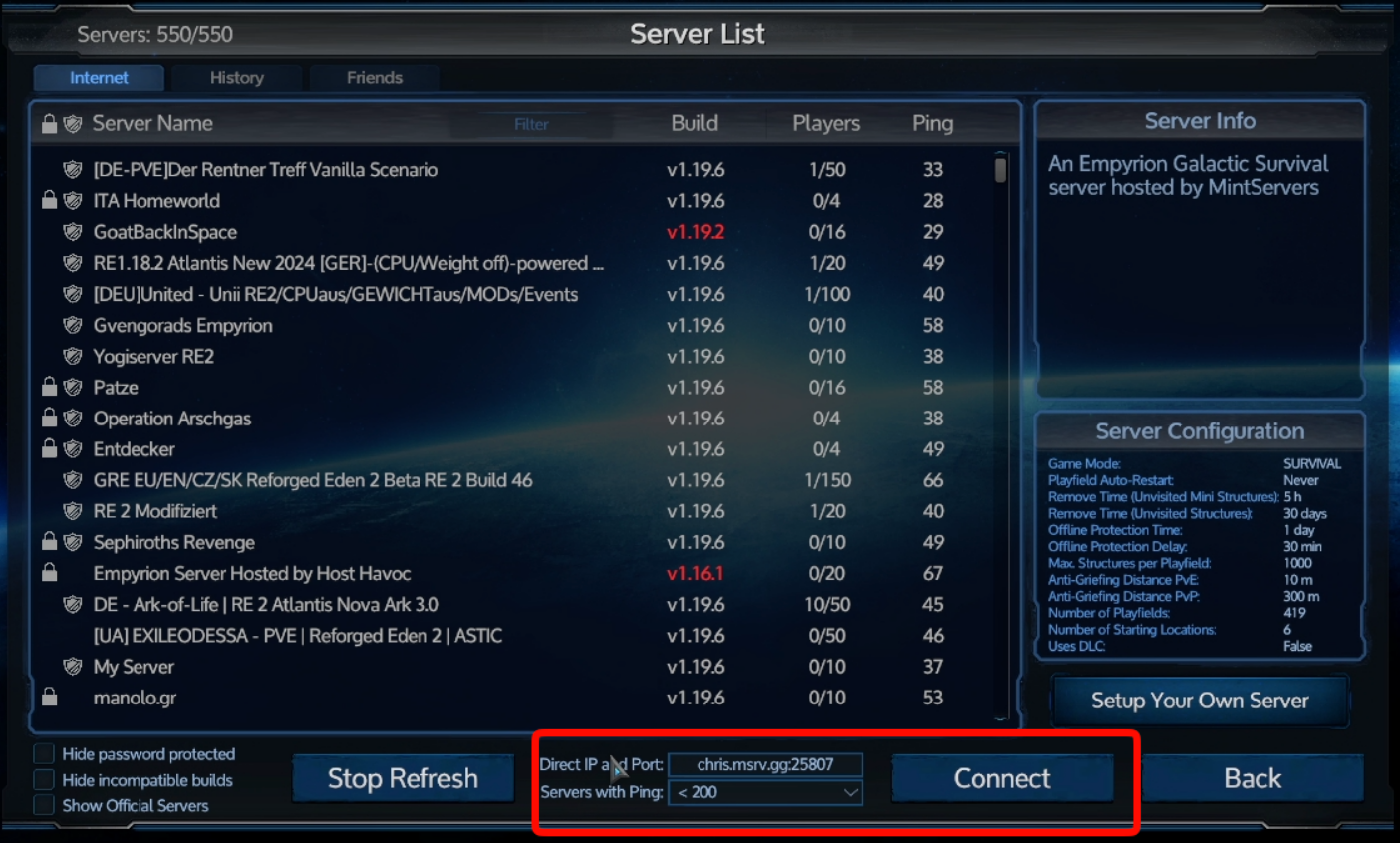
If your server does not show up in the list, or you have set it to be hidden from the server browser, you can connect directly using its IP address and port.
- Copy your server's IP address and port from your MintServers panel.
- In the Server List, type them into the Direct IP and Port field at the bottom in this format:
- Click Connect.
Servers With Easy Anti-Cheat (EAC)
The EAC setting on your game has to match the server. If your server has Easy Anti-Cheat turned on, you must launch Empyrion with EAC enabled too, otherwise you will not be able to join.
- From the main menu, click Options.
- Open the Misc tab.
- Set Start with EAC to Yes.
- Completely close and restart Empyrion. The setting only takes effect the next time the game starts.
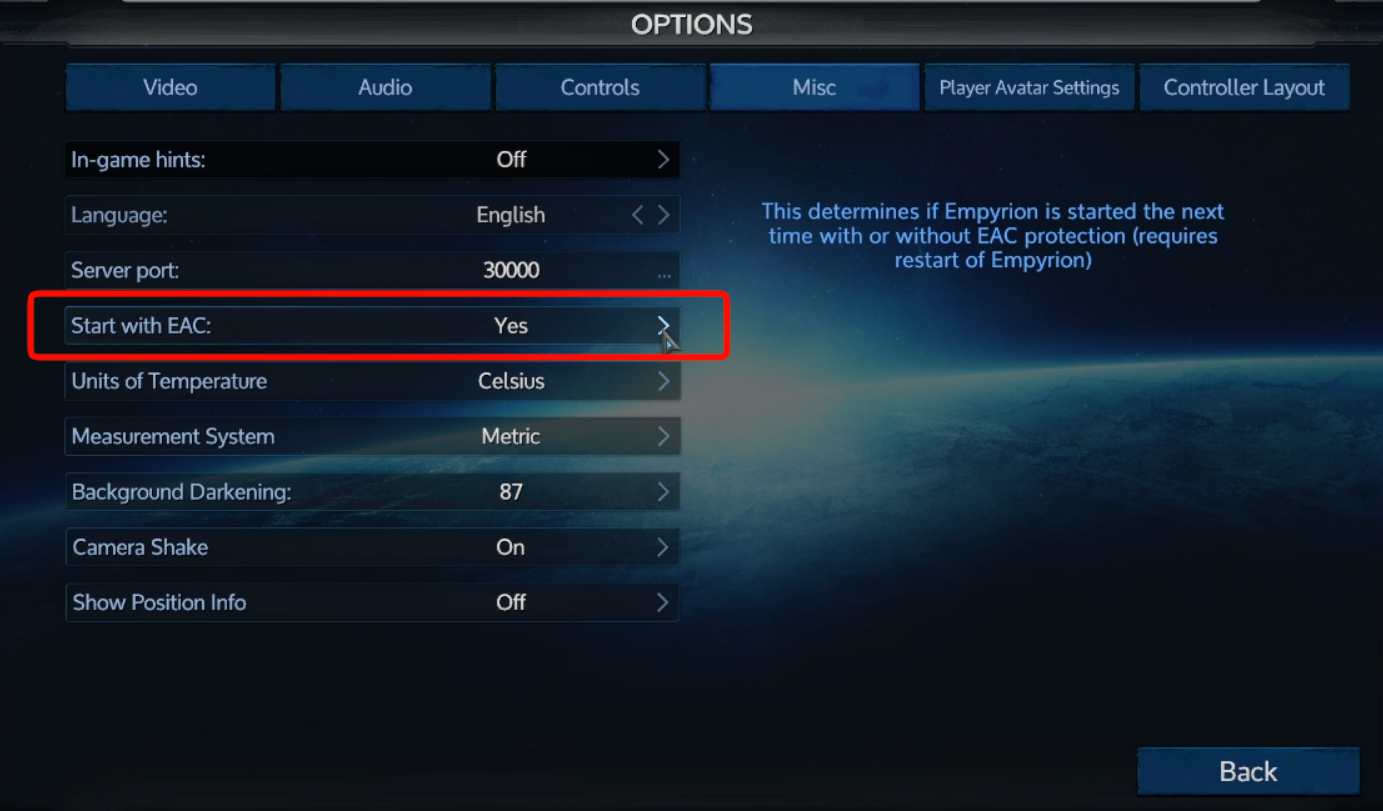
Some custom scenarios recommend running without EAC. If you turn off the EAC Active option in your server's Game Settings tab, remember to launch the game with Start with EAC set to No as well. See our Server Configuration guide for Empyrion for more details.
🛠️ Troubleshooting Connection Issues
Server not in the list:Make sure the server is started on your panel, and check the Hide password protected and Hide incompatible builds boxes at the bottom of the Server List. If Public is turned off in your server's Game Settings tab, connect with the IP and port instead.Cannot connect:Double-check that your EAC setting matches the server, and that you typed the IP and port with a colon between them and no spaces.Password required:If a Server Password is set in your server's Game Settings tab, you will need it to join.
Once you are in, you are ready to explore! If you still cannot connect, no worries! Just open a support ticket and our team will gladly jump in and help you out.