



 Insurgency: Sandstorm
Insurgency: Sandstorm doesn't use traditional matchmaking for dedicated servers. Instead, you'll find your server through the Community Servers browser, either by searching for its name or by connecting straight to its IP address. This guide covers both methods.
Step 1: Find Your Server's IP Address And Port
Before you can connect using either method below, you'll need your server's connection details.
- Log into your MintServers panel and select your Insurgency: Sandstorm server.
- On the Overview page, find your server's IP Address and Port. Copy both, since you'll need them in the format
IP:PORTto connect.
Step 2: Open The Community Servers Browser
- Launch Insurgency: Sandstorm.
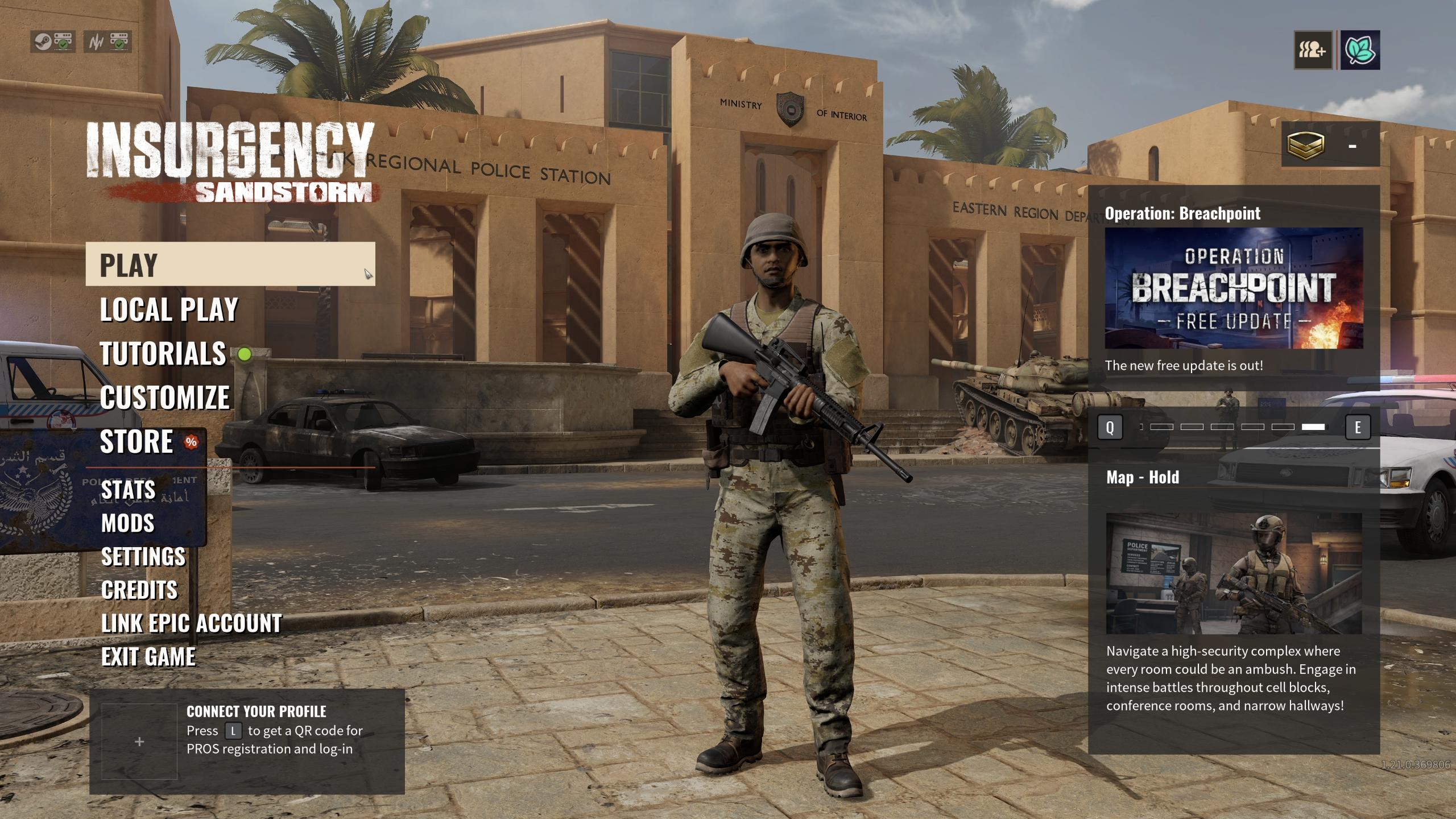
- From the main menu, click Play.
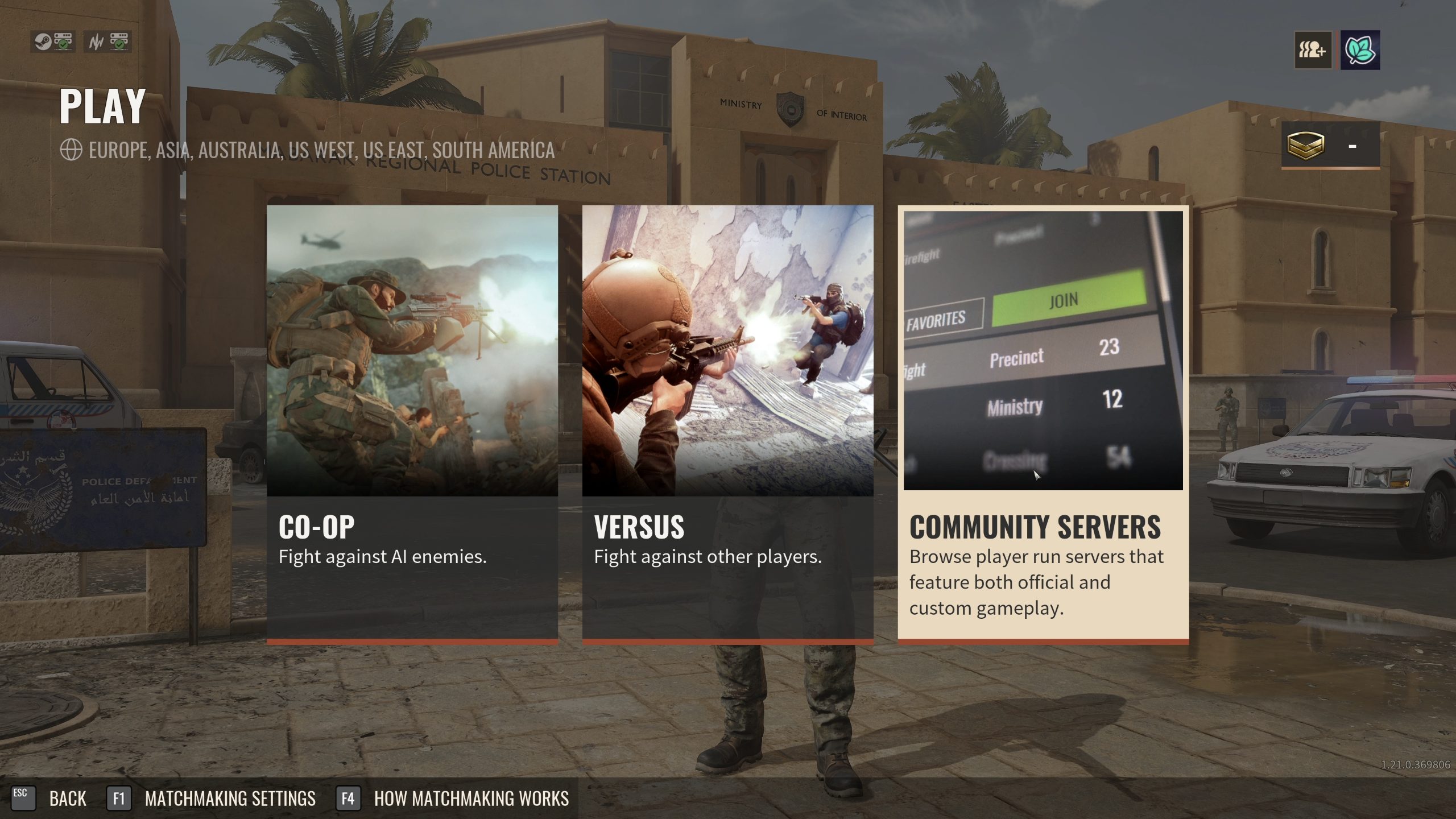
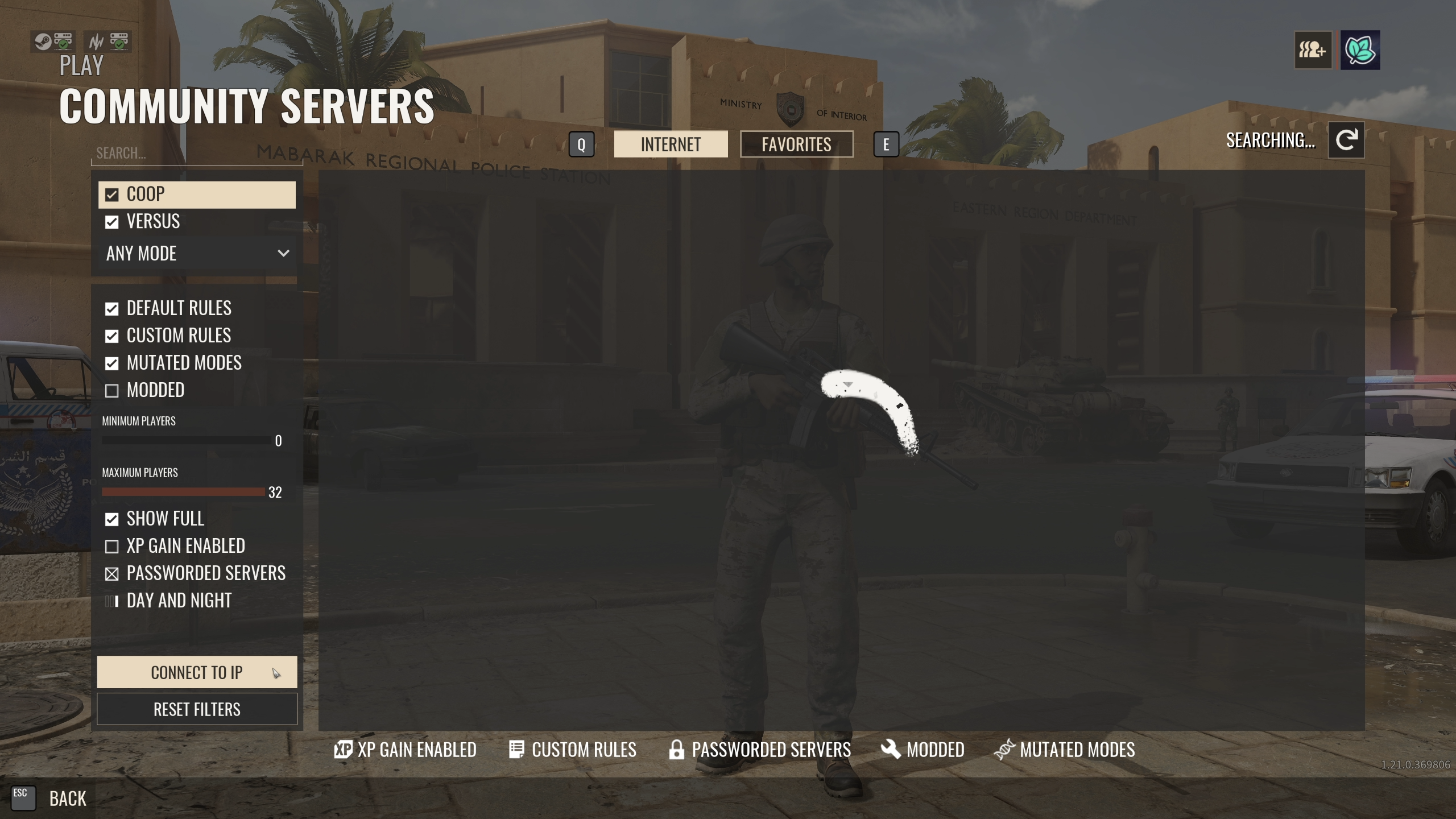
- Click Community Servers.
Method A: Browse The Server List
Use this if you don't know your server's IP offhand, or just want to browse.
- In the search bar at the top-left of the Community Servers screen, type your server's name.
- Select your server from the results.
- Click Join.
Method B: Connect To IP
This is the faster option, and the one to use if your server isn't showing up in the list yet.
- From the Community Servers screen, click Connect To IP.
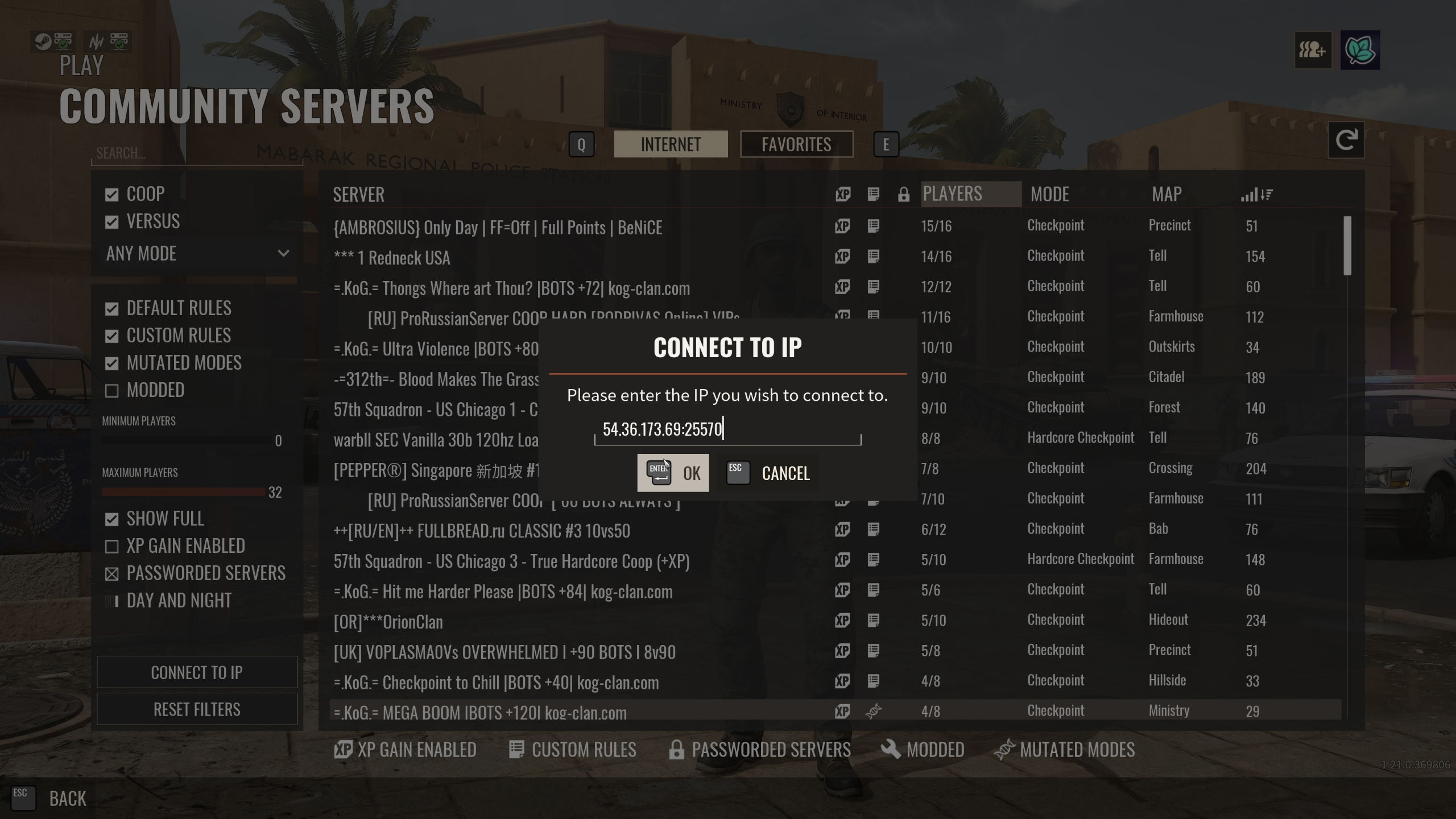
- Enter your server's address in the format
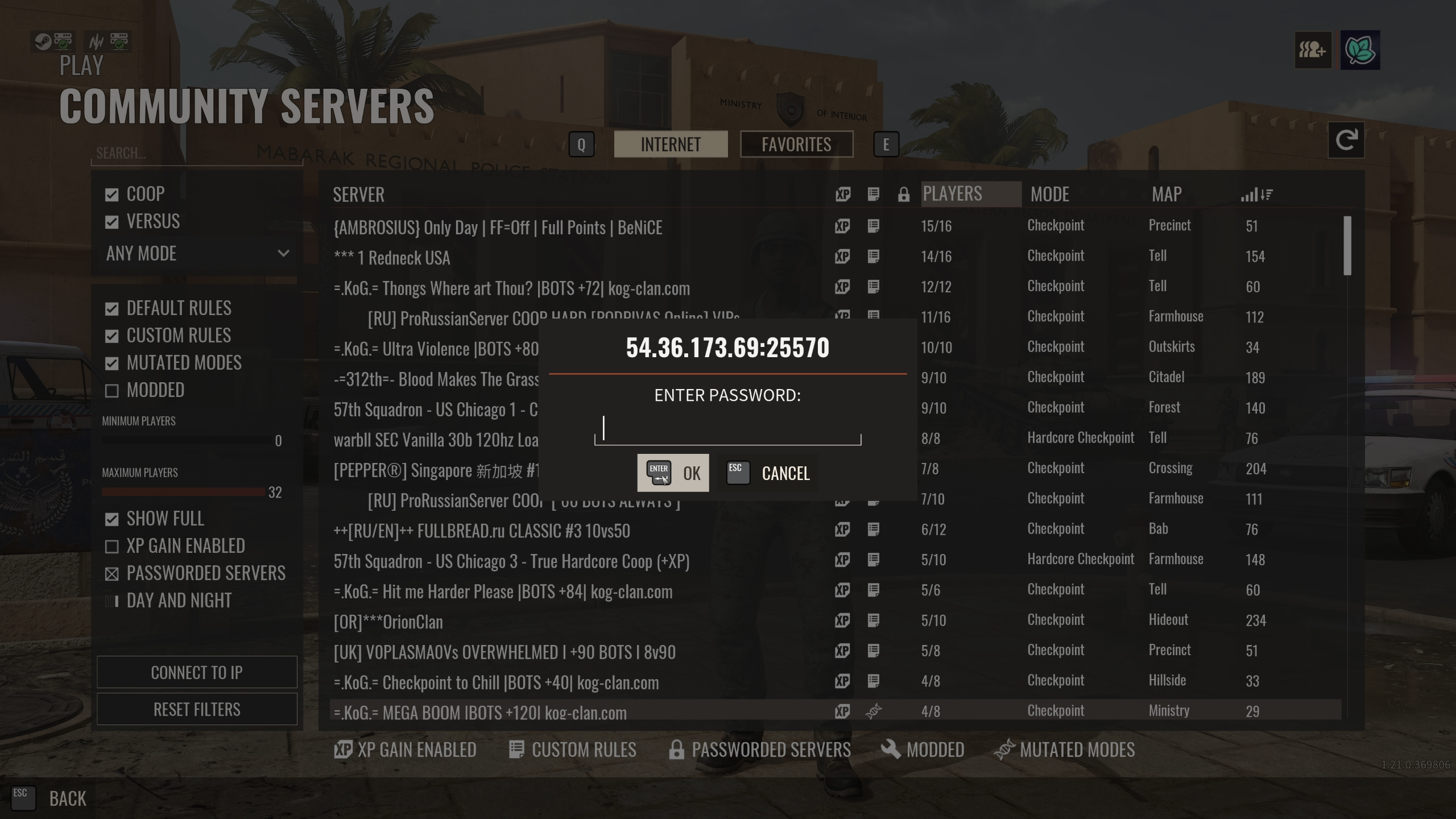
IP:PORTand click OK. - If your server has a password set, enter it and click OK.
🛠️ Troubleshooting Common Connection Issues
Server doesn't appear in Community Servers:This is normal for a new or recently restarted server and can take a few minutes to propagate. Use Connect to IP in the meantime.Connect To IP fails or times out:Double-check the address for typos, confirm you're using the Port from your Overview page and not the Query Port, and make sure your server shows as fully started on the MintServers panel. Always enter a numeric IP address rather than a domain name, since Connect to IP does not reliably resolve domain names.Kicked shortly after connecting:This usually points to a version mismatch. Make sure Steam has fully updated the game on your end, and that your server isn't waiting on a pending update.Prompted for a password you don't have:Reach out to whoever manages the server for the current password, or check the Game Settings tab if it's your own server.
Once you've connected the first time, adding the server to Favorites means future logins only take a couple of clicks. If you're still having trouble getting connected, no worries! Just open a support ticket and our team will gladly help you get it sorted out.