


 Eco
Once your Eco server is up and running, connecting to it in-game only takes a minute. This guide covers the fastest way in, direct connecting with your server's IP and port, plus an alternate method if you'd rather search for your server by name.
Step 1: Find Your Server's IP and Port
Before opening the game, grab your connection details from your MintServers panel.
192.169.80.22:3000.Step 2: Join Through Direct Connect
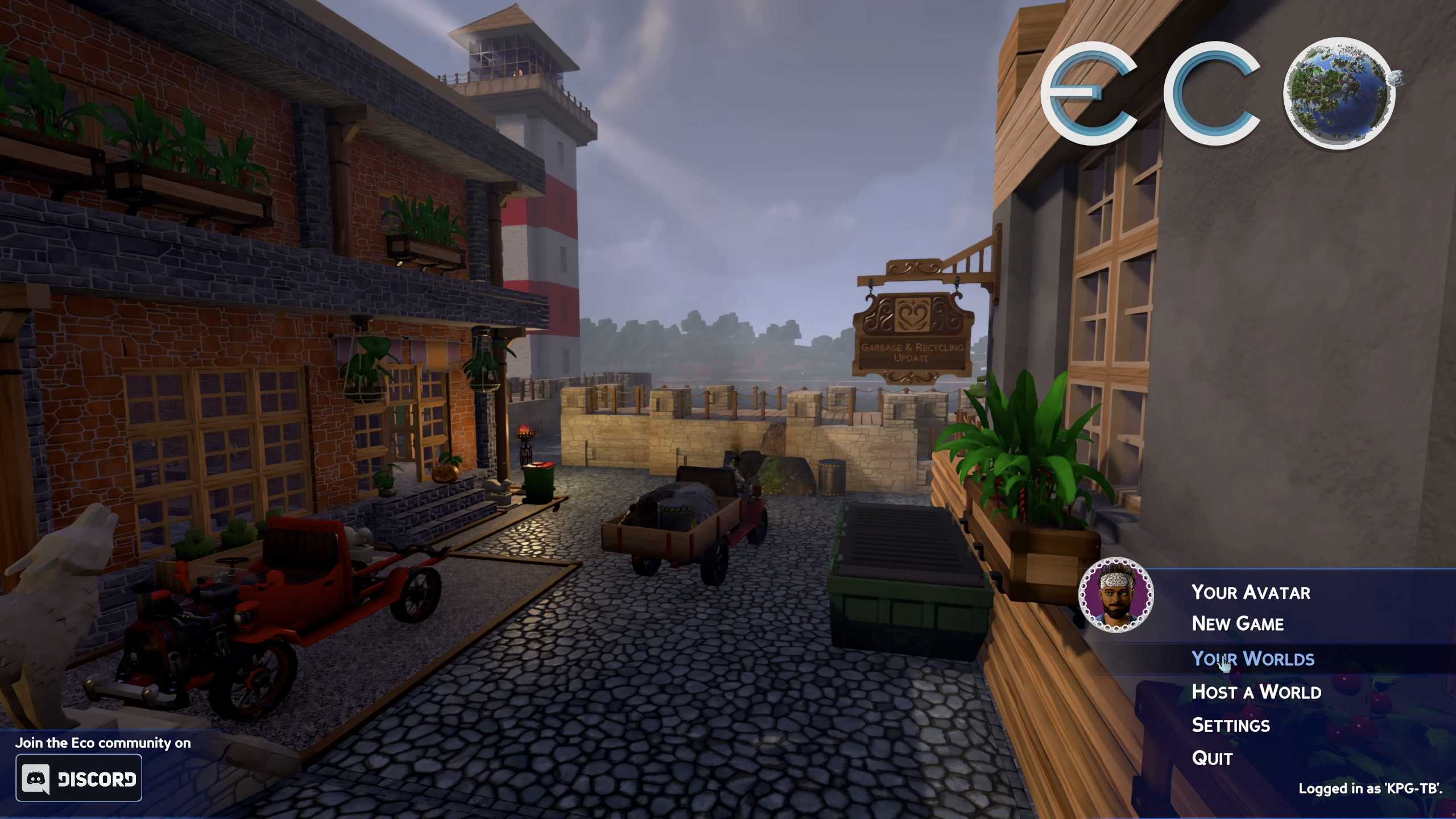
Your Worlds.
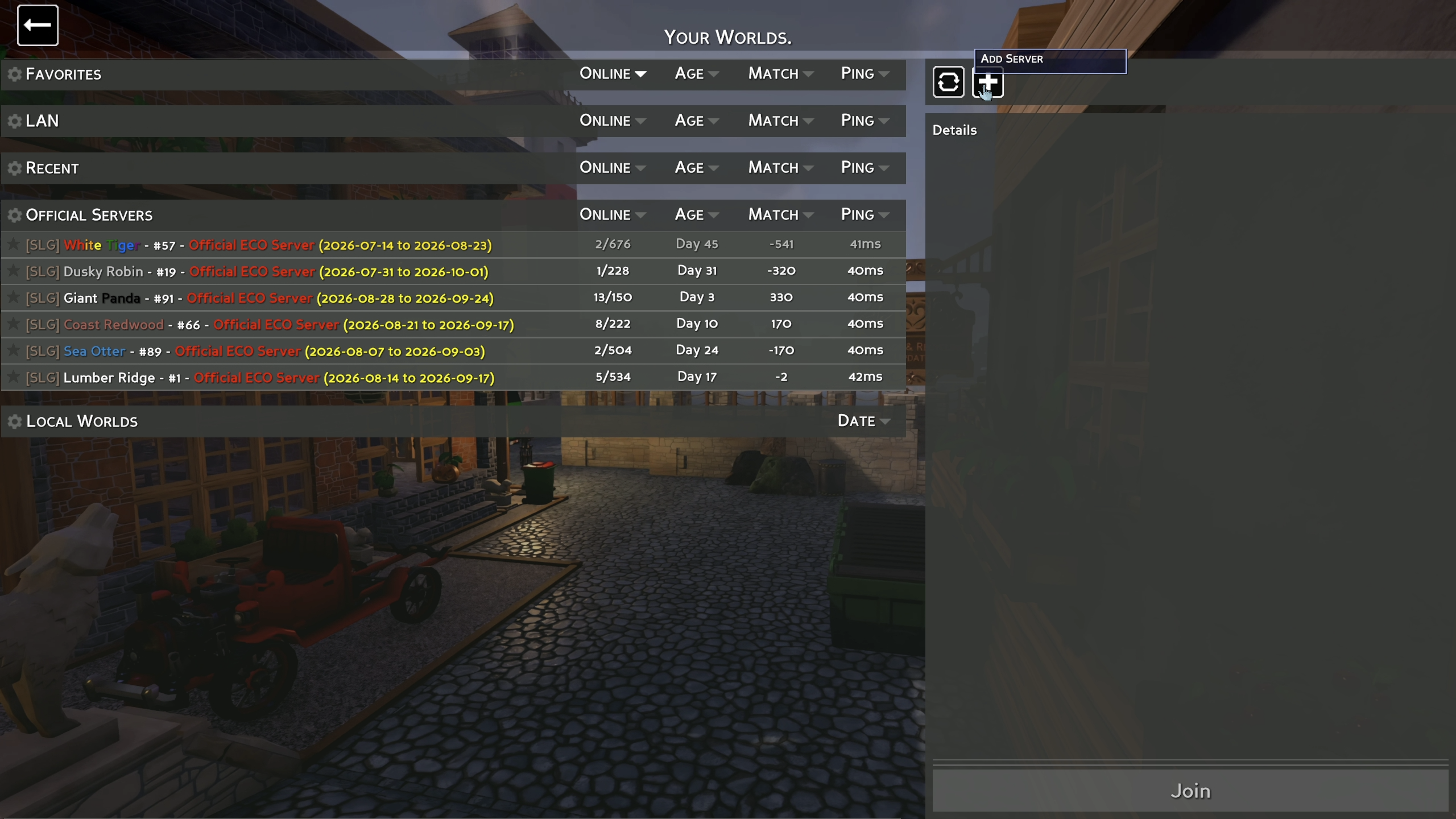
+ button in the top-right corner.
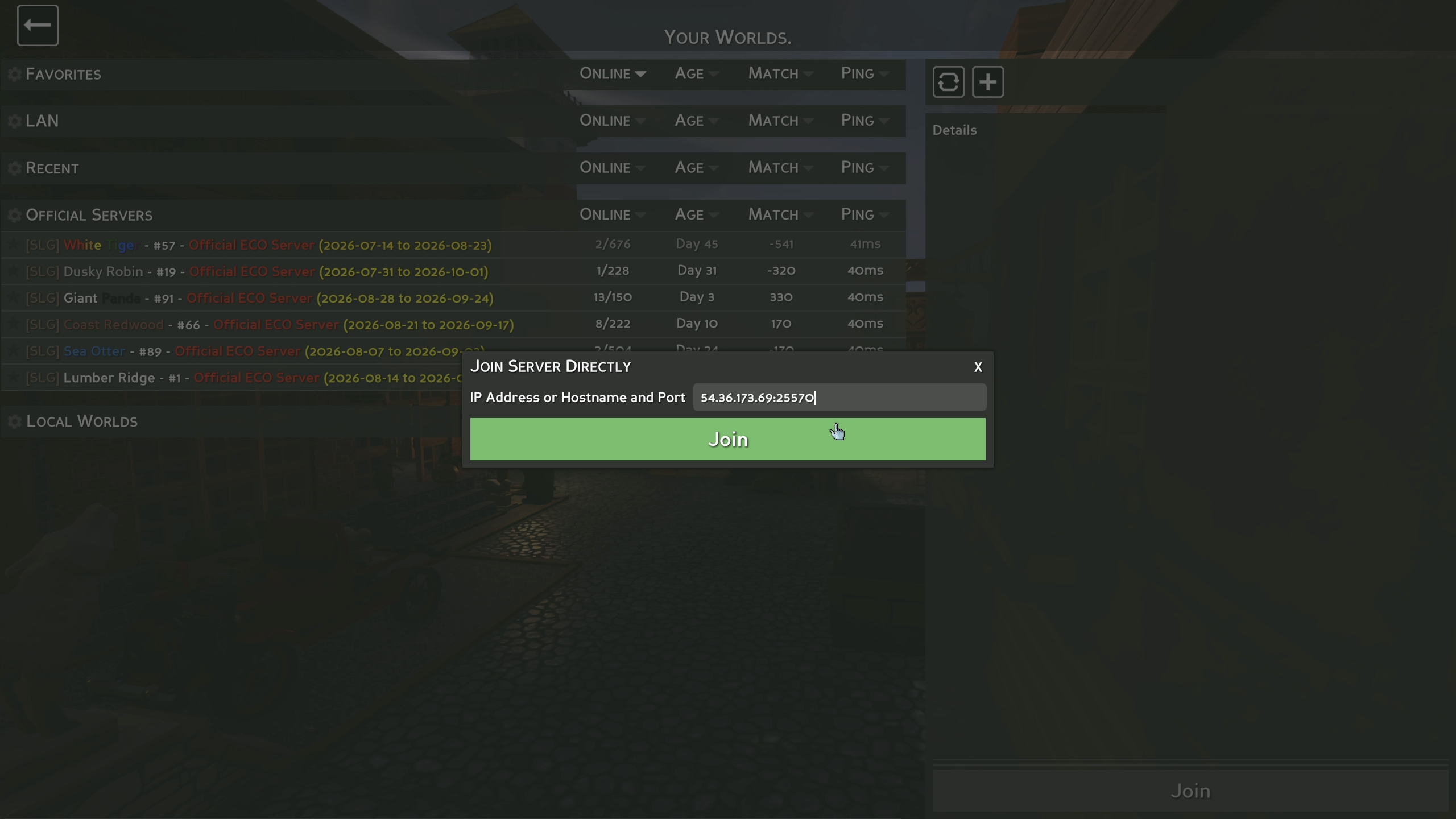
Join.Once you've connected to a server this way, it's saved under Your Worlds automatically. Next time, just select it from the list instead of re-entering the address.
If your server has a password set, Eco will prompt you for it after clicking Join. Just enter it and you'll be connected.
Alternative: Finding Your Server In The Public Browser
If your server is public and has a name set, you can also find it without typing an IP address:
New Game from the main menu.Browse All in the top-right corner.Search.Join.This method only works if your server is set to public and has completed its SLG authentication. If you can't find it in the browser, double-check both of those settings, or just use Direct Connect instead.
🛠️ Troubleshooting Connection Issues
Connection timed out
Confirm your server is fully started on the MintServers panel and not stuck restarting.
Wrong address error
Make sure there's a colon (not a space) between the IP and the port, with no extra characters.
Server doesn't show up in the browser
Direct Connect with the IP:PORT instead. Public listings can take a few minutes to appear after a restart.
Asked for a password you don't know
Reach out to whoever manages the server for the current password.
Still stuck?
Our team is happy to help. Open a ticket through the live chat button in the bottom-right corner of our website, or join our Discord and open a ticket there.
Join our Discord