


 Counter-Strike: Source
Ready to jump in? Connecting to your Counter-Strike: Source (CS:S) server only takes a minute. You can join by typing a quick command into the in-game developer console, or by finding your server in the in-game server browser.
Before you start, grab your server's IP address and port from the main page of your MintServers control panel. You will need them for both methods below.
A Game Server Login Token (GSLT) is a free token you generate from your Steam account and add to your server. With a GSLT set, your server shows up in the in-game server list. Without one, you can still join using the server's IP and port, but the server may be hidden from the list while nobody is playing on it.
Method 1: Join With the Developer Console (No GSLT Needed)
This is the quickest way to connect, and it works whether or not your server has a GSLT. If you have not enabled the developer console yet, you will need to turn it on first.
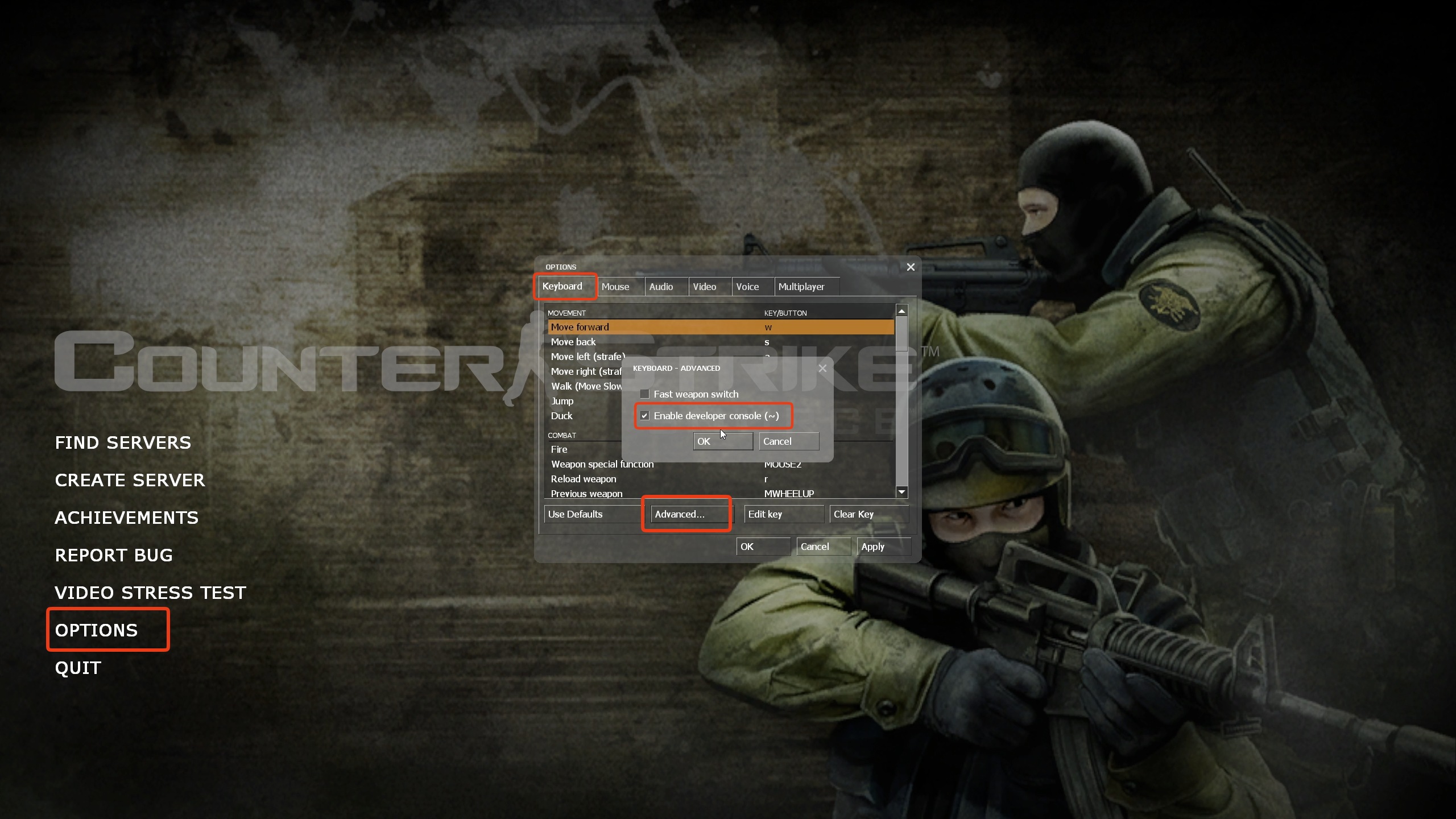
~) on your keyboard to open the console window.connect followed by a space, then your server's IP and port, like this: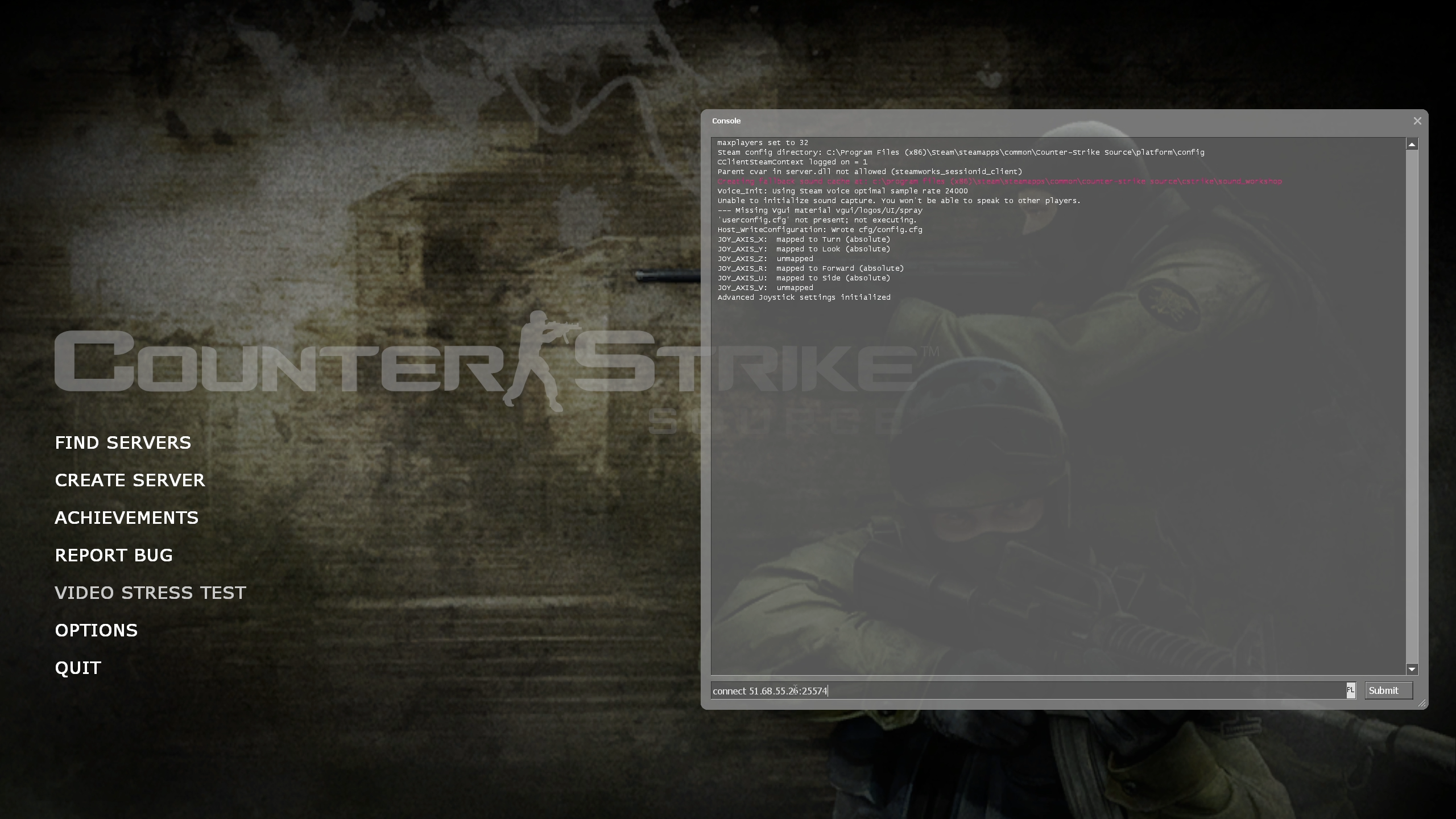
Without a GSLT you can still add your server to your Favorites list (see Method 3 below). Just keep in mind it will only be visible in the list while there are players on it.
Method 2: Join With the Server Browser (GSLT Set)
If you set a GSLT on your server, you can find it through the in-game server browser without typing any commands.
Step 1: Add Your GSLT
240 as the App ID (this is the App ID for Counter-Strike: Source), add any memo you like, and click Create.Never share your GSLT with anyone. Each CS:S server needs its own token, so create a new one if you run more than one server.
Step 2: Find Your Server in the Browser
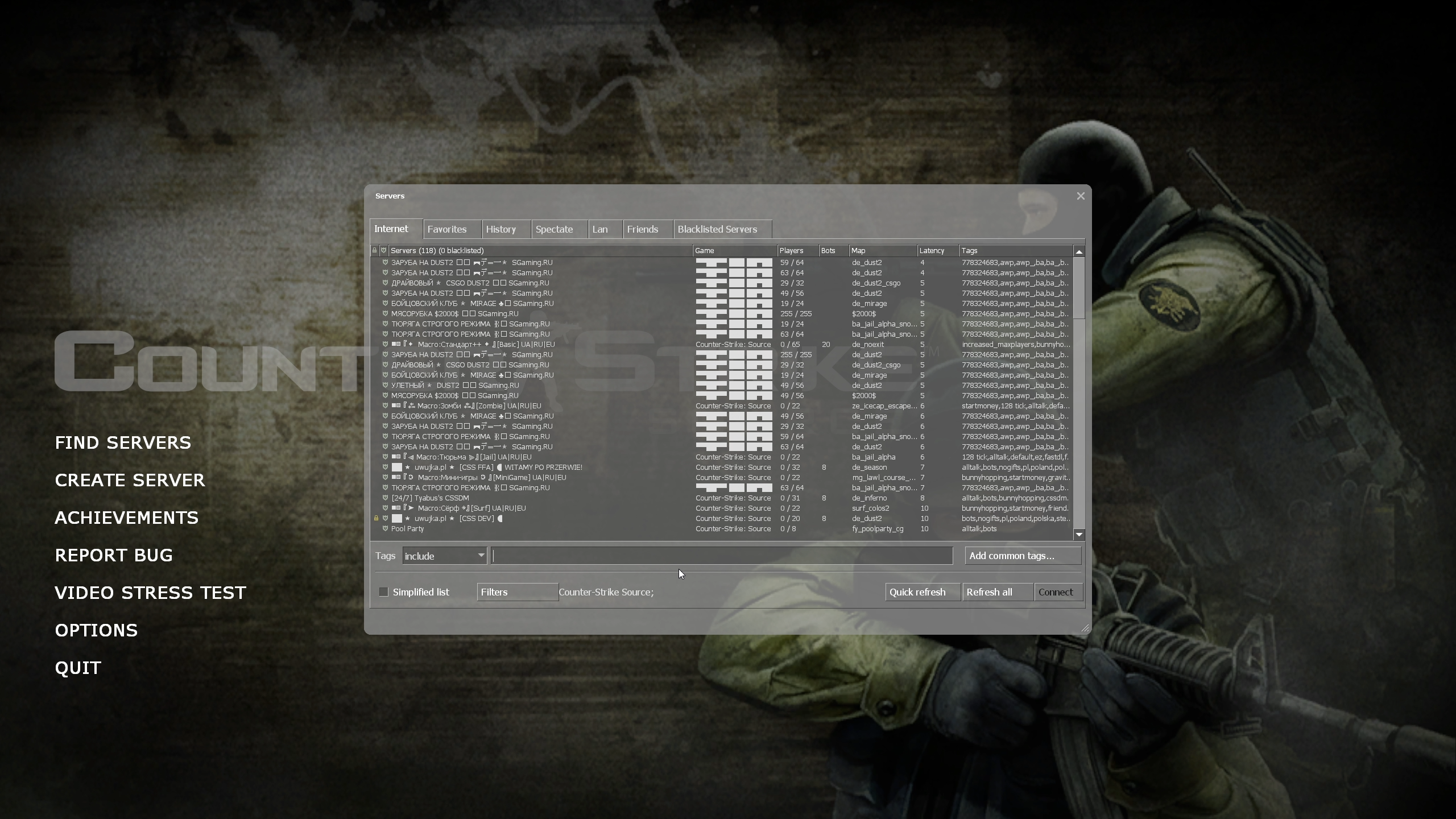
If you cannot see your server in the list, do not worry. Use Method 3 below to add it to your Favorites using its IP and port.
Method 3: Add Your Server to Favorites
Saving your server to Favorites means you never have to type the IP and port again.
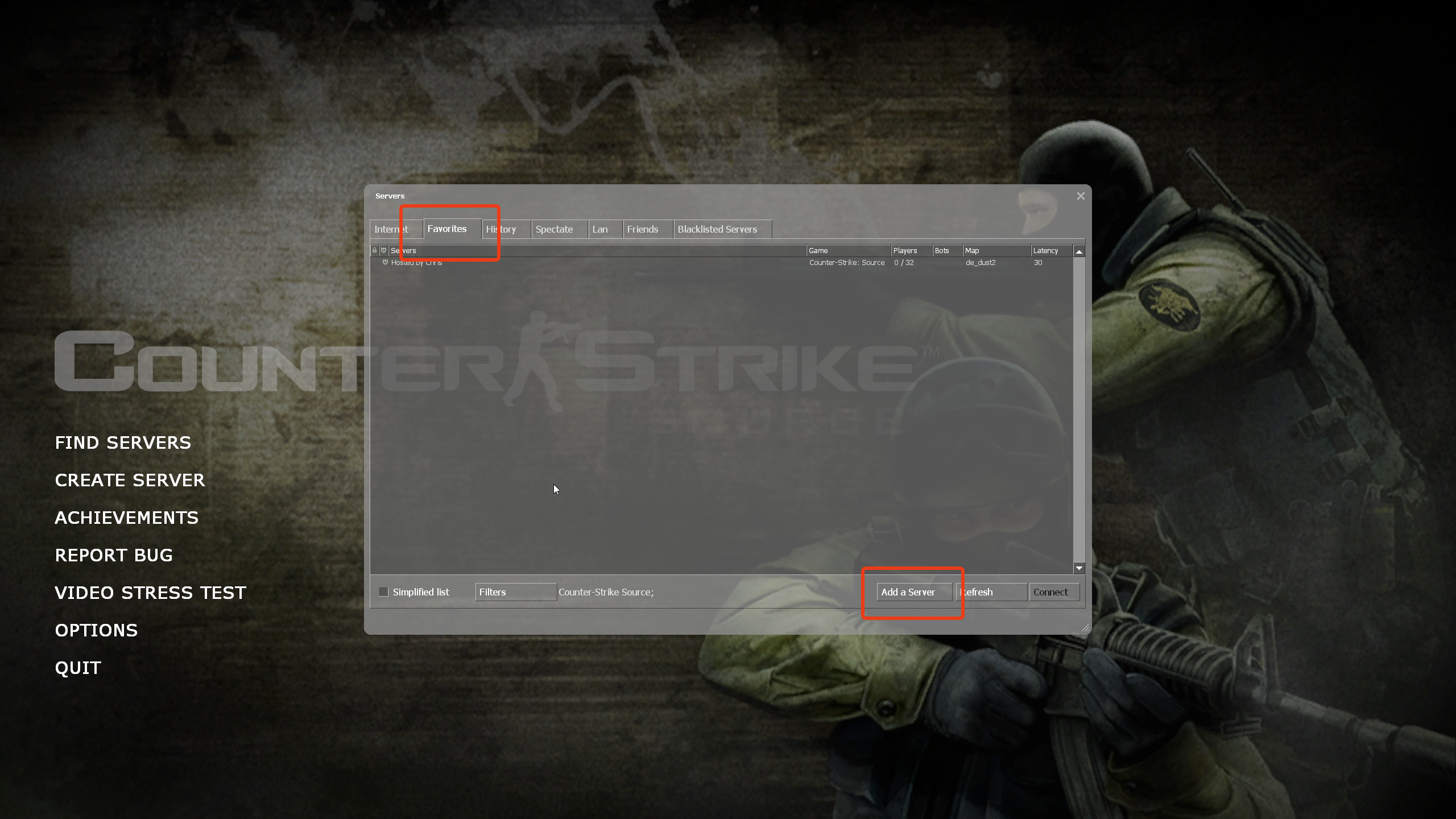
IP:PORT.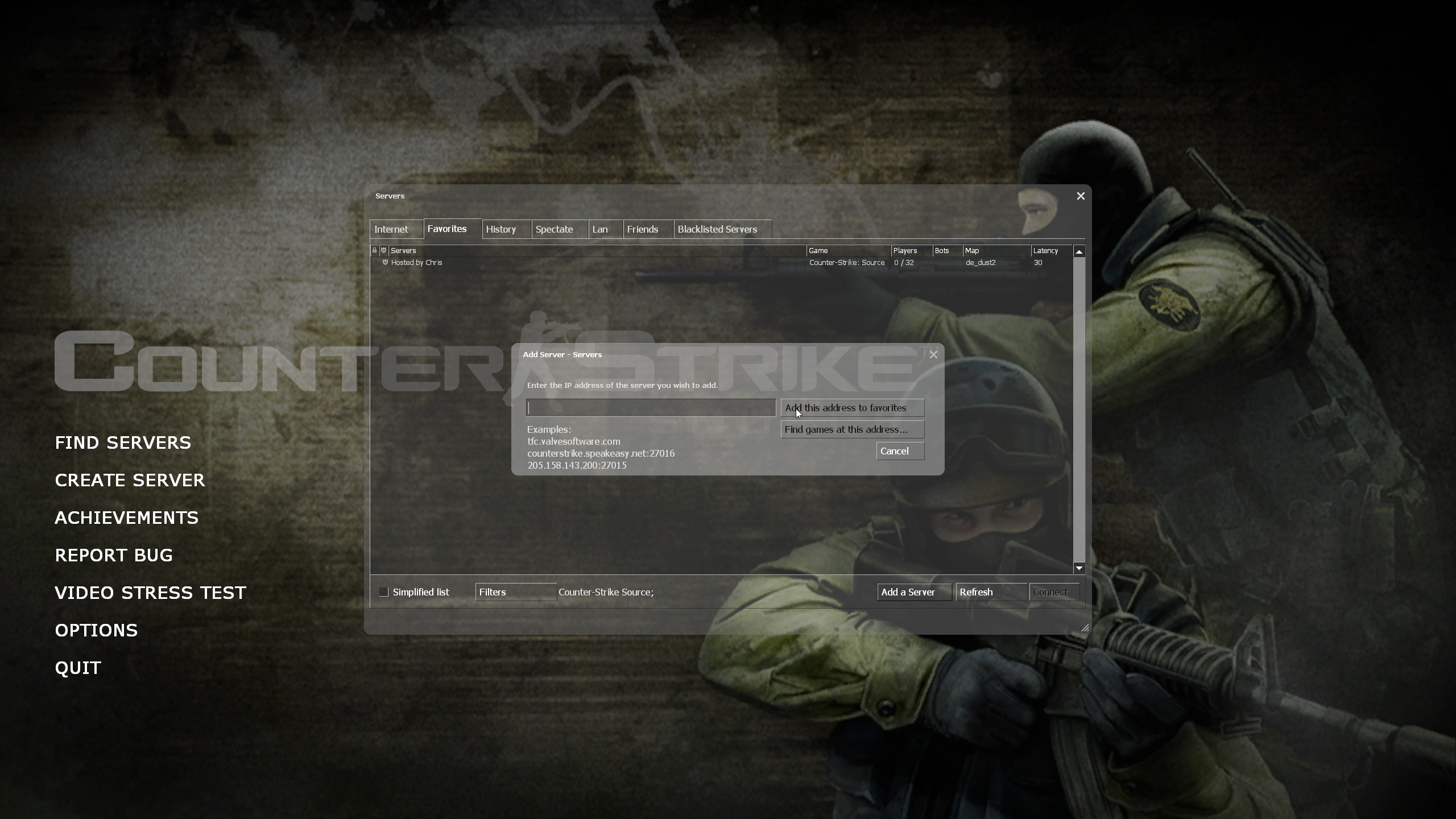
Related Guides
Once you're in, make yourself an admin to kick, ban and change maps.
Change your server's map or set up a map cycle.
🛠️ Troubleshooting Connection Issues
Connection failed after 4 retries
Make sure your server is fully started in the MintServers panel. If it just restarted, give it a minute or two to finish booting.
Server not in the list
This is normal for a server without a GSLT, or one with no players on it. Join with the connect command or add it to your Favorites instead.
Could not establish connection to Steam servers
If you see this in your panel Console tab, your GSLT is not valid. Generate a new token with App ID 240, replace it in the Game Settings tab, and start the server again.
IP and port
Double-check that you copied them exactly as shown in your panel, with no extra spaces.
Still stuck?
Our team is happy to help. Open a ticket through the live chat button in the bottom-right corner of our website, or join our Discord and open a ticket there.
Join our Discord