



 The Lord of the Rings: Return to Moria
Joining a Return to Moria dedicated server works a little differently from most games. There is no server list to browse. Instead, you connect either with an invite code or by typing in your server's IP address and port. This guide covers both methods, starting from the main menu.
Before you begin, make sure your server is started on your MintServers panel and has finished booting.
Step 1: Open the Join Screen
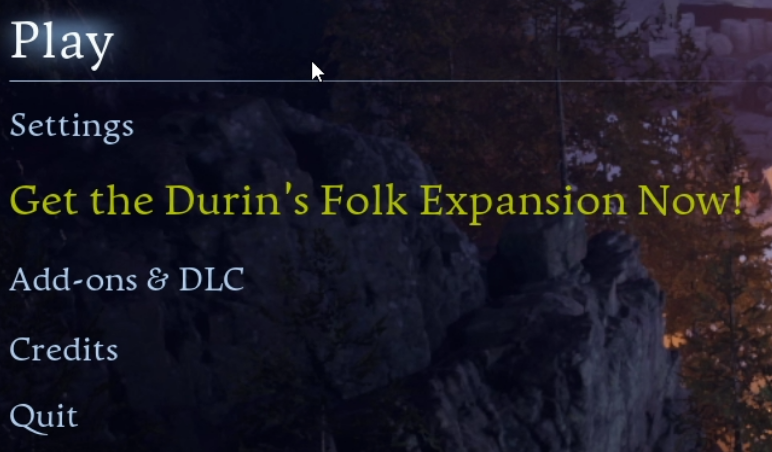
- Launch Return to Moria and click Play.
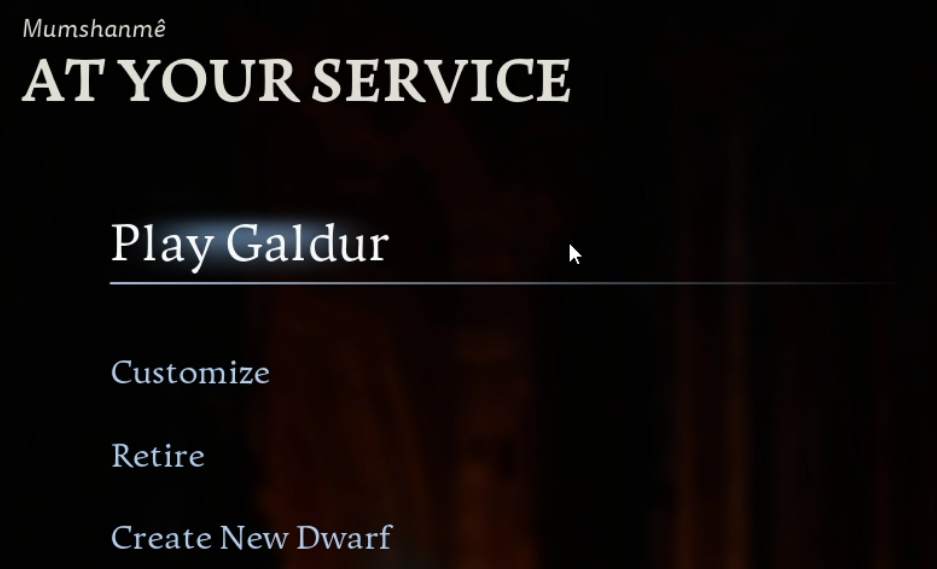
- Select the character you want to play with.
- Click Join other world.

Method A: Join With an Invite Code
The invite code is the quickest way in, and you do not need to type an IP address. Your server writes its invite code into a file called Status.json every time it runs.
Find Your Invite Code
- Log into your MintServers panel and select your Return to Moria server.
- Make sure the server is started.
- Open the Files tab in the left-hand sidebar.
- Navigate to
server, thenMoria, thenSaved, thenConfig. - Click
Status.jsonto open it. - Find the
InviteCodeline and copy the value. It starts withD-.
📁 server (your main server directory)
📁 Moria
📁 Saved
📁 Config
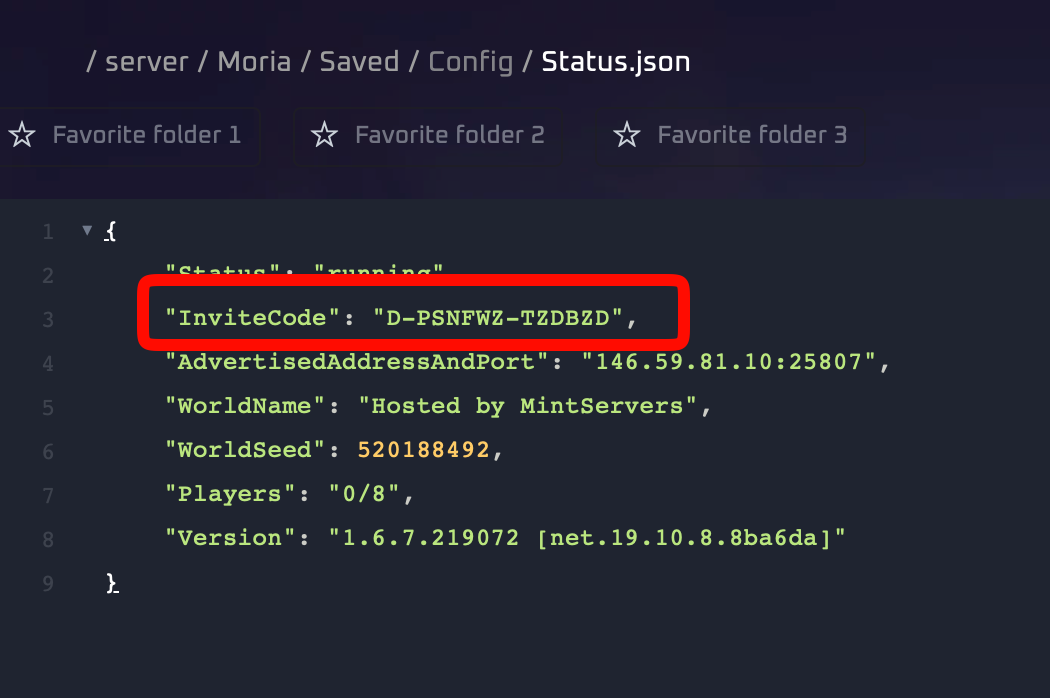
Your file will look similar to this:
Enter The Code In-Game
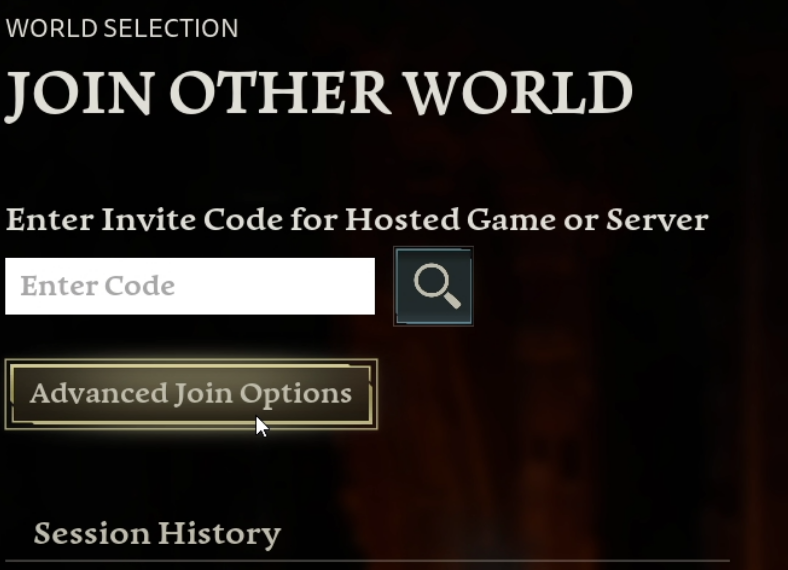
- On the Join Other World screen, find the Enter Invite Code for Hosted Game or Server section at the top.
- Paste your invite code into the Enter Code box and click the magnifying glass button next to it.
- When your server appears, select it to join.
Method B: Join With a Direct IP and Port
If you would rather connect directly, or you want to save the connection details for later, use the Direct Join option. The address you need is in the same Status.json file, on the AdvertisedAddressAndPort line. Copy the whole value, including the colon and the port number.
- On the Join Other World screen, click Advanced join options.
- In the Direct Join section, enter your server's IP:PORT. If you have set a server password, enter it in the password field as well.
- Click Join Server.
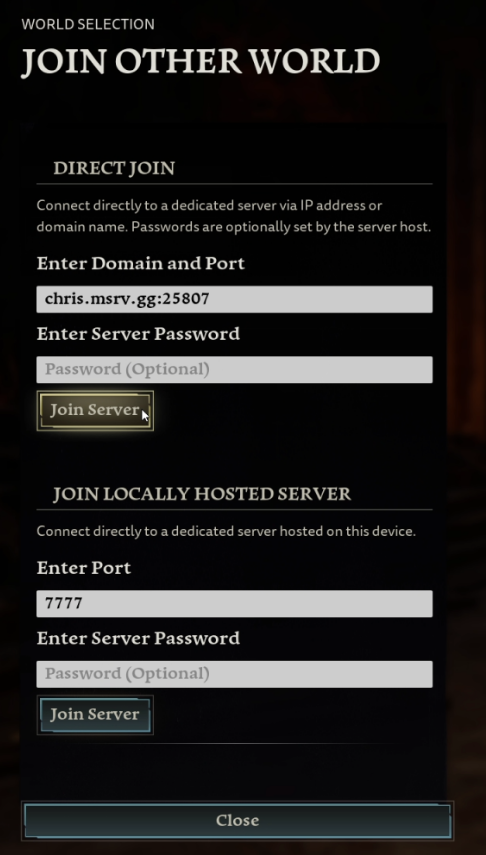
The Join Locally Hosted Server section on the same screen is only for servers running on the same computer as your game. It is not used for MintServers hosting.

Server Password and Player Limit
Your server supports up to 8 players at a time. If you want to keep your world private, you can set a join password in your server configuration. See Server Configuration for the OptionalPassword setting.
🛠️ Troubleshooting Common Connection Issues
Cannot find Status.json:The file is created while the server runs. Start your server, wait for it to finish booting, then refresh the Files tab.Invite code not working:Copy the code again from Status.json after your most recent start. Make sure you have copied the full value, including theD-at the start, with no extra spaces.Direct Join fails:Check that the IP and port are typed exactly as shown on theAdvertisedAddressAndPortline, and that the server is fully started. If you set a password, enter it exactly as it appears in your config.Kicked or unable to join a modded server:If your server has mods installed, every player needs the same mods. See Install Mods for details.
Once you are in, you are ready to start delving! If you are having trouble connecting, no worries! Just open a support ticket and our team will gladly jump in and help you out.