



 ARK: Survival Evolved
There are two ways to connect to an unofficial ARK: Survival Evolved server: browsing for it in the in-game server list, or connecting directly with its IP address through Steam. This guide covers both, starting with the in-game browser, which is usually the easiest way to find your server the first time.
Step 1: Open The Server Browser
From the ARK: Survival Evolved main menu, click Join ARK. This opens the server browser, which lists every session currently searching for players.

Step 2: Filter For Unofficial Servers
By default, the browser searches official servers only, so your server will not show up until you change this.
Session Filter dropdown to Unofficial.Show Password Protected, otherwise it may be hidden from the results.All unless you want to narrow the list further.
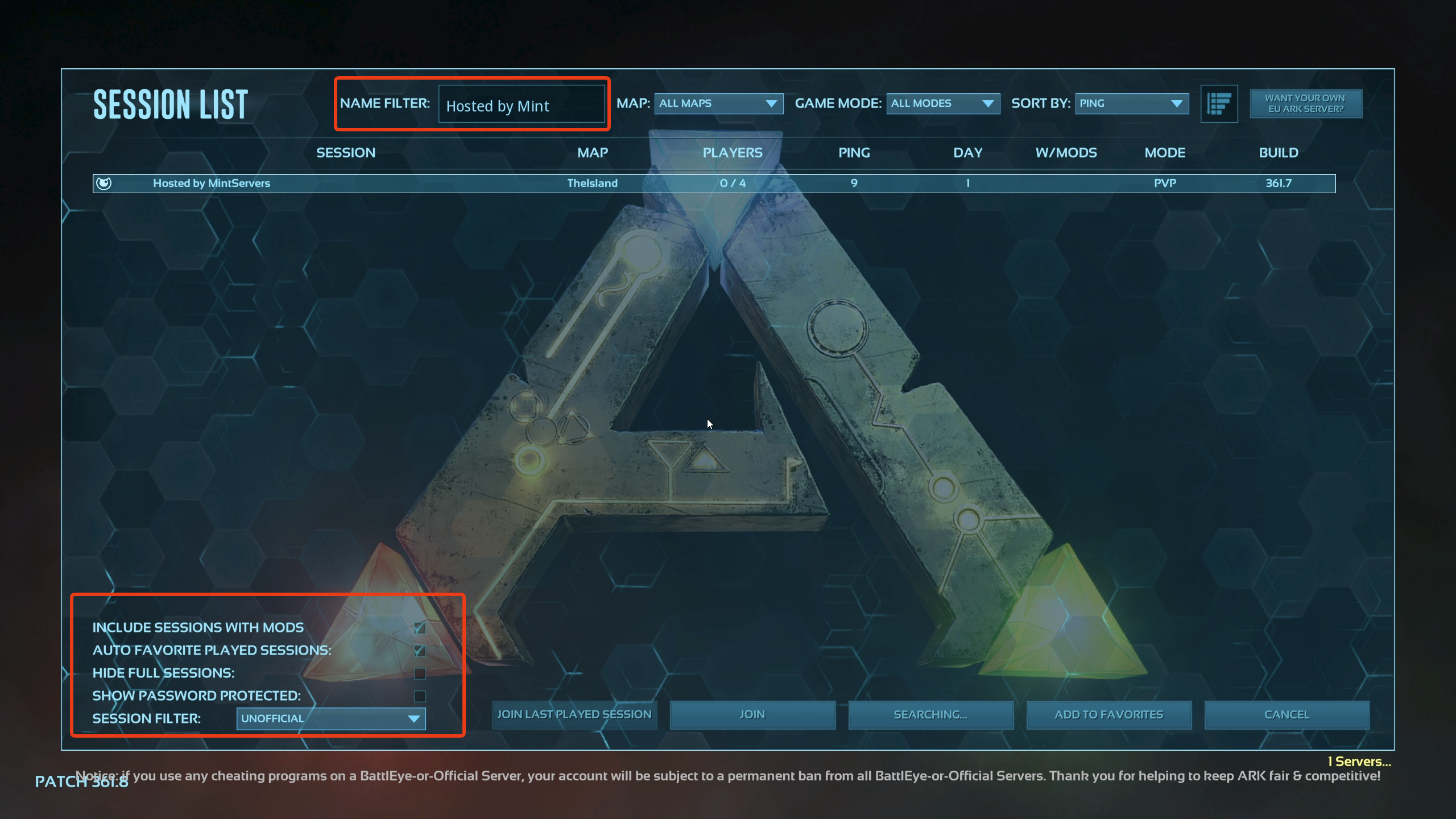
Some unofficial servers list as password protected even when no join password has been set, since the admin password can trigger the same tag. If your server isn't appearing, try toggling
Show Password Protected on before assuming something is wrong.
Step 3: Search For Your Server By Name
With hundreds of unofficial servers online at once, use the search box to jump straight to yours.
Name Filter / search field at the top or bottom of the browser.Join.If the browser is slow or won't load your session, open the in-game console from the main menu and type
open YOUR.SERVER.IP:GAMEPORT to connect directly, skipping the browser entirely. Use the Game Port here, not the Query Port, mixing the two up is one of the most common connection mistakes.
Alternative: Join By IP Through Steam
If you already know your server's IP address and Query Port, or the in-game browser just isn't cooperating, you can add your server directly through Steam's own server list and connect from there instead.
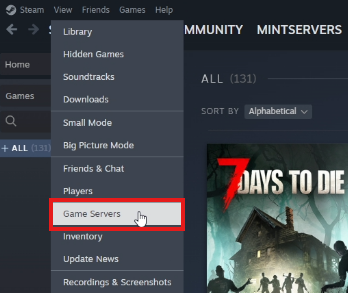
View, then Game Servers.
Favorites tab.+ button to add a server.
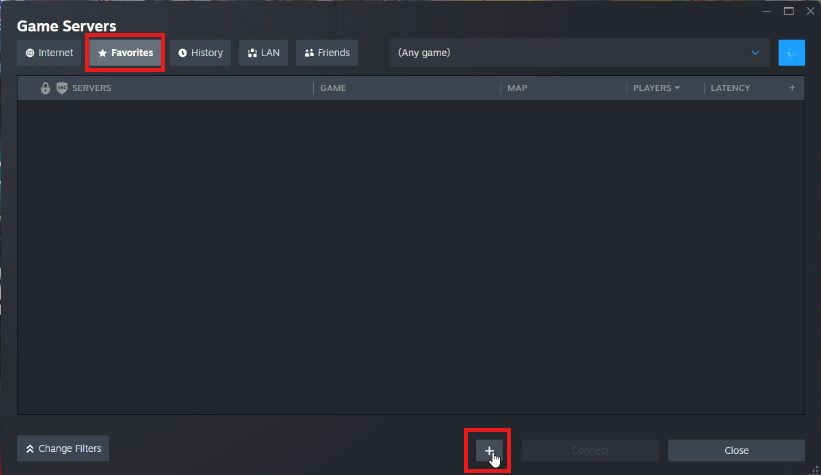
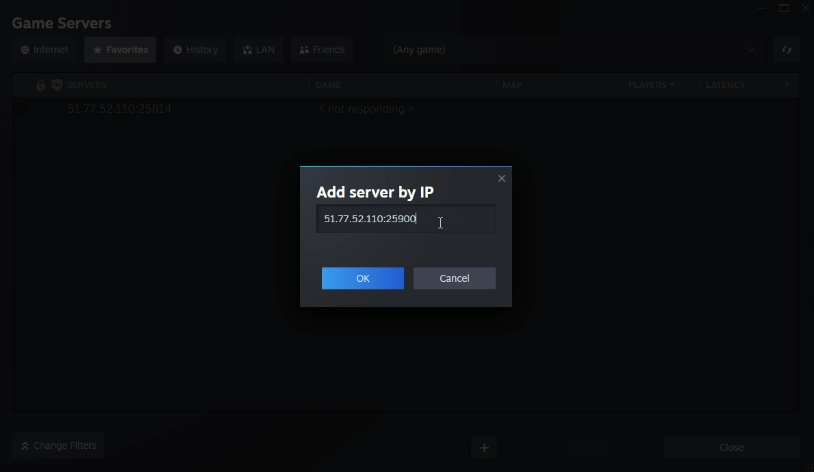
OK.Connect.
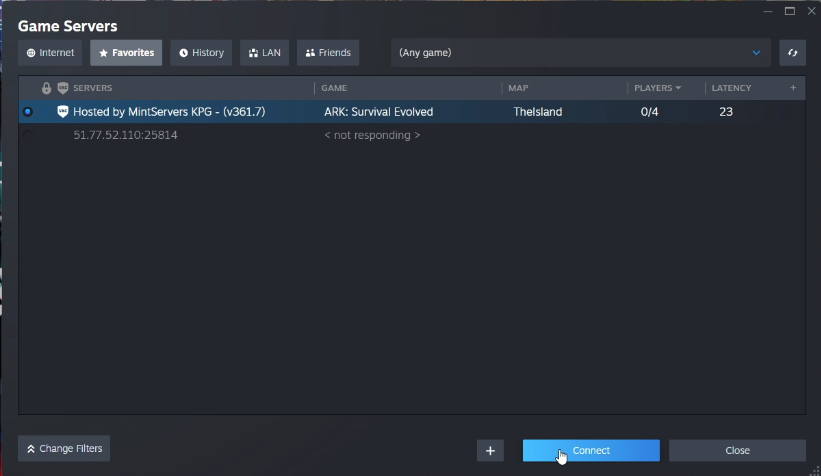
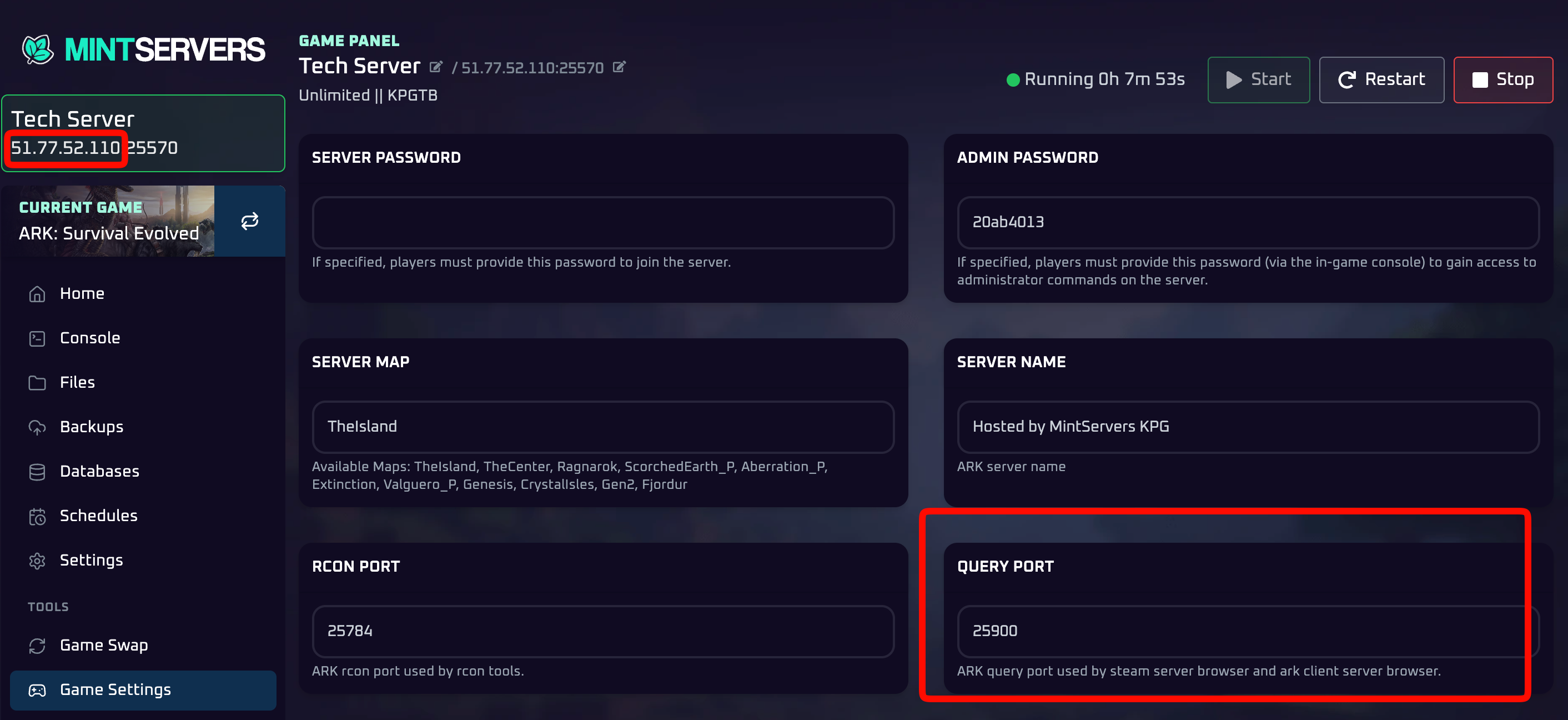
ARK uses two separate ports: a Game Port (what you connect with) and a Query Port (what the server browser uses to check if a server is online). Steam's Favorites list specifically needs the Query Port, entering the Game Port here will show your server as unreachable even though it's running fine. You can find both listed on your server's page in the MintServers panel.
🛠️ Troubleshooting Common Connection Issues
Server isn't showing up in the in-game list
Confirm the Session Filter is set to Unofficial, enable Show Password Protected, and double-check the server is actually Running on your MintServers panel.
Stuck on "Searching for sessions..."
This is a common hiccup on the Steam server browser. Give it a minute, or back out to the main menu and reopen Join ARK.
Added to Steam Favorites but it shows "Not Responding"
You've almost certainly entered the Game Port instead of the Query Port, or the reverse. Double-check which port you used against the note above.
Connection times out or kicks you back to the menu
The server may still be finishing startup. Wait a minute after starting it on the panel before trying to join.
Wrong password error
Make sure you are entering the player join password rather than the server's admin password, these are two different values.
Once you're in, you should spawn on the beach ready to start surviving!
Still stuck?
Our team is happy to help. Open a ticket through the live chat button in the bottom-right corner of our website, or join our Discord and open a ticket there.
Join our Discord