


 Nightingale
Ready to explore the Fae Realms with your friends? Joining your Nightingale server on MintServers only takes a minute. In this guide you will learn how to find your server details and connect using the in-game Join a Game menu.
Step 1: Find Your Server Details
Before you launch the game, you will need your server's IP address, its port, and the join password if you have set one.
01
Log into your MintServers Game Panel and open your Nightingale server.
02
Look at the top of the panel, right next to your server name. Your connection details are shown as
IP:PORT. The numbers before the colon are your IP address, and the number after it is your port.03
Open the Game Settings tab and check the Password field. Players need this password to join. If the field is empty, no password is required.
ℹ️ Your Server Must Be Online
Nobody can join while the server is offline. If the status at the top of the panel says Offline, click Start and wait for it to finish loading before you try to connect.
Nobody can join while the server is offline. If the status at the top of the panel says Offline, click Start and wait for it to finish loading before you try to connect.

Step 2: Join The Server In-Game
01
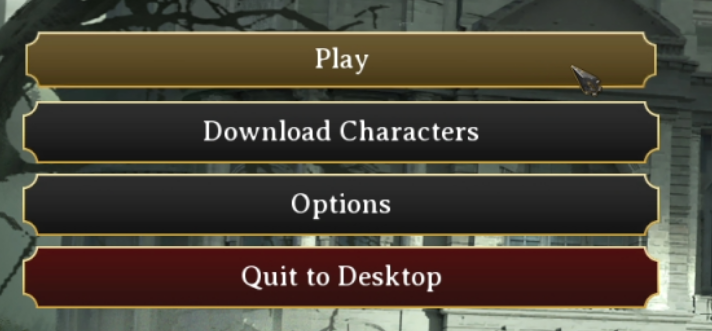
Launch Nightingale and click Play on the main menu.
02
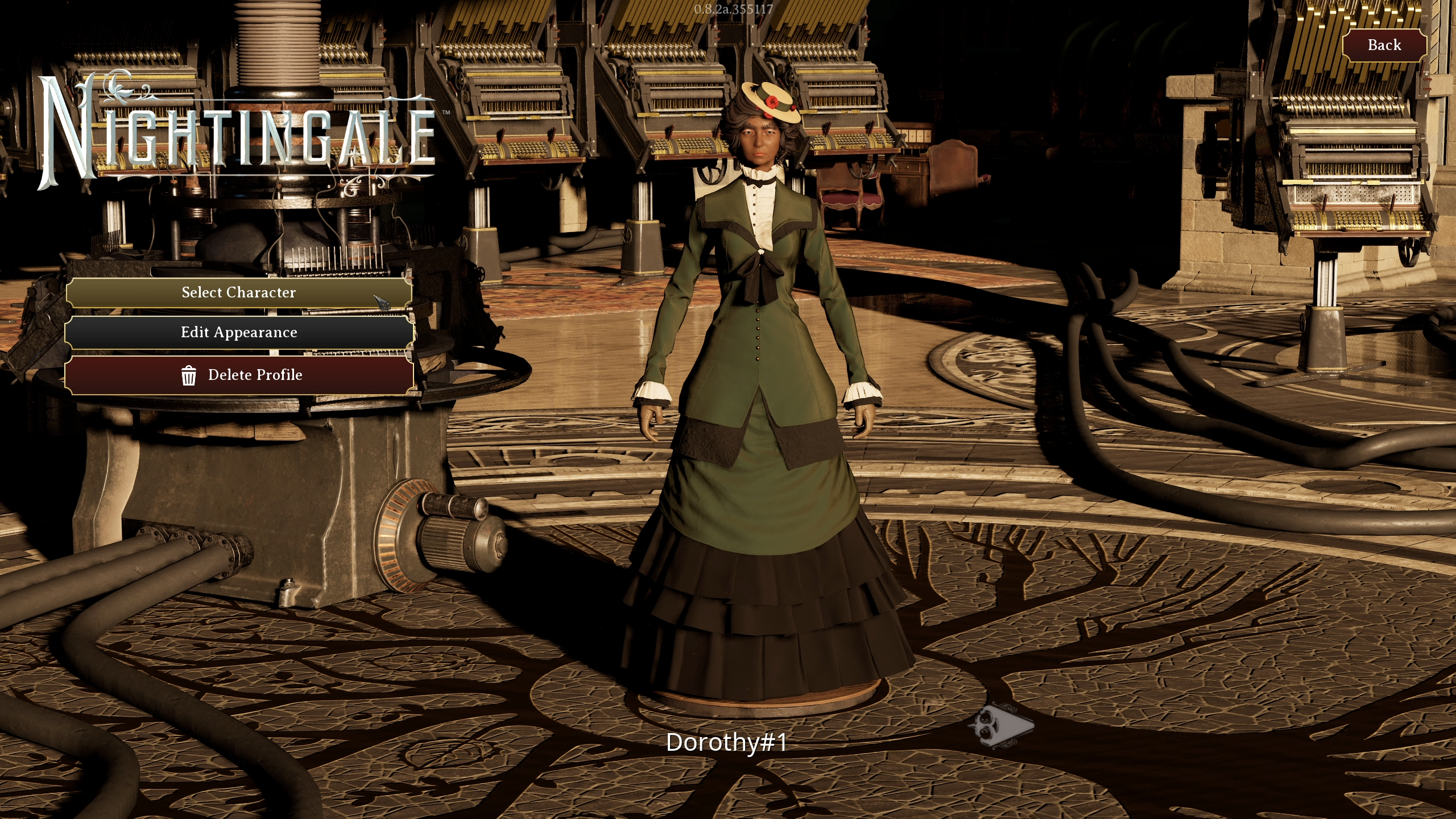
Select the character you want to play with.
03
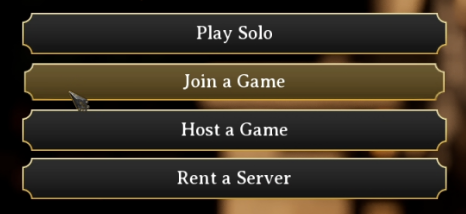
Select Join a Game.
04
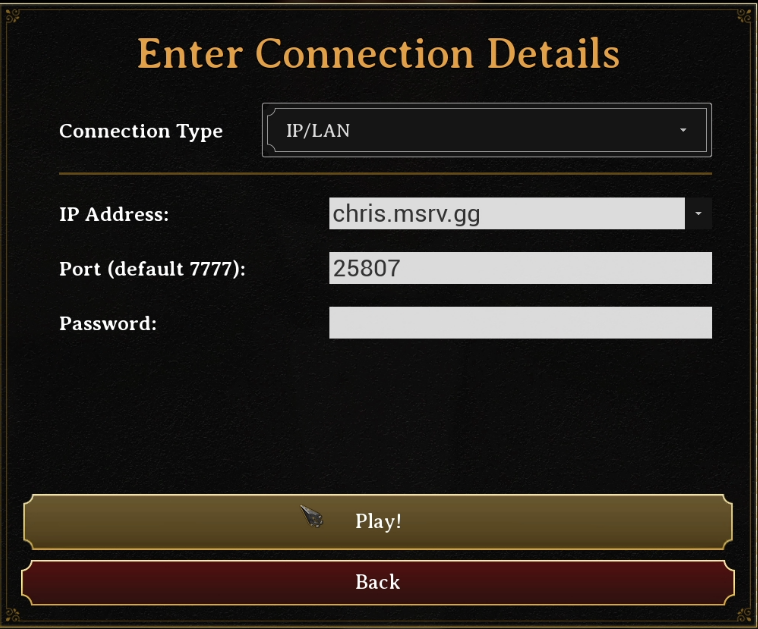
Set the Connection Type to IP/LAN.
05
Fill in the IP Address, Port and Password fields with the details you found in Step 1. The Port field shows
7777 by default, so replace it with the port from your Game Panel unless yours is also 7777.06
Click Play to connect to your server.
ℹ️ Your Character Comes With You
When you join a server, Nightingale brings your character along, including inventory and appearance. The first time anyone joins a brand new server, the realms tied to that player's character are imported as well. If you want a fresh world instead, create a new character and join with it first. To move an existing single-player world onto your server, see our Upload an Existing Save guide for Nightingale.
When you join a server, Nightingale brings your character along, including inventory and appearance. The first time anyone joins a brand new server, the realms tied to that player's character are imported as well. If you want a fresh world instead, create a new character and join with it first. To move an existing single-player world onto your server, see our Upload an Existing Save guide for Nightingale.
Troubleshooting
Can't connect to the serverMake sure your server is online in the Game Panel, and double-check that the IP address and port match exactly, with no extra spaces.
Wrong passwordThe password you enter must match the Password field in the Game Settings tab exactly. If you recently changed it, restart your server and try again.
Can't get in when other players are onlineNightingale supports up to six players by default. Check the Max Players setting in the Game Settings tab, or see our Configure Server guide for Nightingale.
Still not connectingMake sure your game is fully updated through your game launcher, then try again.
Once you see your character step into the Realm, you are all set!
Still stuck?
Our team is happy to help. Open a ticket through the live chat button in the bottom-right corner of our website, or join our Discord and open a ticket there.
Join our Discord