


 Minecraft Java
Joining your new MintServers host is super easy! This guide will walk you through the steps, whether you are using a modded server or a vanilla one. Let us get you connected!
Step 1: Find Your Server Address
First, you need your server's unique address. You can find this on your MintServers Game Panel.
- Log into your Game Panel.
- Select the server you want to join from your server list.
- On the Console page, look for the Server Address. If your server has a subdomain, it is shown here, like
myserver.mintservers.com. If you have not created one, you will see your server's numerical IP and port instead, like192.168.1.1:25565. - Click to copy this entire address. You will need it in a moment!
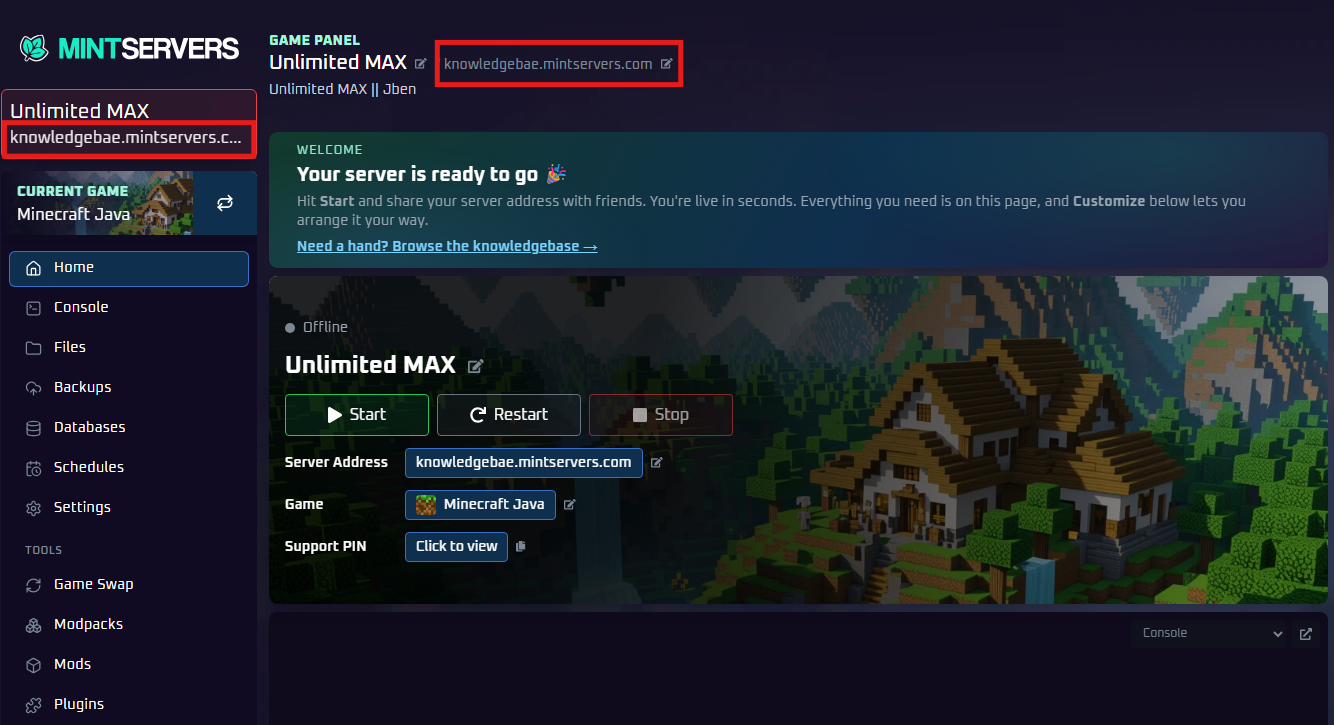
mintservers.com, mnt.li or serv.cx). Players connect with the address alone, so there is no port to type.
Step 2: Launch Minecraft
How you launch Minecraft depends entirely on whether your server is using mods.
For Modded Servers (Using a Modpack)
If your server runs a modpack (like from CurseForge), you must use the exact same modpack and version to join.
- Open the CurseForge App (or your preferred modpack launcher).
- Find your modpack and click the Play button. This opens the Minecraft Launcher with the correct mod profile loaded.
- Click Play again in the Minecraft Launcher.
For Vanilla or Plugin-Based Servers
If your server is Vanilla, Spigot, or Paper, just use the regular Minecraft Launcher.
- Open the standard Minecraft Launcher.
- Make sure you have the correct game version selected that matches your server (for example, 1.21.11 or 26.3).
- Click Play.
Step 3: Add the Server to Minecraft
Now that your game is running, it is time to connect.
- From the Minecraft main menu, click on the Multiplayer button.
- Click the Add Server button.
- Give your server a name you will remember (like My MintServer).
- In the Server Address field, paste the address you copied from the Game Panel in Step 1 (for example,
myserver.mintservers.com). - Click Done.
You will now see your server in the multiplayer list. Just select it and click Join Server. That is it, you are in! If you have any trouble connecting, just open a support ticket and we will gladly help you out.