



 Avorion
Ready to fly? Once your Avorion server is running, there are two ways to connect: through the in-game server browser, or by adding your server manually with its IP address and Query Port. This guide walks you through both methods.
💡 Before You Join:
Make sure your server is started on your MintServers panel and has finished loading in the Console tab before you try to connect.
Joining via the Server Browser
This is the quickest method if your server shows up in the in-game list.
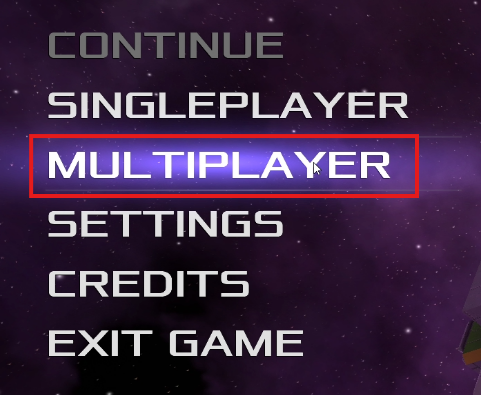
- Launch Avorion and click Multiplayer in the main menu.
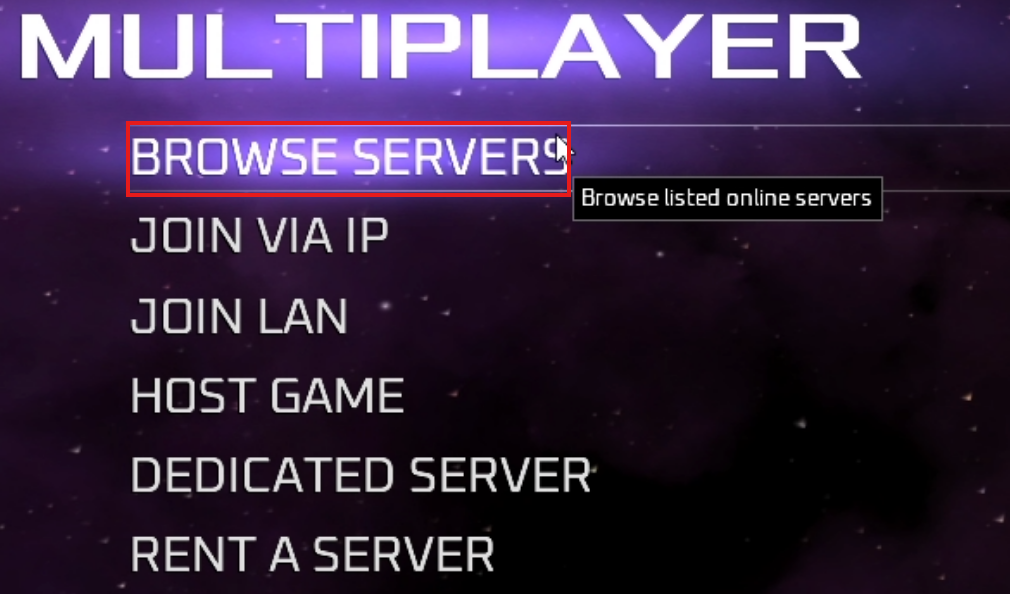
- Click Browse Servers.
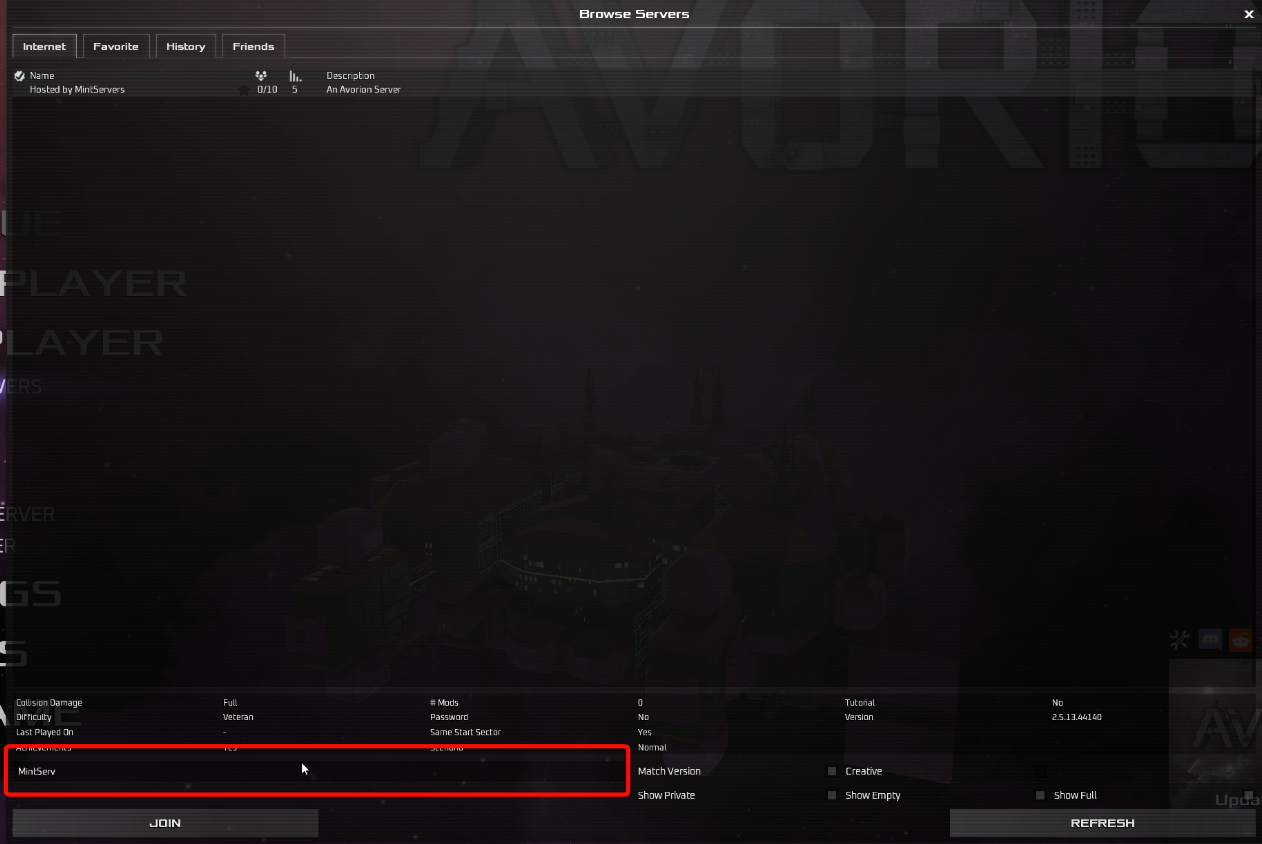
- Type your server name into the search box.
- Select your server from the list.
- Click Join.
Joining via IP
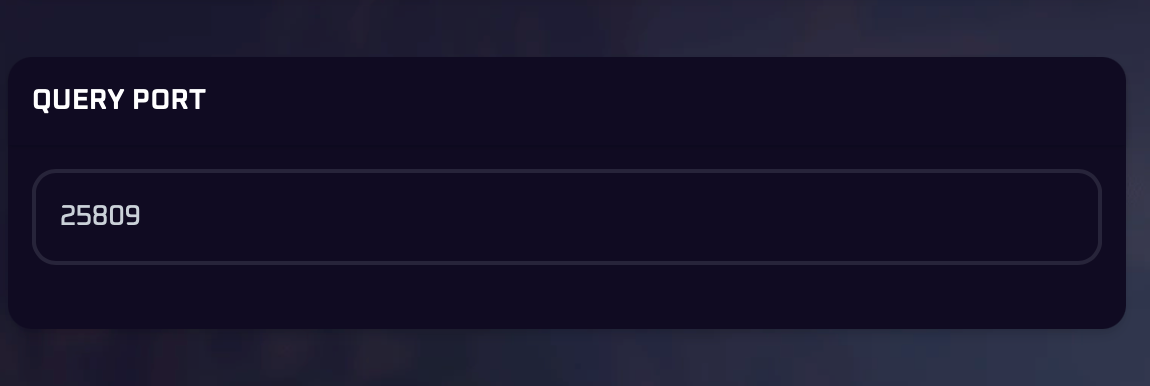
Use this method if you cannot find your server in the browser, or if you want to save it to your list directly. You will need your server's IP address and Query Port from your MintServers panel.
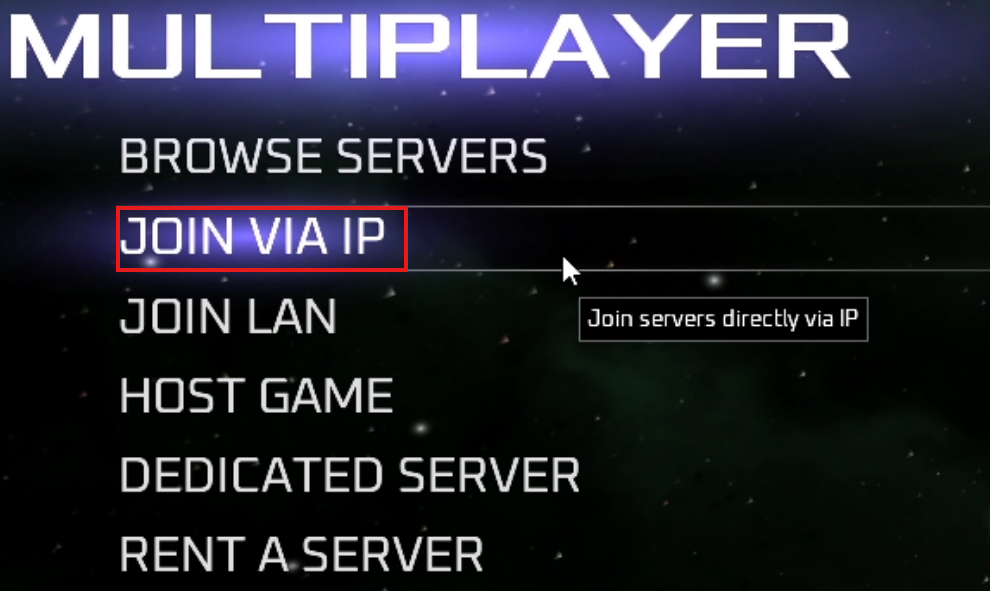
- From the Multiplayer menu, click Join Via IP.
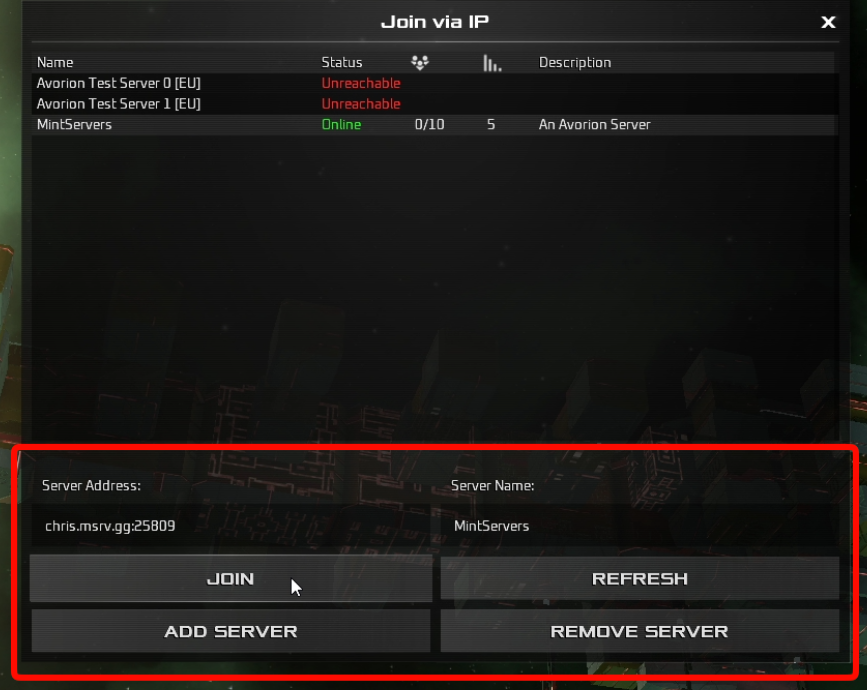
- Type your server IP, Query Port and server name.
- Click Add Server.
- Select your server in the list.
- Click Join.
💡 Use The Query Port
When adding a server by IP, make sure you enter the Query Port shown in your panel. Typing a different port is one of the most common reasons a server fails to connect.
When adding a server by IP, make sure you enter the Query Port shown in your panel. Typing a different port is one of the most common reasons a server fails to connect.
Troubleshooting
🛠️ Troubleshooting Common Issues
Server not showing in the browser:Use the Joining via IP method above instead. It does not depend on the server list.Can't connect via IP:Double-check the IP address and Query Port for typos or extra spaces, and confirm the server is running in the Console tab.Asked for a password:A join password has been set in the server settings. Enter that password to continue.Slow first join:If your server uses Steam Workshop mods, players download them automatically when connecting, so the first join can take longer. See Install Workshop Mods.
That is everything you need to get into your galaxy! If you are still unable to connect, no worries! Just open a support ticket and our team will gladly jump in and get it sorted out together.