


 Counter-Strike
 1.6 does not always list every community server in its built-in server browser, so the most reliable way to join your own server is to add it to your Favorites list. This guide shows you how to do that in a few clicks.
Once your server is in Favorites, you can rejoin any time with a double-click.
Step 1: Find Your Server's IP and Port
Before opening the game, you need your server's address. It is made up of an IP address and a port number.
Network tab.IP:PORT, for example 123.45.67.89:27015.Make sure your server is started in the panel before you try to join. If it is still booting, give it a minute or two.
Step 2: Add Your Server to Favorites
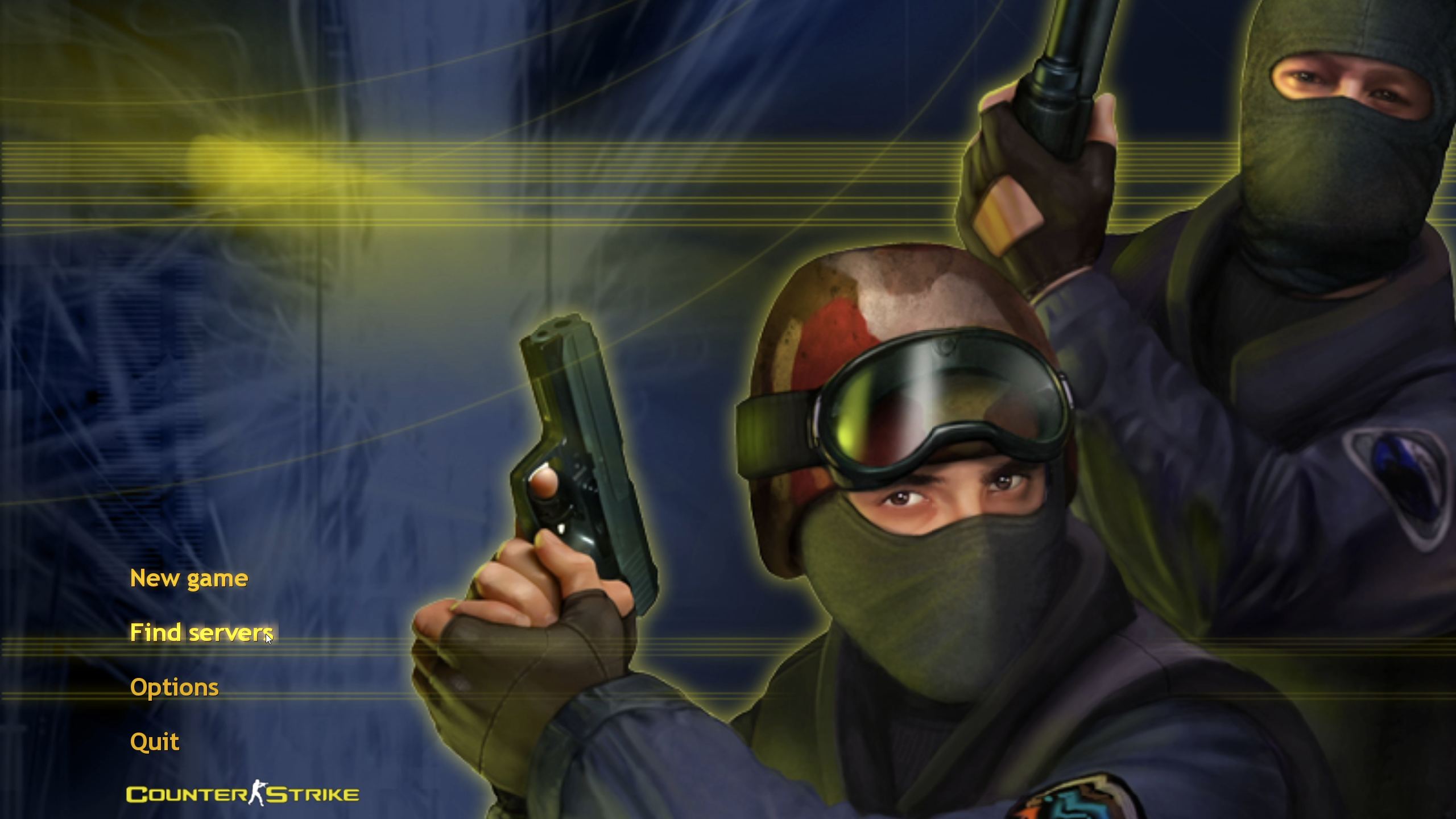
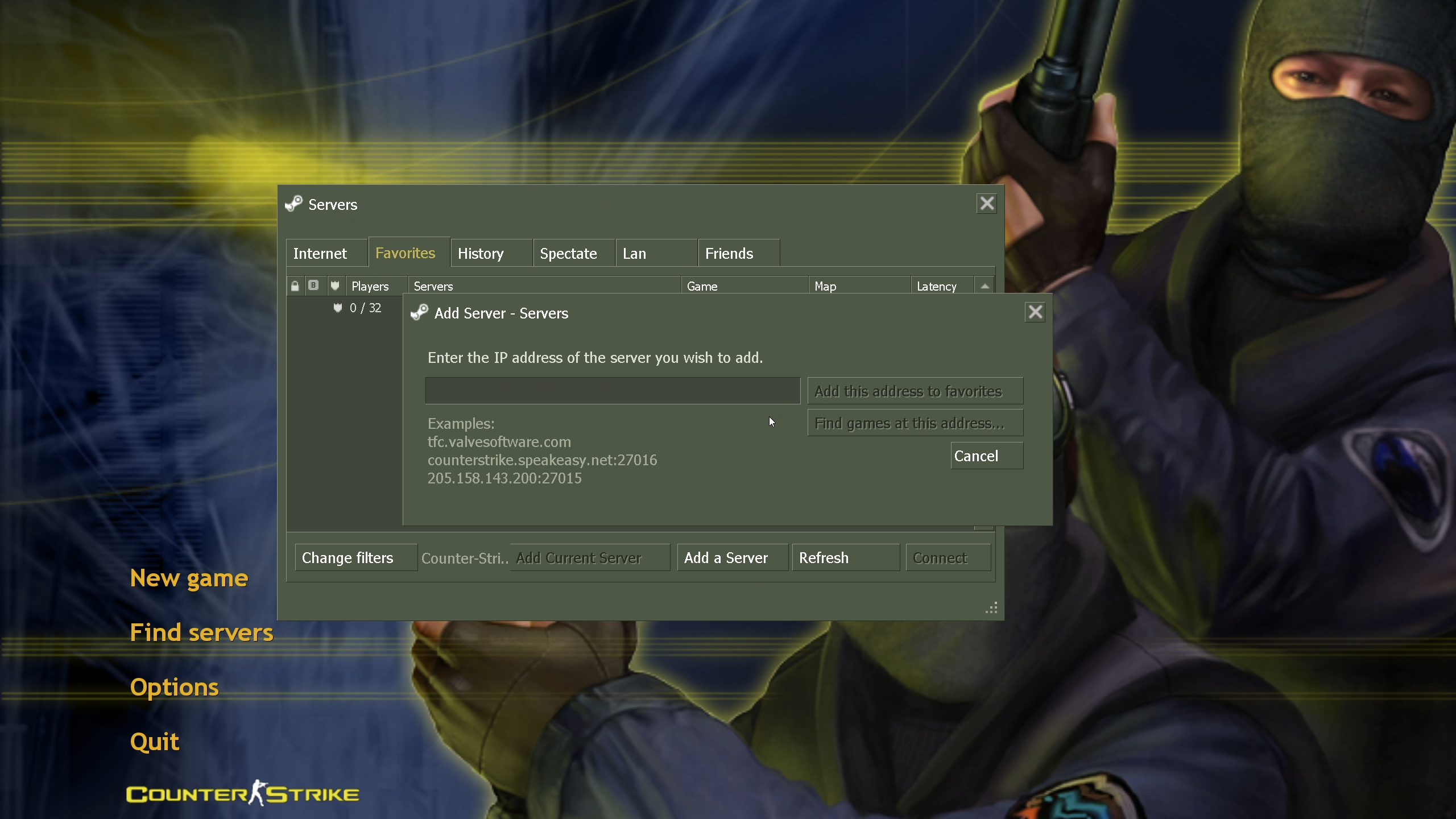
Find servers in the main menu.
Favorites tab.Add a Server at the bottom of the window.
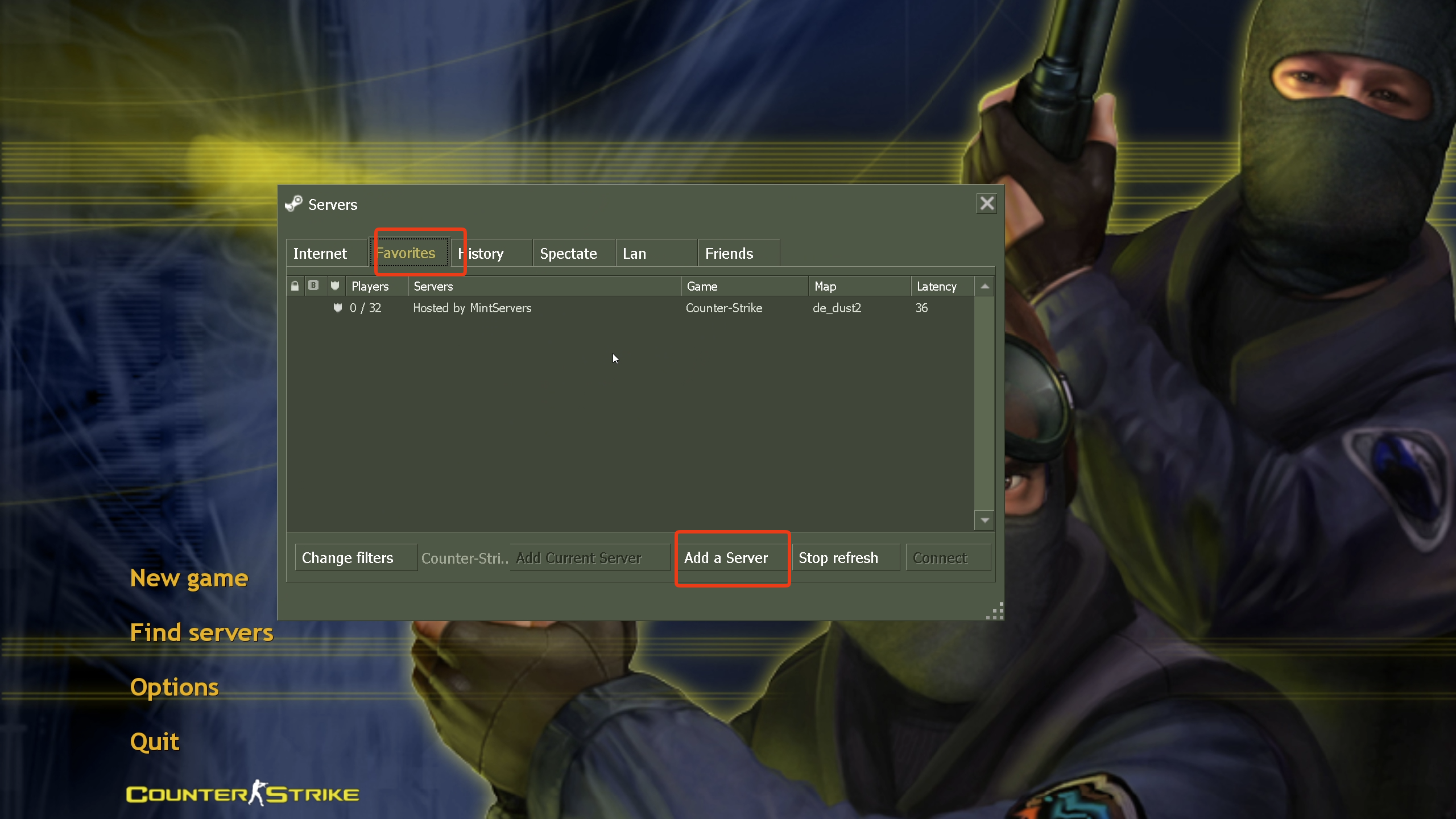
IP:PORT and click Add this address to favorites.
Connect.
Join Using the Console
If you prefer typing, you can connect directly from the developer console instead.
~ key to open the console. If nothing opens, enable the developer console in the game's Options under Keyboard, then Advanced.connect IP:PORT with your own address and press Enter. For example: connect 123.45.67.89:27015🛠️ Troubleshooting Joining Issues
Server not found or connection times out
Check that your server is started in the panel and has finished booting.
Typo in the address
The IP and port must be separated by a colon with no spaces. Copy them straight from the Network tab to be safe.
Server missing from the Internet tab
This is normal. The built-in browser does not always list every server, which is why adding it to Favorites or using the console is more reliable.
Added the wrong address
Remove the server from Favorites and add it again with the correct IP and port.
You are all set! Once you are in, you can customize your server with our guides on Edit Config Files, Install Plugins and Edit Map Cycle.
Still stuck?
Our team is happy to help. Open a ticket through the live chat button in the bottom-right corner of our website, or join our Discord and open a ticket there.
Join our Discord