



 SCP: Secret Laboratory
The first time you start your SCP: Secret Laboratory server, the console walks you through a short one-time setup. Once that is done, you can also verify your server so it shows up in the in-game server list for everyone to find.
This guide covers the first-time setup and the full verification process, step by step.
No. Verification is only needed to appear in the public server list, and you can still play with friends using Direct Connect. Our Join Server guide shows you how. Verification is also a commitment: the SCP: SL team designs the verified list for servers that stay online close to 100% of the time, and a verified server that stays offline for more than 14 days can lose its verification.
Step 1: First Start And Setup
- Log into your MintServers panel and click the Start button. The first start downloads the game files, so give it some time.
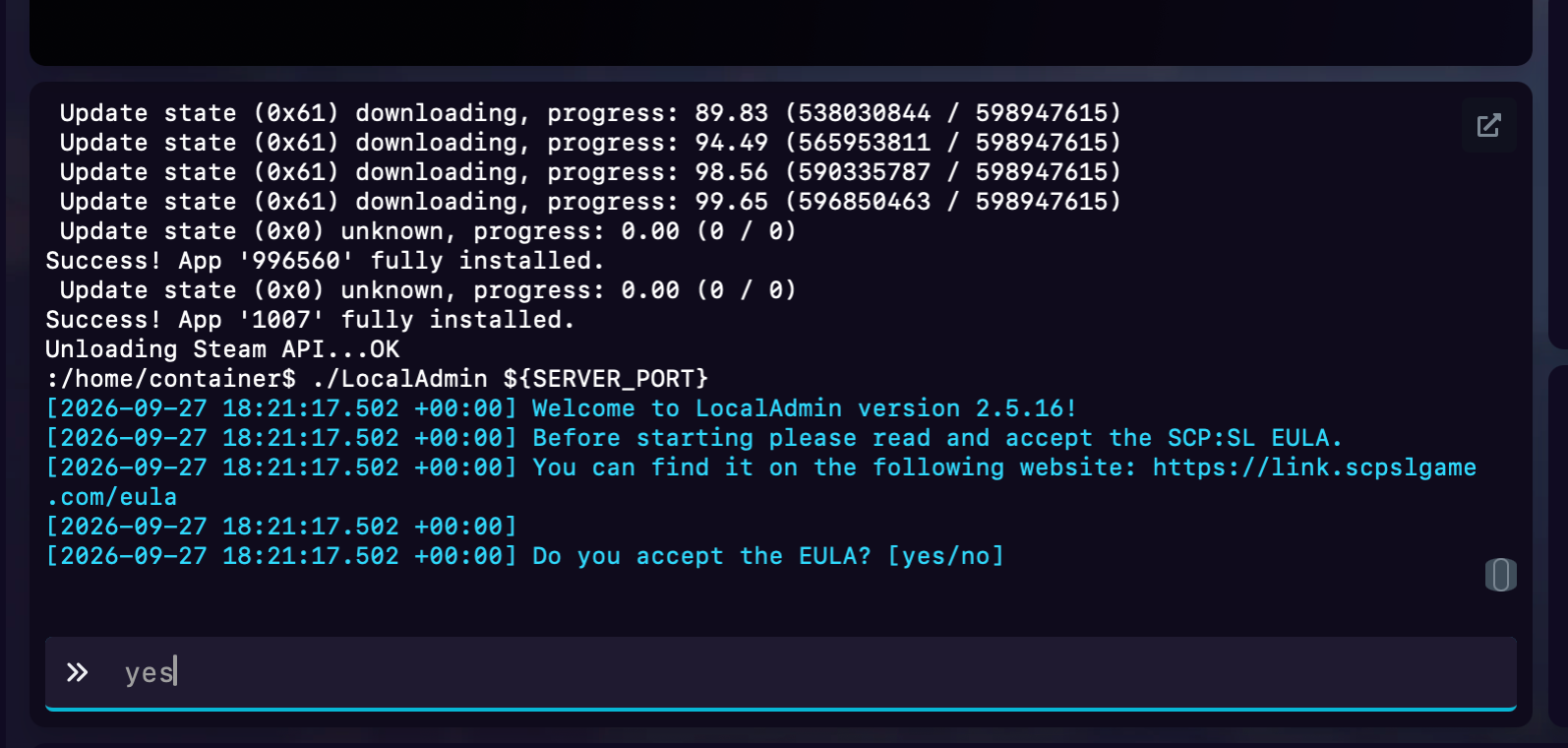
- Open the Console tab. When the server asks
Do you accept the EULA? [yes/no], typeyesinto the console box at the bottom and press Enter. The console also shows a link where you can read the EULA first. - Next, the server asks
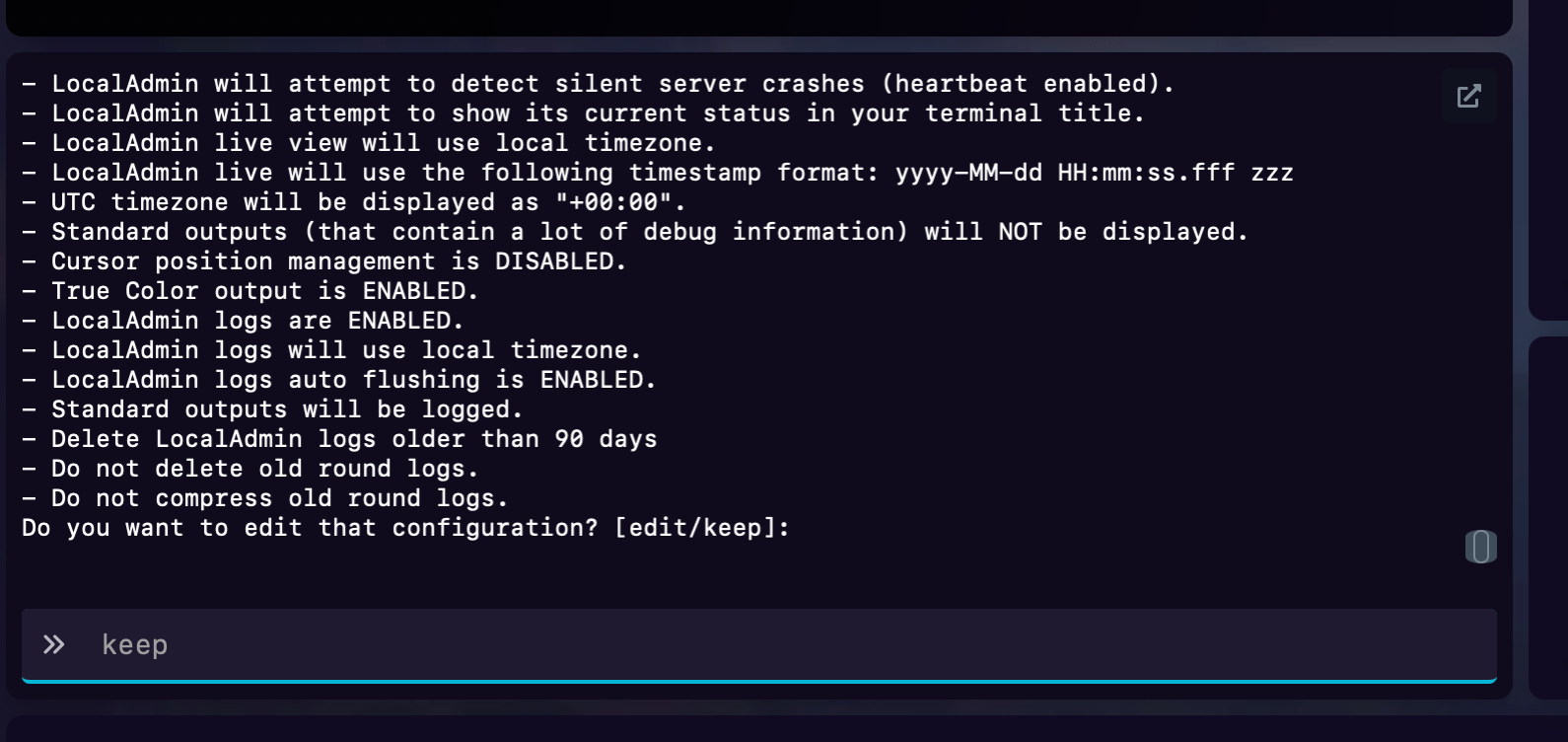
Do you want to edit that configuration? [edit/keep]. Typekeepto use the default settings. - Finally, the server asks whether to save this configuration for this server only or as the default for all future servers. Type
global(recommended).


Step 2: Setting Up Your Server Info
Before you can verify, three settings in your config need to be filled in. If you do not plan to verify your server, you can stop here and jump to our Join Server guide.
- Click the Stop button on your MintServers panel to safely shut down your server.
- Navigate to the Files tab on the left-hand sidebar.
- Use the interactive file manager to open the folders below:
- Click on the
config_gameplay.txtfile to open the text editor and set the three values shown below.
📁 server (or your main server directory)
📁 .config
📁 SCP Secret Laboratory
📁 config
📁 (a folder named after your server's port, for example 25568)
server_name- The name shown in the server list. A simple name is all that is needed.serverinfo_pastebin_id- The ID of a Pastebin page that acts as your server's description. Your paste must include a way for players to contact your staff, such as an email address or a Discord invite link, and it is a good place for your rules too. The ID is the last part of the paste link. For example, forhttps://pastebin.com/GQjSTuWbthe ID isGQjSTuWb.contact_email- The email address the SCP: SL team can use to contact you. If this line is not in your file, add it on a new line yourself. If you ever verify by email, you must send it from this same address.
- Click the Save Content button at the top right of the file editor.
- Navigate back to the Console tab and click Start.
max_players at 60 or lower. You can also review the official Community Server Guidelines, which every verified server must follow.
Step 3: Requesting Verification
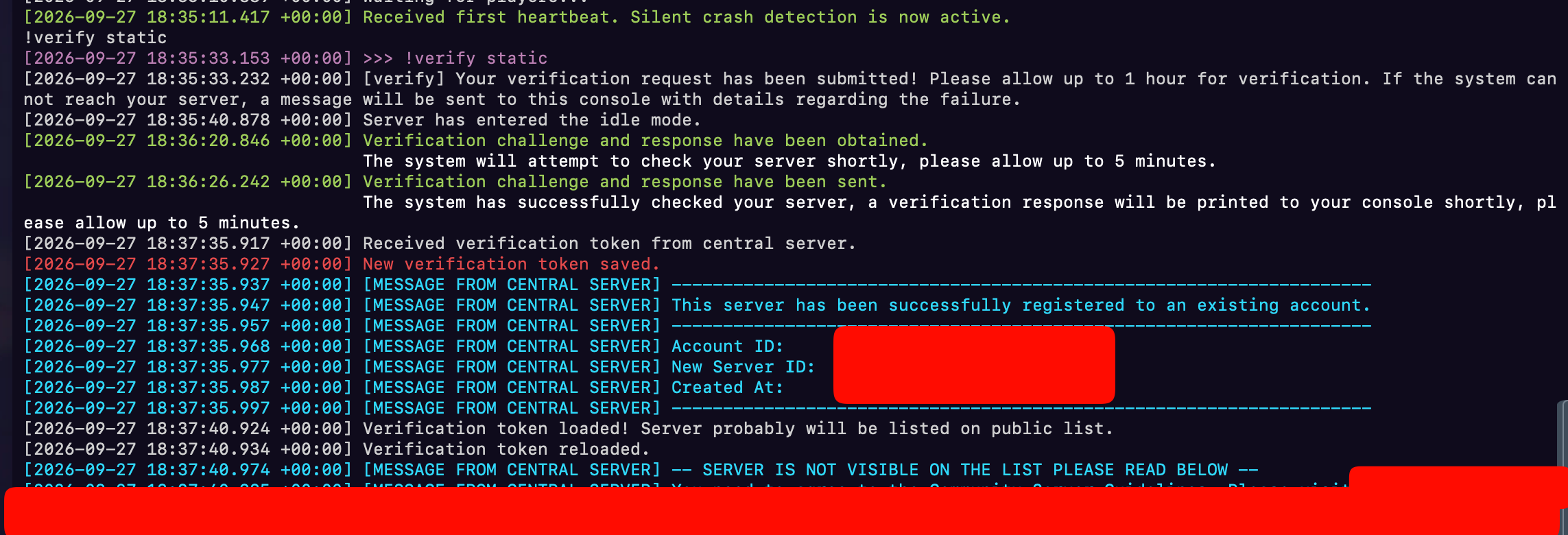
- In the Console tab, type
!verify staticand press Enter. MintServers servers use a static IPv4 address, sostaticis the right option. - Wait for up to an hour for the verification to complete. Do not stop your server during this time, because the progress and results are shown right in the console. If the system cannot reach your server, the console prints a message explaining why.
- When the console shows the verification link, open it in your web browser.
- Follow the steps on the Community Server Agreement page. You will sign in with your Steam account, enter your email address and confirm it with the code that is sent to you, and confirm that you have the rights to your server's IP address.
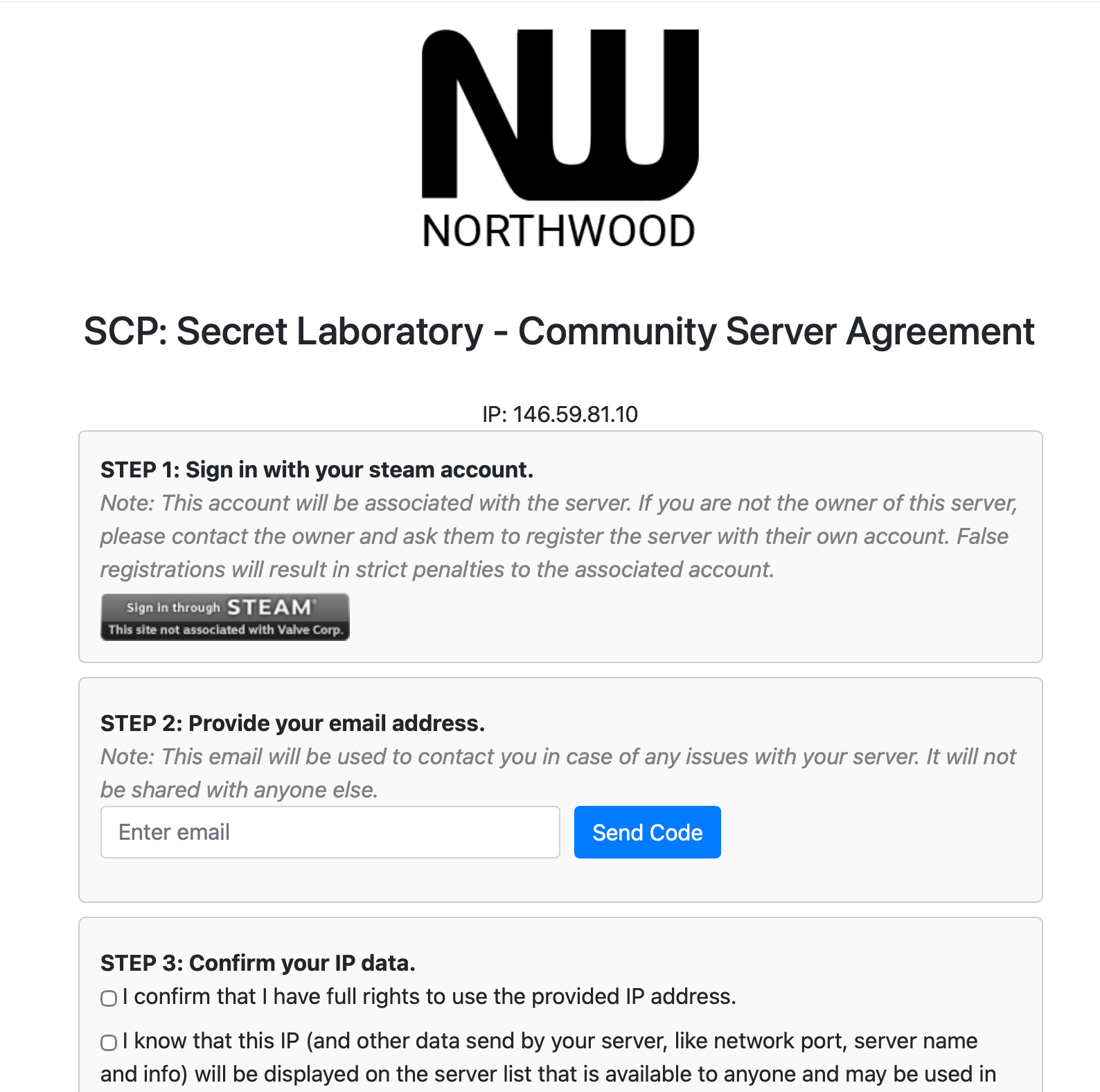
Once you have completed every step on the agreement page, your server will show up on the verified server list. You can then find it in the game by searching for its name, as shown in our Join Server guide.
Verifying By Email
If !verify static does not work for you, you can ask the SCP: SL Safety and Compliance team to verify your server by email instead.
- Send an email to
[email protected]from the same address you set ascontact_emailin your config. - In the email, include your server's public IPv4 address, whether the IP is static or dynamic (MintServers uses static), and the port your server runs on.
- Write the email in clear, proper English with an appropriate subject, and do not add any attachments.
- Keep your server online and wait for a reply, which can take anywhere from 3 to 7 business days.
- Once your server is approved, a link is generated in your console. Open it and complete the Community Server Agreement as described in Step 3.
The SCP: SL team does not support IPv6 or domain-based verification at this time, so always verify using your server's IPv4 address and port, not a custom domain.
🛠️ Troubleshooting Verification Issues
Server is already verified:The IP and port may have been verified by a previous owner. You can either send an email to the SCP: SL team as described above, or change your server's port and run!verify staticagain.Nothing happens after an hour:Make sure your server is running, and check the console for a message explaining why the system could not reach your server. Also double-check thatserver_name,serverinfo_pastebin_idandcontact_emailare all filled in correctly.No link appears in the console:Try restarting your server from the MintServers panel. If it still does not appear, open a support ticket.Verified, but I can't find my server in the list:Make sure you completed every step on the Community Server Agreement page, then search for your server using its exact name.
Once your server is set up and verified, players can find it by name straight from the in-game server list. If you get stuck at any point in the verification process, no worries! Just open a support ticket and our team will gladly jump in and get it sorted out together.