



 Killing Floor 2
Killing Floor 2 doesn't have a simple "connect by IP" box in its main menu, so joining your own server means adding it to your Steam Favorites first. Once it's in your Favorites, you can hop in and out any time without repeating the setup.
This guide covers both ways to add your server in Steam, plus how to actually join once it's saved.
Finding Your Server's IP Address and Query Port
Killing Floor 2 uses a Query Port to browse and connect to servers, which is separate from the main game port. You'll need both your server's IP address and its Query Port before adding it to Steam.
You can find both of these on your MintServers panel.
Adding Your Server to Steam Favorites
There are two ways to add your server to Steam: entering the IP and Query Port directly, or searching for it by name. Use whichever is easier for you.
Method 1: Add by IP and Query Port
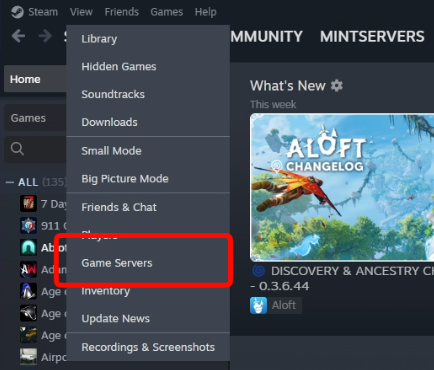
- Open Steam and click
Viewin the top menu bar. - Select
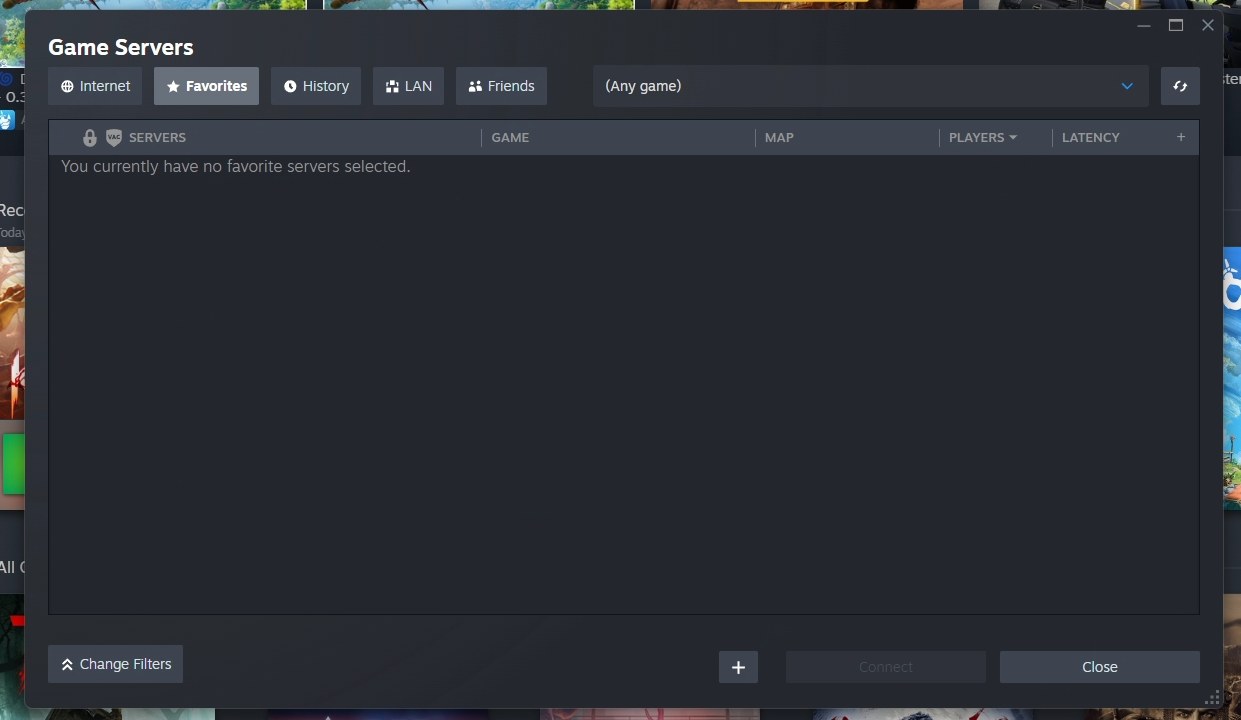
Game Serversfrom the dropdown. - Click the
Favoritestab. - Click the
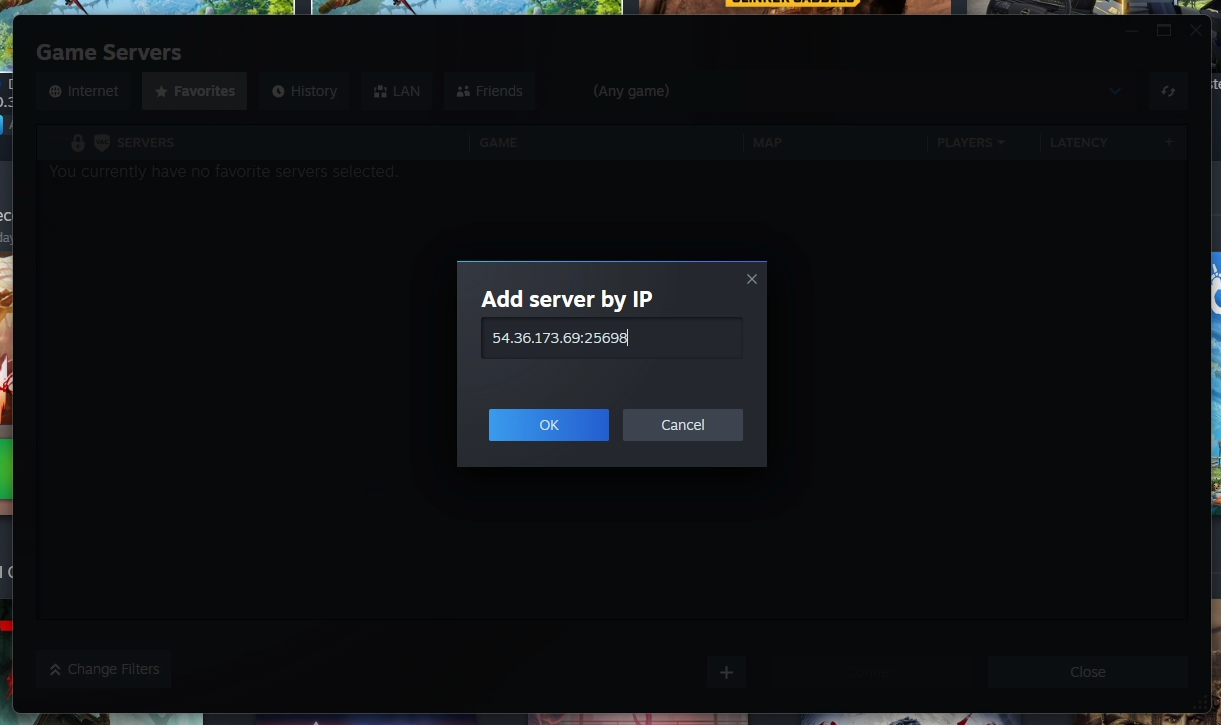
+button in the bottom right corner. - Enter your server's IP address and Query Port, separated by a colon (for example,
123.45.67.89:7708). - Confirm to add the server. It will now appear in your Favorites list.

Method 2: Add by Server Name
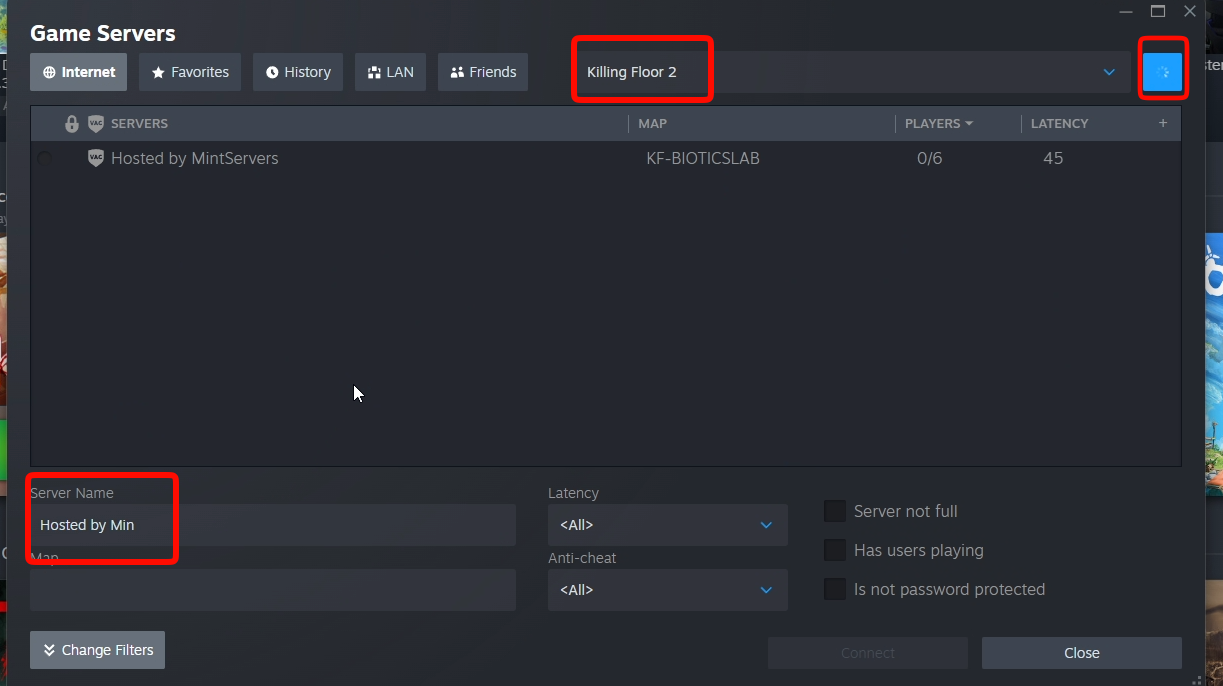
If you don't have your IP and Query Port handy, you can search for your server by name instead, as long as it's set to publicly listed.
- Open Steam and click
Viewin the top menu bar. - Select
Game Serversfrom the dropdown. - Click the
Internettab. - Set the game filter to
Killing Floor 2. - Type your server's name into the search box and click the search button.
- Once your server appears in the results, right-click it and select
Add to Favorites.
Joining Your Server In-Game
With your server saved to Favorites, joining it from inside the game only takes a few clicks.
- Launch Killing Floor 2 from your Steam library.
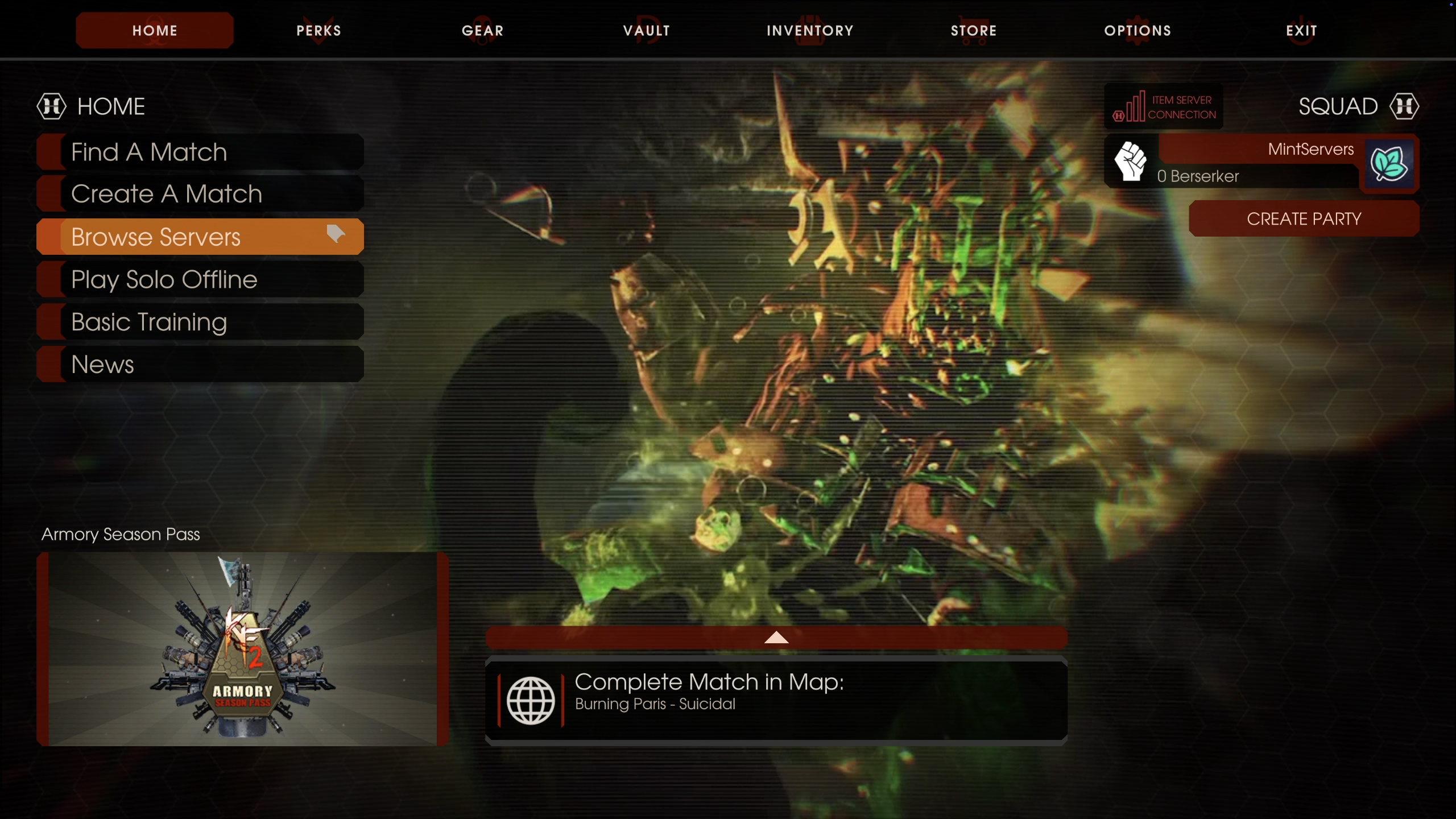
- From the main menu, click
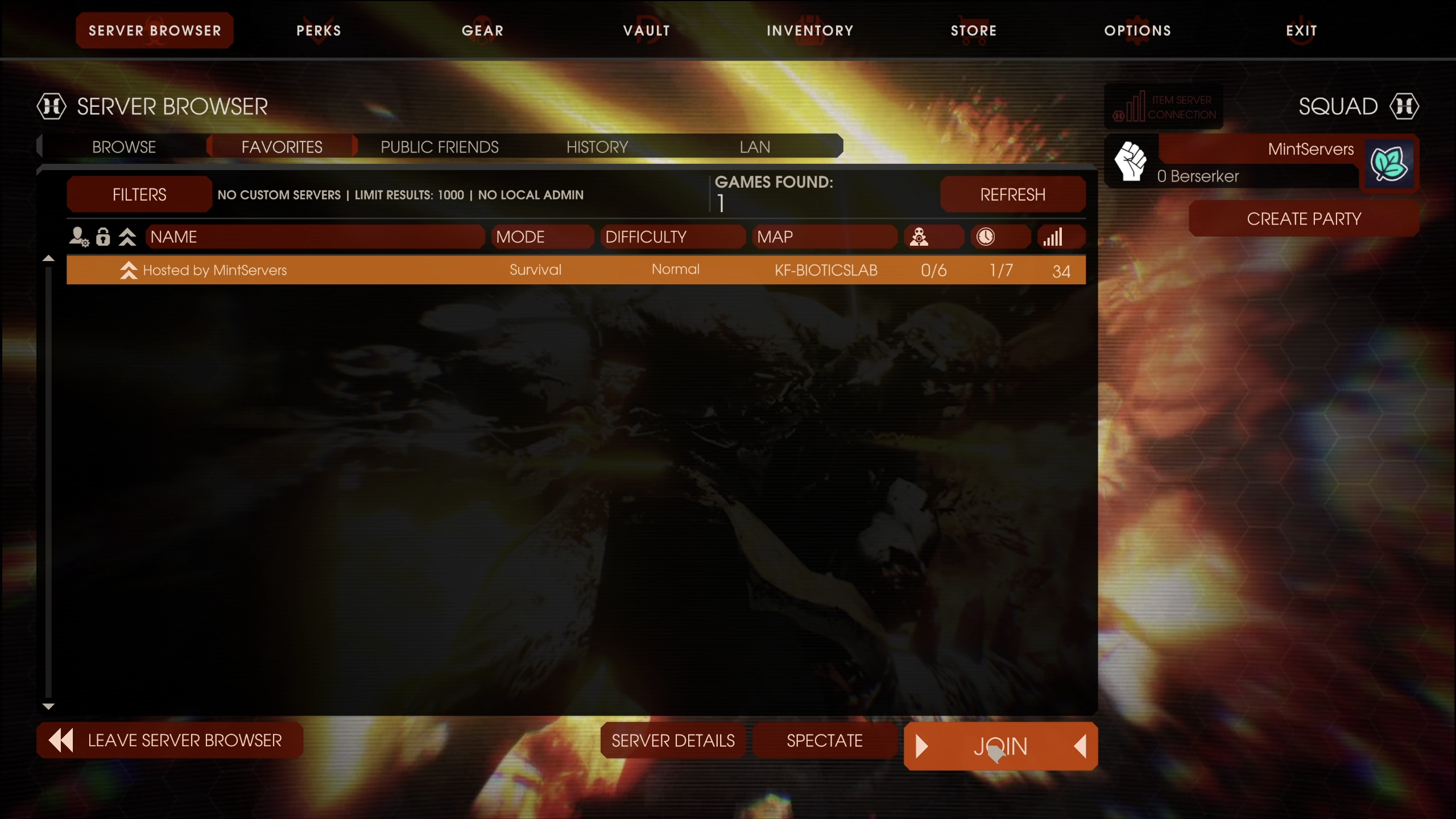
Browse Servers. - Go to the
Favoritestab. - Select your server from the list and click
Join.
🛠️ Troubleshooting
Server won't show up in Favorites:Double-check that you entered the Query Port and not the main game port. These are two different numbers.Server not appearing under the Internet tab:Make sure the game filter is set to Killing Floor 2, and that your server is set to publicly listed rather than private.Connection times out:Confirm the server is fully started on your MintServers panel, and try restarting it once if this is its first boot.Still can't connect:Re-check the IP and Query Port directly from your panel, as they may have changed if the server was reinstalled or reallocated.
Once your server is saved to Favorites, joining it going forward is as simple as launching the game and clicking Join. If you're still having trouble getting connected, no worries! Just open a support ticket and our team will gladly help you get into the game.