



Project Zomboid is a post-apocalyptic survival game set in a fictional world with a massive zombie outbreak. Players must manage their character's hunger, thirst, fatigue, and health while scavenging for supplies, building shelter, and defending against zombie attacks. The game features single-player and multiplayer modes and includes various game scenarios. In addition, the game contains a vast array of modding tools, allowing players to create and share their custom content.
Connecting to your hosted server is simple through the game's built-in server browser. Let us get you and your friends connected to survive the apocalypse!
Step 1: Access Your Server Details
Before you launch the game, you will need to grab your unique server address from your control panel.
- Navigate to the MintServers Dashboard at
https://mintservers.com/dashboardand log into your account. - Click on your Project Zomboid server from the list and select Open Game Panel.
Step 2: Copy Server Information
Copy the IP address and Port from your server panel. The server IP is located before the colon, and the port is located after the colon.
Example format: 158.62.204.17:16261


Step 3: Launch Project Zomboid
Open Project Zomboid on your computer. From the main menu, choose the Multiplayer option.
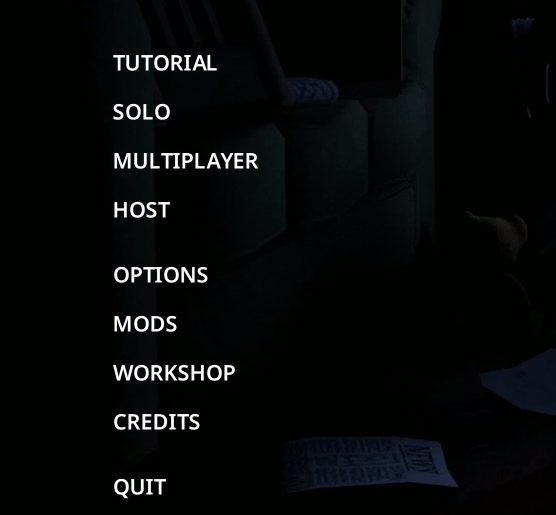
Step 4: Add Your Server
Make sure you are on the FAVORITES tab, then click the Add Server option.
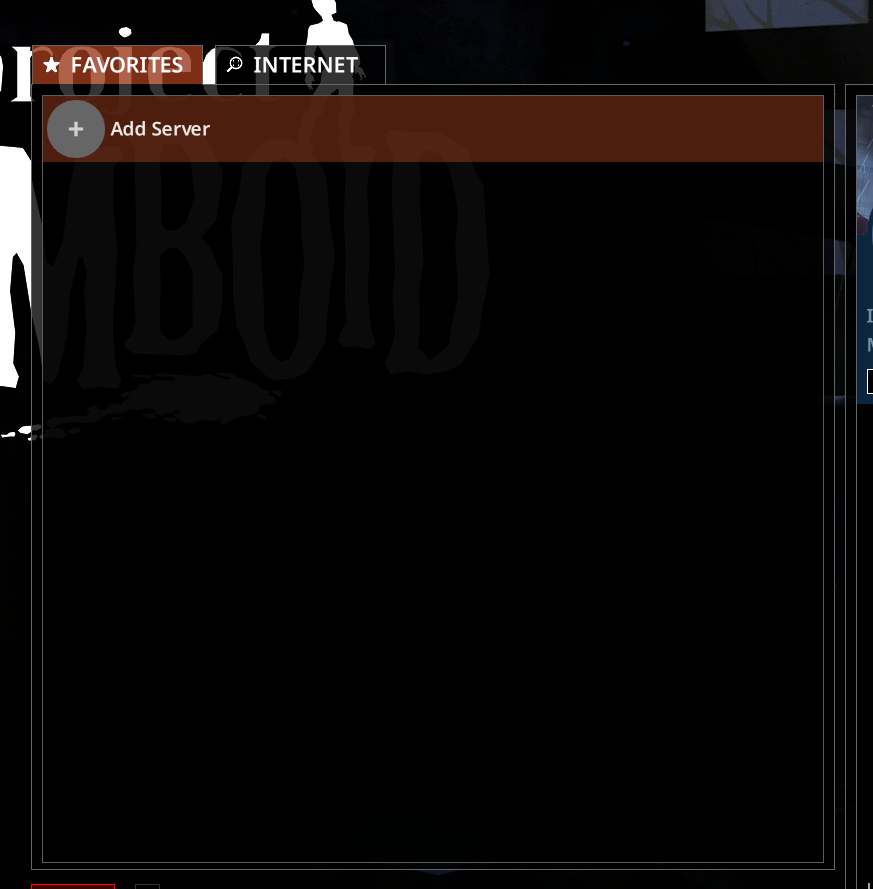
A window will pop up asking for your server's details. Fill out the following:
- Server name: Enter any name you want to remember your server by.
- IP/Domain: Enter the IP you copied from Step 2. If you have already set up a custom domain for your server, you can enter that here instead.
- Port: Enter the port you copied from Step 2.
- Server password: Only fill this in if your server itself is password-protected. Leave it blank otherwise.
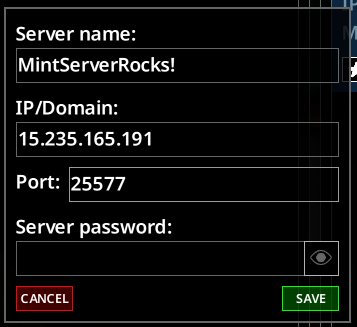
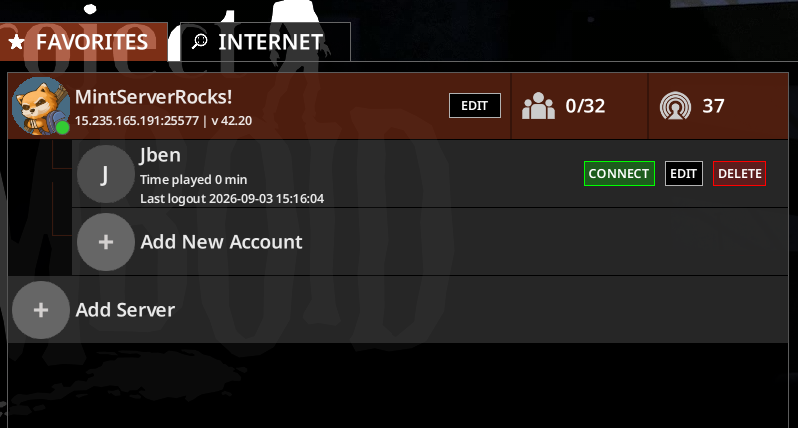
Once you are finished filling out the details, choose Save. Your server will now appear in your Favorites list, showing its current player count and ping.
Step 5: Add Your Account
Before you can connect, you need to add an account for this specific server. Click the Add New Account option listed underneath your server entry.
- Username: Choose the username you want to play under on this server.
- Authentication Type: Leave this set to Password.
- Password: Create a password for this account, or enter your existing one if you have joined this server before.
Once you are finished, choose Save.
Step 6: Connect
Your account will now appear listed underneath your server entry. Click the Connect button next to your username to join.

You will now connect to your Project Zomboid server and can begin your survival adventure!
🛠️ Troubleshooting Connection Issues
- Server Offline: Ensure your server is actually running and shows as Online in the MintServers game panel before trying to connect.
- Formatting Error: Double-check the IP/Domain and port number are entered correctly in their separate boxes in the Add Server window.
- Server Password Rejected: If your server itself is password-protected, make sure you entered that password in the Server password field when you added the server, not in the account Password field.
- Account Login Failed: Your account password (set when you clicked Add New Account) is separate from any server password. Double-check you are using the right one for the right field.
- Version Mismatch: Check that your local game is fully updated and you have the exact same mods installed as the server if you are running a custom modpack.
If you have checked all of the troubleshooting steps above and your game is still unable to connect, no worries! Just open a support ticket and our team will gladly jump in and help you get connected to your world.