



 Arma 3
Getting your squad into the fight starts with finding the right server. This guide covers both ways to connect to your Arma 3 server: browsing for it by name in the Arma 3 Launcher, or jumping straight in with Direct Connect.
Method 1: Finding Your Server By Name
This is the easiest option if you don't already have your server's connection details handy.
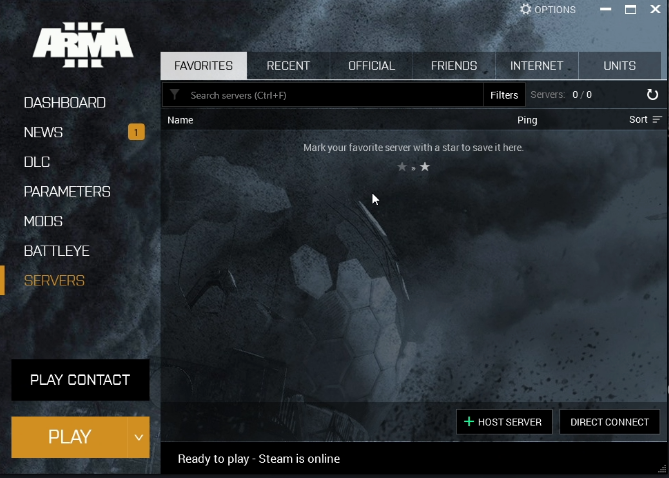
- Launch Arma 3 through Steam. This will open the Arma 3 Launcher first.
- Click the
Serverstab at the top of the Launcher. - Select the
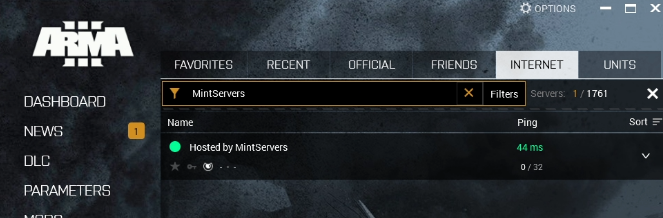
Internetsection to see the full public server list. - Type your server's name into the search bar to filter the list down.
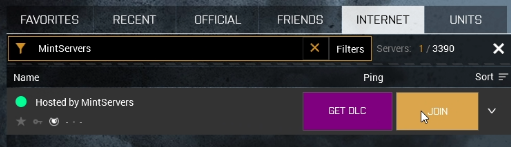
- Hover over your server in the results and click
Join.
💡 Pro Tip:
If your server has a lot of mods enabled, it can occasionally fail to appear in the Internet list due to a Steam query limit. If you can't find it by name, skip ahead to Direct Connect below instead.
Method 2: Direct Connect
Direct Connect skips the server list entirely and connects you straight to your server using its IP address and port. This is the fastest option, and the one you'll want to share with your friends.
- Launch Arma 3 through Steam to open the Arma 3 Launcher.
- Click the
Serverstab at the top of the Launcher. - Click
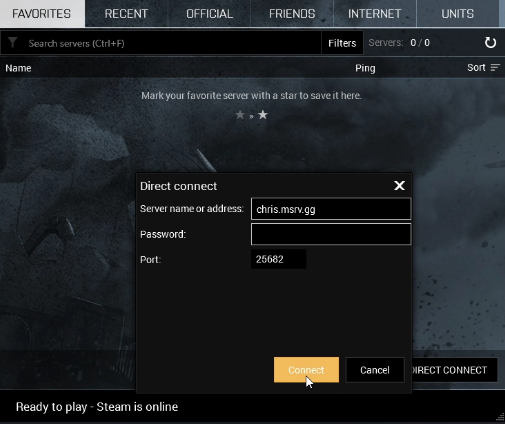
Direct Connectin the bottom-right corner. - Enter your server's IP address and port. You can find both on your MintServers panel.
- Click
Join.
⚠️ Important Warning:
Arma 3 needs 5 consecutive ports to run correctly, not just the one you connect with. If any of these are removed from your server's Network tab, your server will need to be reinstalled to reapply a full consecutive block, so avoid deleting extra port allocations on an Arma 3 server.
Troubleshooting
Server not showing in the Internet list:Double-check the spelling of your server name, or connect with Direct Connect instead while the list catches up.Kicked immediately after connecting:Your installed mods need to match your server's mod list exactly, including versions. Use the Launcher's Mods tab to sync up.Password rejected:Server passwords are case-sensitive, so make sure Caps Lock is off.Direct Connect fails:Confirm you're using your server's actual port from the MintServers panel rather than the default2302, since your assigned port may be different.
Once you're in, you're ready to play! If you're still having trouble getting connected, no worries! Just open a support ticket and our team will gladly jump in and help you get sorted out.